
Livestream equipment for a single-camera wedding ceremony is a short list, but every item on it is a possible point of failure. This guide walks the signal from the lens to the viewer’s screen, names what each link needs, and shows how to spend money where a broken link would actually cost you the broadcast.
A single-camera ceremony stream needs six things that work together: one camera with a clean video output, a stable support (tripod or stand), an audio feed that does not come from the camera’s built-in microphone alone, power for every device, a way to turn the picture into a stream (an encoder), and an uplink with headroom. Buy or borrow one spare for the cheapest link that would stop the show, test the whole chain at the venue, and write down what you will do if each link fails.
Most couples who add a livestream picture the camera and forget the chain behind it. The camera is the visible part of the livestream equipment. The cable that carries its picture, the battery that feeds it, the laptop that encodes it, the router that sends it and the account that publishes it are all quieter, and any one of them can end the broadcast while the ceremony carries on perfectly well in the room.
This article is about the equipment, in the order the signal travels. It is written for a ceremony with one camera and one operator, whether that operator is a hired videographer, a friend with experience, or a venue technician.
It does not try to cover multi-camera productions, a full reception broadcast, or a conversation about whether to stream at all. For the planning side of streaming, including who watches and what remote guests experience, the site has a separate guide to wedding day digital operations, and this article assumes you have already decided to go ahead.
A note on scope. This is general planning information, not legal, tax or financial advice, and it is not a substitute for a professional audio-visual quote. Prices, platform limits and radio rules change, so where a number or rule matters, the guide points you to the company or agency that publishes the current version.
What livestream equipment must do for a single-camera ceremony
A ceremony is a good case for modest livestream equipment because it is predictable. The action happens in a small area. The officiant, the couple and the readers mostly stay where they are. The length is known, often between fifteen and forty minutes. Nobody needs fast cuts, graphics or replays. The viewers want three things: to see the couple, to hear the vows clearly, and to be able to stay with the broadcast without wondering whether it has frozen.
Those three wants translate into four jobs for the equipment.
Hold one good picture. A single camera has to cover the couple, the officiant and the moment of the kiss without moving much. That means the right lens reach, a stable support, and an operator or an automatic mode that will not hunt for focus during the vows.
Carry the voices. The picture can be ordinary. The sound cannot. Remote guests forgive a slightly soft image far more readily than they forgive vows they cannot make out. The audio chain is therefore its own section of this guide, and it is where an extra hour of planning pays back the most.
Keep running for the whole event. A ceremony stream is judged on whether it stays up from the processional to the recessional. Power, cooling, cable strain and software updates matter more than resolution.
Reach the viewer without surprises. The stream has to leave the building, arrive at a platform, and play on whatever phone, tablet or laptop the guest happens to be holding. That is where uplink capacity, platform settings and privacy choices live.
What “single camera” does and does not mean
The term needs a plain definition before you price any livestream equipment. In livestream equipment terms, single camera means one angle at any moment. It does not mean one device in the system. A realistic list of livestream equipment still includes the camera, a tripod, at least one microphone feed, a mixer or recorder, an encoder, a laptop or hardware box, a network connection, power strips, spare batteries and a laptop or phone for monitoring. Counting honestly keeps the budget honest.
It also does not mean the stream is the only recording. Many videographers record a high-quality file on the camera’s card at the same time as they send the stream. That local recording is the version you will want to keep. The stream is a live copy that has been compressed to fit through the internet, and it may have gaps. Treat the card as the master and the stream as the broadcast.
How much livestream equipment is enough
A common mistake is to treat the livestream equipment list as a shopping goal rather than a risk answer. The right amount of livestream equipment is whatever lets one operator hold one picture, one clean audio feed and one stream for the length of the ceremony, with a named fix for each failure. Anything beyond that is a comfort purchase.
Three questions keep the list short. What would remote guests miss most if it vanished: the picture, the voices or the stream itself? Which single part of the livestream equipment has no replacement within sixty seconds? And which part do you already own or can borrow with confidence? The answers sort every item into buy, borrow, rent or skip, and the section on rehearsal returns to that sort.
Be wary of lists that treat every accessory as essential. A wedding livestream equipment bag grows quickly once a few gadgets are added, and each addition is another device to charge, label and carry. Add an item only if you can say which failure it prevents.
Where this guide stops
Three neighbors of this topic are left to other guides. Who may watch, passwords and replays belong with consent and privacy planning. The order of the ceremony itself belongs with the ceremony cue sheet. And the venue side, including power locations, load-in and Wi-Fi, belongs with the venue technical walkthrough. This article references each when it needs to, and otherwise stays with the gear.
The signal chain: five links from lens to viewer’s screen
Every livestream, from a church ceremony to a stadium broadcast, has the same shape. A signal is created, cleaned up, combined, converted, sent and played. For a single-camera ceremony, it helps to name five links and give each a single question.
Link one: capture. Light goes in through a lens and becomes a video signal. Sound goes in through one or more microphones and becomes an audio signal. Question: do we have a clean picture and clean voices at the source?
Link two: combine. The picture and the audio meet. Sometimes the camera does this by itself. Often a small mixer, a recorder or a capture device does it. Question: where do the voices join the picture, and is that point watched by a person?
Link three: encode. A computer or a hardware encoder compresses the combined signal into a stream the internet can carry. Question: what device is doing this, and does it have power, cooling and a backup?
Link four: uplink. The compressed stream leaves the venue over Wi-Fi, a wired network, a cellular connection or a combination. Question: is there enough steady upload capacity, and what is the second path?
Link five: platform and viewer. A platform such as a video service or a meeting tool receives the stream and delivers it to guests. Question: is the account ready, is the link private, and have we told guests how to watch?
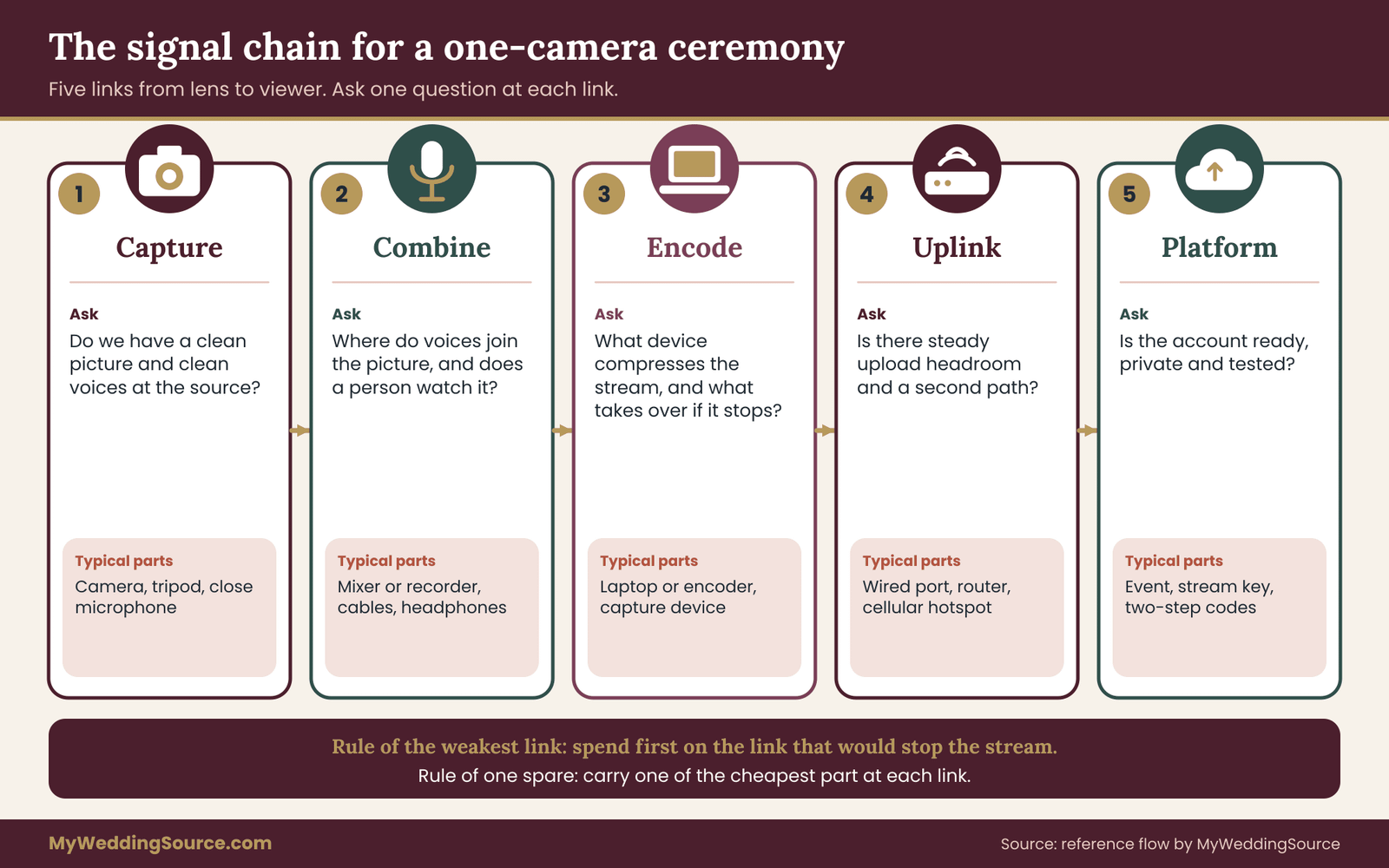
The picture above is the reference flow for the livestream equipment discussed in the rest of this guide. It is a design, not a record of a test. The next sections go link by link and give you the choices at each step.
Why the order matters for troubleshooting
Troubleshooting livestream equipment goes faster when you follow the same order as the signal. When a stream fails, people start with the part they understand. A guest says the picture froze, so the couple’s cousin restarts the camera, which makes things worse. Knowing the chain lets whoever is running the stream ask a better question: where did the signal last look fine?
If the operator’s monitor shows a good picture and meters moving, the problem is at link three, four or five. If the monitor is black, it is link one or two. That one distinction saves minutes, and minutes are all you have during a ceremony.
The rule of one spare, and the rule of the weakest link
Both rules apply to every piece of livestream equipment you list. Two rules run through everything that follows. The first is the weakest-link rule: the stream is only as dependable as its least dependable link, so spend on that link first. A very expensive camera behind a thin phone hotspot is a poor investment.
The second is the one-spare rule: for each link, identify the single cheapest part that would stop the broadcast if it failed, and carry one of that part. A spare cable, a spare battery, a spare adapter and a second microphone feed are inexpensive. A second camera usually is not.
A short vocabulary
A few terms come up repeatedly. A clean output is a video signal with no on-screen menus or overlays, usually over HDMI. A capture device converts that output into a signal a laptop can read over USB. An encoder is the software or hardware that compresses the signal for the internet.
Bitrate is how much data the stream uses each second, which determines how much upload capacity you need. A stream key is the secret code that lets your encoder publish to your account. Latency is the delay between the event and what the viewer sees, often several seconds to tens of seconds. None of these need deep technical knowledge; they just need to be named so that everyone on the team uses the same words.
Choosing the camera, the lens and the framing for your livestream equipment
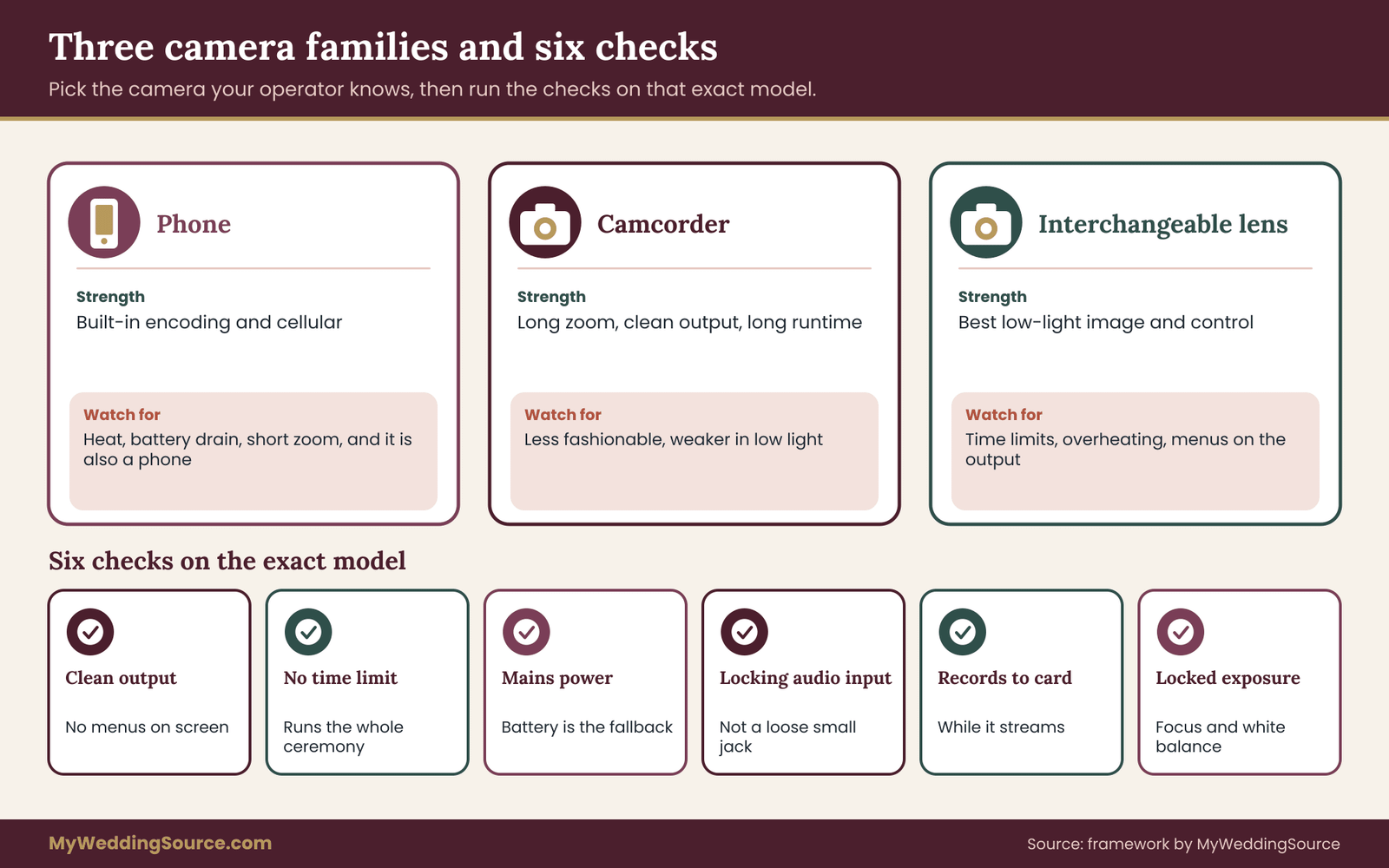
For a one-camera ceremony the camera has to do three things well: produce a clean output, run for a long time without stopping, and behave predictably under mixed light. Three families of camera cover most situations, and each has a role in a livestream equipment plan.
Phone, camcorder or interchangeable-lens camera
A modern smartphone is a capable streaming camera. It has a good sensor, a stabilizer, built-in encoding and its own cellular connection. That last point is a real strength: a phone can stream directly to a platform without a laptop.
The trade-offs are battery drain and heat during long sessions, limited zoom range without extra glass, a screen that is easy to bump, and the fact that the phone is also your phone. If it rings, buzzes or overheats, the stream suffers. As livestream equipment, a phone works best as a backup camera or as a deliberately simple primary for a short ceremony, mounted in a clamp, plugged into power and set to do not disturb.
A dedicated camcorder is built for this job. Camcorders typically have a long zoom, a built-in microphone input with proper connectors, a clean HDMI or SDI output, a battery that can run for hours and a body designed for continuous recording. They are less fashionable than mirrorless cameras, but for a single fixed ceremony angle they are often the most dependable choice because they are designed not to stop.
An interchangeable-lens camera, whether mirrorless or a DSLR, gives the best image in low light and the most control over depth of field. It also has more ways to go wrong in a livestream. Some models limit recording time, some overheat in continuous use, some show menus or focus boxes on the HDMI output unless set to clean output, and some need a dummy battery to run on mains power.
None of those problems is hard to solve, but each has to be checked on the specific model before the day. Ask the camera’s maker or your videographer about continuous output on the exact model, not about the model line in general.
What to check on any camera before choosing it
These checks apply to any camera you add to your livestream equipment. Rather than ranking models, check these points on the camera you already have or are about to hire. Does it send a clean output with no on-screen overlays? Does the output stay on for the whole length of the ceremony without a time limit or an overheating warning?
Can it be powered from the wall so that the battery is only a fallback? Does it have an audio input with a proper locking connector, or only a small headphone-style jack that can be knocked loose? Can it record to a card at the same time as it sends the output? Can focus and exposure be locked so they do not change at the key moment?
If the answer to any of those is no, write down the workaround next to the camera’s name in your plan. A workaround you have already tested is a minor detail. A workaround you discover during the processional is a problem.
Lens reach and the single-camera position
Lens choice is the one part of livestream equipment you cannot fix after you arrive. One camera at a fixed position forces a trade between the wide view and the close view. Decide in advance which matters more. A common choice for a ceremony is a position near the back or the side aisle with a zoom lens that can frame the couple and officiant from about the knees up, with enough range to widen for the processional and recessional.
Moving closer is not always allowed. Many venues and officiants restrict where a camera can stand, and some ceremonies leave only the back of the room for a tripod. The venue technical walkthrough is the place to settle this, and a short visit with a tape measure or a phone’s distance app is worth more than a lens purchase.
Think about the viewer’s experience with a locked camera. A tight shot of the couple at the front looks intimate but cuts out the officiant and any readers. A wide shot shows everything but may make faces small on a phone.
A middle framing, with the couple filling about half the height of the frame, tends to read well on small screens. If the ceremony includes a reader at a lectern or a family member who steps forward for a ritual, plan where they will stand relative to the frame, or accept that they will be heard and not seen.
Exposure, focus and white balance
Settings matter as much as livestream equipment when only one camera is running. Auto settings are tempting in a one-camera job because the operator may also be a guest. Auto exposure can shift as a bright dress crosses the frame or a door opens to daylight, and autofocus can drift toward an usher or a flower arrangement.
A compromise is to use automatic modes that favor faces if the camera has them, then lock exposure and white balance once the couple is in place for the vows. If the camera has a zebra pattern or a histogram, use it on a person standing in the couple’s position during the rehearsal. If the room has mixed light, such as warm pendants plus window light, set white balance manually rather than trusting auto.
The camera as a spare and a spare as a camera
Backup thinking is part of choosing livestream equipment, not an extra. You do not need a second camera to be safe. You do need an honest answer to the question: if this camera stopped, what would we show?
Options include a phone on a tripod at a different spot, set up as a fallback that can be switched on within a minute, or an agreement that the stream will cut to a still slide with audio only until the camera is restarted. A still image with live audio is a respectable fallback, and guests will tolerate it better than a black screen. ## Tripods, mounts and the stand that stays put
Support gear is the least glamorous livestream equipment on the list and one of the most useful. Livestream equipment that drifts, sags or gets nudged during the ceremony produces a picture that looks wrong even when the stream itself is perfect.
What a tripod must do in a ceremony
A tripod is the cheapest livestream equipment that can quietly ruin a picture. The support has to hold the camera level and still for the length of the ceremony, tolerate a bump from a guest, and be adjustable without a fuss. A fluid head, which allows smooth panning and tilting, is more forgiving than a basic photo head, but only if the operator will actually move the camera.
For a locked shot, a sturdy tripod with a locking head is enough. Check that the head’s weight rating comfortably exceeds the camera, lens, microphone and any monitor you plan to attach. A tripod rated right at the limit will creep under load.
Weight and footprint matter too. Spread legs are a trip hazard in an aisle, and many venues will tell you exactly where a tripod may stand and how far its legs may extend. Ask in advance, ideally during the walkthrough, and put the answer in writing. If the aisle is the only position, a monopod or a tall stand with a compact base may be a better fit than a wide tripod.
Mounting a phone or a small camera
If a phone is part of the plan, use a proper clamp rather than a flexible-leg gadget. The clamp should grip the phone’s edges firmly, include a standard tripod thread, and not block the charging port or the microphone. A cage or a case with cold-shoe mounts lets you add a microphone and a light. Test the grip by tilting the tripod head fully forward and back. If the phone shifts, replace the clamp.
Cable strain and the tape rule
Cables are livestream equipment too, and they take the most abuse. Every cable that leaves the camera is a lever. An HDMI cable that hangs unsupported from a small port can bend the connector, and some camera ports are fragile.
Use a strain relief such as a cage with a cable clamp, or tape a short loop of cable to the camera body or the tripod leg so that a tug on the floor does not transfer to the port. Run cables along the base of the tripod and tape them to the floor where guests walk, with gaffer tape that will not leave residue. Check with the venue about which tape it allows, because some surfaces are protected and some policies are strict.
The operator’s position
The person is part of the livestream equipment plan, so give them a place to work. Decide where the operator stands or sits. Even a locked camera needs a person nearby with a monitor, headphones and a way to fix a problem without crossing the aisle.
Place that person at the back or side where they will not block guests’ sightlines or appear in the couple’s photographs. If a guest is the operator, give them a seat with a small table or a stand for the laptop, and make sure they are not also expected to be in the family photo list. The ceremony is not the time to discover that the person running the stream has to leave for a reading.
Audio: the livestream equipment that decides whether remote guests stay
The audio side of livestream equipment deserves more attention than the camera because viewers judge a broadcast by sound first. A guest watching on a phone from another continent will accept a soft picture. They will not accept hearing wind, echo, a distant mumble and a coughing aunt instead of the vows.
Why the camera microphone is rarely enough
Judge any livestream equipment by what it does at the distance of the real room. A camera’s built-in microphone is placed to capture sound near the camera. At the back of a room, that means it captures the room’s ambient noise, the echo from the walls and the whispering of the guests, with the vows arriving faint and distant.
The farther the camera is from the speakers, the worse the ratio gets. The built-in microphone is useful as a safety track, since it records something on every file, and it is not a good primary source.
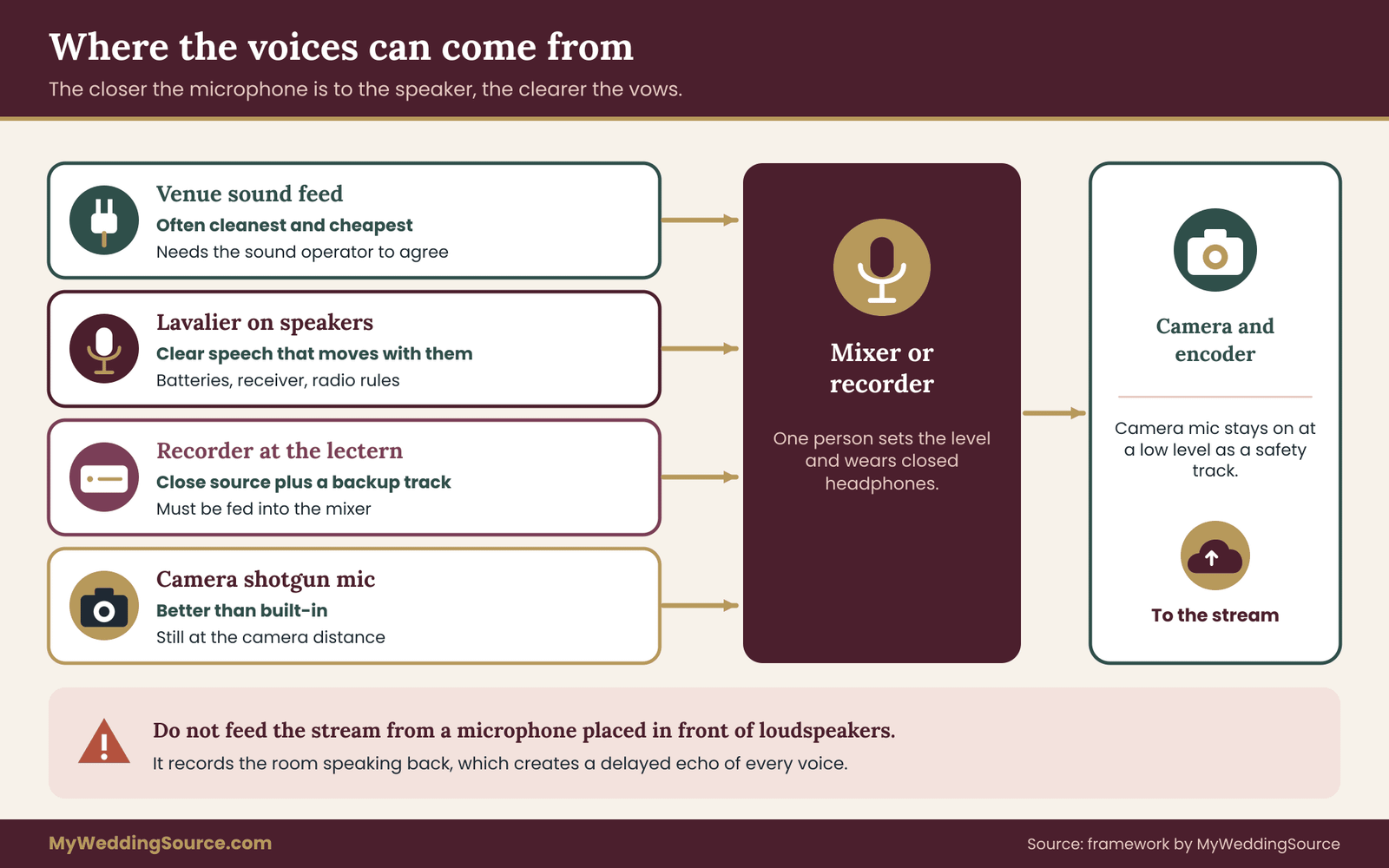
Better options put a microphone close to the voices. There are four common ways to do that.
Take a feed from the venue’s sound system. If the venue or the officiant already uses a microphone and a public-address system, a mixer or a direct output can send a copy of that audio to the stream. This is often the cleanest and cheapest route because the microphones are already on the right people. The catch is that the feed’s level, format and connector vary, and the person who operates the sound system may have to agree to it. Ask early.
Use a lavalier microphone on the officiant and the couple. A small clip-on microphone worn on a lapel, usually wireless, picks up speech clearly and moves with the speaker. It works well when no sound system is available. It needs batteries, a receiver, and a person to turn the microphones on and off.
Place a recorder or microphone near the action. A small portable audio recorder on or near the lectern or the arch gives a separate high-quality track. It can be streamed live if connected to the mixer or capture chain, and it doubles as an independent backup recording of the vows.
Use a shotgun microphone on the camera. A directional microphone mounted on the camera is a step up from the built-in one, but it still sits at the camera’s distance. It is a reasonable supplement, not a replacement for a close microphone.
Wireless audio and radio rules
Wireless livestream equipment brings radio rules with it. Wireless microphones use radio frequencies, and the rules about which frequencies are legal in the United States are published by the Federal Communications Commission. Some older wireless microphones operate in bands that are no longer permitted, and some venues in dense areas have radio congestion from other events.
Rental houses and experienced audio technicians are aware of these rules; a borrowed system from a friend or an old purchase may not be. Ask whoever supplies the microphones to confirm that the system is lawful and suited to the area, and check the FCC’s wireless microphone information if you plan to buy one yourself. Wireless systems also need fresh batteries, a clear line of sight to the receiver and a frequency scan at the venue before the ceremony.
Audio livestream equipment in one place
For a single-camera ceremony the audio list is short. You need one close source of speech (the venue’s feed, a lavalier or a recorder), a mixer or recorder that lets a person set the level, the right cables with spares, fresh batteries for every wireless pack, closed headphones for the operator and the camera’s own microphone as a safety track. That is the whole audio list of livestream equipment, and each part should have a named owner. If nobody owns the microphone batteries, nobody will change them.
Gain, meters and headphones
An audio feed has a level, called gain. Too low, and the voices are buried in noise. Too high, and loud moments distort in a way that cannot be undone. Most mixers and cameras show a meter, a bar that rises and falls with the sound. A good rule for the operator is to keep average speech comfortably in the middle of the meter, with the loudest moments peaking short of the top. Set the level during a rehearsal with someone speaking at the volume the officiant will use, and then leave it alone.
Headphones are not optional for the person running the stream. A meter shows that sound is arriving; headphones tell you whether it is the right sound. Wear them for the whole ceremony, closed-back if possible so they do not leak sound into the room.
One mix for the stream, a separate plan for the room
Livestream equipment that listens to loudspeakers can echo its own sound. Some ceremonies use loudspeakers in the room. If the camera’s microphone or a nearby microphone hears those speakers, the stream can pick up its own echo, producing a delayed double of the voices. Avoid this by feeding the stream from the source before the speakers, not from a microphone placed in front of them. If you must use a microphone in the room, place it close to the speaker’s mouth and far from the loudspeakers.
Music, readings and recorded content
Ceremonies often include recorded or live music. Streaming that music has rights implications that differ from playing it in a room. Platforms may mute or block streams that contain protected recordings, and a live musician’s performance of a composition may involve separate permissions. The U.S.
Copyright Office publishes general information on copyright, and platform policies describe what happens to streams with detected music. For the ceremony itself, the lowest-risk approach is live music performed by your musicians, original or public-domain works, or music for which you have a clear license. For the reception side of music choices, the guide to reception music planning covers the broader options. Ask each platform what happens to a stream that includes recorded songs, and decide in advance whether to mute that portion of the audio for the broadcast.
Capturing the voices of people who are not near a microphone
Readings by family members are a common weak point. A reader standing a few steps from the lectern’s microphone may be inaudible. Either place a microphone where each reader will stand, or ask the officiant to repeat the key lines. If a ceremony includes call-and-response or a congregation’s spoken part, accept that the stream will carry a murmur, and consider a second ambient microphone at a low level so remote guests feel the room. ## Power and cables: the quiet livestream equipment that fails first
When a livestream stops during a ceremony, the cause is rarely the expensive item. It is far more often a dead battery, a loose connector, a power strip that someone unplugged to charge a phone, or a laptop that went to sleep. This section treats power and cabling as livestream equipment in their own right, with their own checklist and spares.
Build a power budget on paper
Write the power budget before you pack any livestream equipment. List every device in the chain and how it is powered: camera, microphone receivers, mixer or recorder, capture device, laptop or encoder, network router or hotspot, monitor, any light. For each, write down whether it runs from a wall adapter, an internal battery, or both.
Then count the outlets you need and the distance from each device to the nearest outlet. The goal is to find out before the day whether you need an extension cord, a power strip with surge protection, or a larger battery pack.
The rule that keeps most setups safe is simple: anything that must run for the whole ceremony gets mains power, and its battery is the fallback. Anything that cannot be plugged in, such as a wireless microphone pack, gets fresh batteries installed before the ceremony and a spare set within reach.
Batteries and their limits
Every battery in your livestream equipment bag has a limit, and ceremonies test it. A camera battery that lasts through an hour of casual shooting may not last through a long ceremony with the screen on, the output active and a hot room. Treat the manufacturer’s runtime figure as optimistic.
Swap in a fresh battery before the processional, keep a second fully charged battery on the tripod bag, and label spent ones so they do not get mixed up. If the camera supports a dummy battery that connects to a wall adapter, use it for the main run and keep real batteries as a backup. Check on the exact camera model, because some dummy batteries are fragile and some cameras behave differently when powered externally.
Laptops are the other quiet drain. A laptop encoding video works its processor hard and drains its battery faster than ordinary use. Run it from its charger, and set power and sleep options so that it never sleeps, dims the screen to the point of locking, or installs updates during the ceremony. Turn off notifications and calendar pop-ups. Closing the lid can put the machine to sleep on some settings; leave it open, or confirm the lid-closed behavior in advance.
Surge protection, extension cords and the tape that holds them
Plug the critical devices into a power strip with surge protection, and plug the strip into a wall outlet that is not shared with large loads such as a heater, a coffee urn or a sound system amplifier. Ask the venue which outlets are on which circuits if you can. If the venue’s electrician or manager says an outlet is reserved or unreliable, believe them and move.
Run extension cords where people will not step, tape them down with a venue-approved tape, and mark any crossing point with a cable ramp if the aisle is busy. A tripped breaker is a failure of the chain, and a guest tripping on a cord is a safety problem that goes well beyond the stream.
Cable types and the ones to pack twice
A cable bag is livestream equipment worth organizing on purpose. The cables in a single-camera chain are few, and most are short. A video cable from camera to capture device, commonly HDMI, is the most failure-prone because its connectors are small and easy to bend.
An audio cable from mixer to camera or capture device may use balanced connectors with locking plugs or small stereo plugs. A USB cable from the capture device to the laptop must support the data speed the device needs, and not every cable that fits does. A network cable connects the laptop to the router, if the venue has a wired connection.
Pack a spare of every cable type, not just a spare of the long ones. Tag each cable with a label showing what it connects, so that a helper can replace one without guessing. Keep spare adapters in a small bag together: HDMI to the connector your capture device uses, a headphone-size to larger audio plug, a USB-C to USB-A adapter, a network adapter for a laptop without an Ethernet port.
Heat and ventilation
Heat is a hidden enemy of livestream equipment that runs for an hour or more. Cameras and laptops get warm in continuous use. A camera in a hot, sunlit space can overheat and stop.
Keep equipment out of direct sun, leave air space around laptop vents, and do not stack devices on top of one another. If the camera has a warning for temperature, learn what it looks like and what the manufacturer says about it. On the day, an operator who knows the warning signs can shade the camera, open the screen for airflow or switch to a spare before a shutdown.
The cable-and-power checklist, in prose
This is the part of the livestream equipment list that people skip. Before the ceremony, confirm that each device has mains power or a fresh battery, that the power strip is on and unobstructed, that no device is plugged into an outlet controlled by a switch that might be turned off, that every cable is seated and strain-relieved, that spares are in a labeled bag within arm’s reach, and that the laptop will not sleep or update.
That is a five-minute walk-through, and it prevents more failures than any piece of gear on the shopping list.
Encoding: software, hardware encoders and capture devices
Encoding is where the combined picture and sound become a stream, and it is the part of the livestream equipment most people never see. It is also where most of the technical choices appear, because there are several ways to do it. For a single-camera ceremony, the choices narrow to three.
Option one: the camera or phone is the livestream equipment
Some cameras and most phones can send a stream directly to a platform, using the camera’s own network connection or the phone’s cellular data. The setup is simple, because there is no laptop and fewer cables. The trade-offs are limited control over bitrate and audio, fewer options for a backup stream, and dependence on the device’s battery, heat management and connection.
It suits a short ceremony with a tolerant audience and a backup plan. It is a weaker choice when audio comes from an external mixer, since not every camera or phone handles clean external audio well.
Option two: a laptop with streaming software and a capture device
This is the most common arrangement for a ceremony with a hired videographer. The camera’s clean output goes into a capture device, which a laptop sees as a webcam. Streaming software on the laptop combines that video with an audio source, compresses the result and sends it to the platform.
Free, widely used streaming software such as OBS Studio keeps the livestream equipment affordable, and the project publishes documentation on settings and on recording locally while streaming. The strengths are flexibility, a visible monitor, easy local recording and the ability to add a title slide or a fallback image. The weaknesses are the laptop’s power and heat, software that can update or crash, and the need for an operator who understands it.
Option three: a dedicated hardware encoder
A hardware encoder is a small box built to take a video input and stream it. It does the job of the laptop without the distractions of an operating system. Some have screens and buttons, some are managed through a browser.
They are more expensive than software and often more reliable for long events, since they are purpose-built. They are worth considering if a videographer already owns one or if the ceremony is important enough to pay for the extra dependability. A hardware encoder is not a cure for a weak connection; it only removes one source of failure.
How to choose among the three
The aim is not the most capable livestream equipment. It is the livestream equipment your team can run calmly.
Use a simple decision rule. If the ceremony is short, the camera is a phone, and the venue has a good connection, option one may be enough. If a videographer is already on the team and wants a recorded master and a live stream together, option two is the usual answer.
If the cost of a failure is high, such as a ceremony whose remote guests are elderly relatives who cannot travel, and the team has access to a hardware encoder, option three reduces the number of ways the stream can fail. In every case, choose the encoding method the operator already knows. A familiar tool in the hands of an experienced person beats a better tool nobody has practiced.
Resolution, frame rate and bitrate
Settings decide how hard your livestream equipment has to work. A ceremony does not need the highest resolution the camera offers. A stream at a common high-definition size looks sharp on most screens and uses far less data than a larger one. Frame rate matters less than guests might expect; a standard rate used by the platform is fine.
Bitrate is the setting that most affects whether the stream holds up. A higher bitrate looks better and needs more upload capacity. Each platform publishes recommended ranges for its streams, and its help pages are the right source for the current numbers. Pick a setting within the recommended range and leave headroom, as the connection section below explains.
Audio settings that are easy to miss
Streaming software has its own audio controls. Check that the correct input is selected, that its level matches what the mixer sends, that the audio is stereo or mono as intended, and that any automatic noise reduction or gain control is switched off or deliberately chosen. Automatic gain can pump the room noise up during quiet moments, which is exactly when the vows happen. Many operators prefer to control the level themselves and leave the software processing off.
Local recording while streaming
Recording is a built-in safety feature of most livestream equipment. Set the software to record a file to the laptop’s drive while it streams, and confirm that the drive has enough free space for the full ceremony. Better, record on the camera’s card as well. Two local copies mean that a stream failure never becomes a failure of the keepsake. After the ceremony, copy the files to a second drive before anyone leaves the venue.
Capture devices and why USB is the narrow door
In a laptop-based chain, the capture device is the piece of livestream equipment that most often surprises people. A capture device is the link between the camera and the laptop. Cheap ones work well for a single standard stream, but they can overheat, drop frames on a weak USB port, or behave unpredictably with unusual camera output formats.
Plug the capture device into a port that is directly on the laptop rather than through a hub, use a cable of the type the maker supplies, and confirm that the camera’s output format matches what the capture device accepts. A short test on the day, with a few minutes of recording and a check of the file, catches most of these problems.
The encoder as a single point of failure
Of all the livestream equipment in the chain, the encoder has the fewest substitutes. Whatever you choose, the encoder is a single point of failure unless you plan around it. The simplest protection is a second device ready to take over: a laptop with the software already open and the camera’s output reachable by a second capture device, or a phone that can stream from a separate camera.
You will not always have the time to switch, so decide who makes the call and when. A reasonable rule is that if the stream has been down for more than about a minute and the operator cannot fix it, the backup starts without further discussion. ## Connectivity: the uplink your livestream equipment depends on
The best camera and the cleanest audio are useless if the stream cannot leave the building. Connectivity is the part of the livestream equipment list that you rent, borrow or inherit rather than buy, and it is the part you control least. That is the reason to inspect it first.
Upload speed is the number that matters
No livestream equipment can send more than the connection allows. Streaming sends data out, so the figure that matters is upload speed, not download. Venue connections and home plans are often advertised by download speed, and the upload side can be much slower.
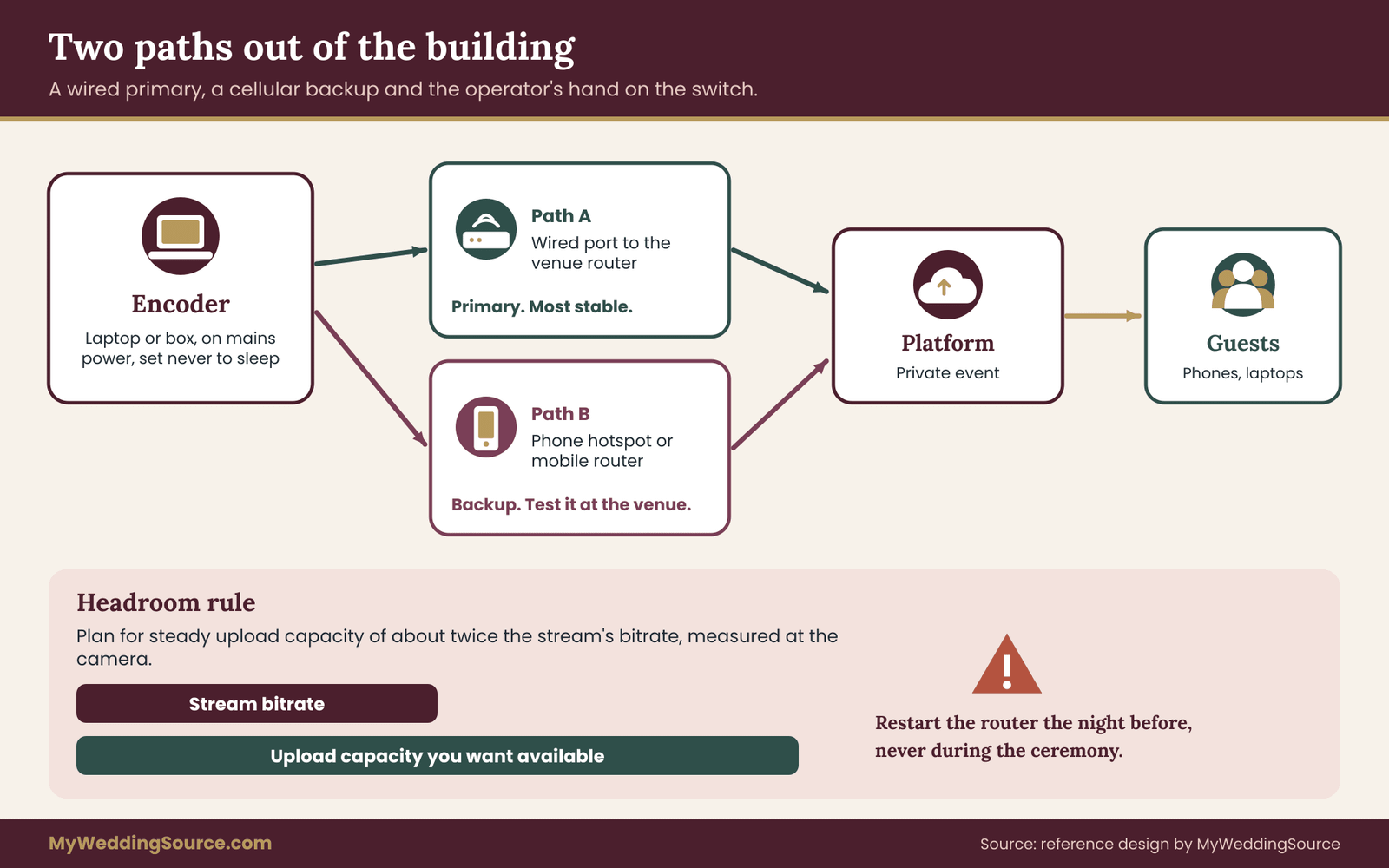
A stream uses a steady amount of upload capacity for its entire length, and any dip below that amount shows up as buffering or dropped quality for viewers. As a working rule, plan for an upload connection that offers at least twice the stream’s bitrate as steady, tested capacity. That margin absorbs the other users on the network and the normal wobble of any connection.
Backup communication and other day-of digital planning sit in the guide to digital operations on the wedding day. For this checklist, the point is that the number must be measured at the camera’s position and at the time of day when the ceremony will happen, not read from a brochure.
Wired beats wireless
For livestream equipment, a network cable from the encoder to the venue’s router or switch is more stable than Wi-Fi in nearly every case. Wi-Fi shares airtime with every phone in the room, and a ceremony is a room full of phones. If the venue offers a wired port near the camera position, use it, and pack a network cable long enough to reach plus a spare.
If the laptop has no network port, a small USB adapter solves that. If the venue has no wired option, ask whether a dedicated access point can be placed near the operator, or whether a separate network can be assigned to the stream.
Venue Wi-Fi: questions to ask in writing
Ask these questions before you commit to livestream equipment that relies on venue Wi-Fi. Many venues have guest Wi-Fi that is fine for email and weak for streaming. Ask these questions and keep the answers: Is the connection shared with guests and other events? Is there a dedicated or wired option for vendors? What is the measured upload speed at the ceremony location?
Does the network block streaming ports or require a login page? Who can reset it if it fails, and are they on site during the ceremony? Is there a data cap or throttling? A written answer from the venue contact turns a rumor into a plan, and it helps if you later need to point to a promise the venue made.
Cellular as a second path
A second path is the most useful addition to a small livestream equipment kit. A second internet path is the strongest single protection for a stream. Cellular data from a phone’s hotspot or a dedicated mobile router can serve as a backup if the venue connection fails.
Test it at the venue, since cellular signal inside thick-walled buildings can be poor, and check the plan’s terms on hotspot use, data limits and throttling after a certain amount of data. A stream uses a lot of data per hour, and a plan that slows down after a quota may fail precisely when you need it.
Some professional setups combine several cellular connections into one stream using a bonding device. That is a specialized product and is typically provided by a production company rather than bought for a single ceremony. If your videographer offers it, ask how it behaves when one connection fails and what the cost is, and compare it with a simpler pair of paths.
A simple two-path design
Here is the simplest design that protects livestream equipment against a connection failure. For a single-camera ceremony the design that offers the most protection for the least complexity is two independent paths feeding one encoder. The primary is a wired connection to the venue.
The secondary is a cellular hotspot, with the laptop set to switch to it manually. Manual switching is a feature, not a flaw: it means the operator decides, and the stream is not shifting unexpectedly. Write down the exact steps to change networks, such as where to click and which network name to choose, and put them on a card near the laptop.
Network devices and the reboot rule
If you bring your own router, treat it as part of the livestream equipment. Label it, plug it into surge protection, and note its default address and login so a helper can restart it. The reboot rule is worth stating plainly: a router that has been running for days may need a restart, but restarting it during the ceremony drops the stream for a minute or two. Restart it the night before or the morning of, never during.
Latency and the guest who sees it late
Streams are delayed. Viewers see the event several seconds to tens of seconds after it happens, depending on the platform and settings. For a ceremony this rarely matters, but it matters if the plan includes interaction with remote guests, such as a live toast, a spoken response or a chat that the couple reads aloud. Tell remote guests about the delay, and do not design moments that depend on their reaction arriving in real time.
The platform, the account and the privacy settings
The last link in the chain is the platform. Livestream equipment decisions made here are mostly settings and accounts, but they decide who can watch, whether the stream survives a rights check, and whether the recording ends up where you can find it.
Choosing a platform for a ceremony
The platform decides which livestream equipment settings apply. Common routes include a video-sharing service with a scheduled live event, a social network’s live feature, a meeting tool with a view-only link, and a dedicated private streaming service. Each differs in how it handles privacy, replay, the delay, and how guests join.
The choice between a meeting tool and a private streaming link is its own decision with different trade-offs. This guide only asks that you choose before you buy, because the platform sets the encoder’s stream destination, the maximum bitrate and the audio options. Platform help centers, such as those for YouTube, Facebook and Zoom, list the supported settings and the steps to create a scheduled event.
Create the event days ahead
Accounts are livestream equipment of a kind, and they need setup time. Create the live event or meeting well before the wedding. Some platforms require the account to be verified or in good standing for a period before live streaming is available, and enabling it can take a day or more. Do not discover this on the morning of the ceremony. Create the event, copy the stream destination and key into the encoder, run a private test and delete the test recording if you do not want it kept.
Stream keys and links are passwords
A stream key lets whoever holds it broadcast to your channel. Treat it like a password: do not text it in a group message, do not leave it visible on a screen the guests can see, and reset it if it is shared by mistake. The viewing link is a different secret.
Decide whether guests will need an invitation, a password or a unique link, and keep that policy consistent with what you told them in the invitation. The guide on photo and video consent covers how to talk with guests about being on camera and about replays.
Account security for the day
A stolen or locked account stops livestream equipment just as surely as a dead battery. Use a strong, unique password and turn on two-factor authentication for the account that will host the stream. The Cybersecurity and Infrastructure Security Agency publishes plain-language guidance on multi-factor authentication.
Make sure that the person running the stream can reach the account’s codes during the ceremony, since a prompt that goes to a phone at home can lock the operator out. Log in on the venue laptop beforehand, so that the platform does not ask for a new verification at the wrong moment.
Rights, muting and what the platform will do with music
Platforms scan for protected music. If a song is detected, the platform can mute the audio, block the stream or remove a replay. Rules differ by platform and change over time, so read the current policy before the day. Plan for the possibility by making the ceremony music live, original or licensed, and by deciding what happens if the audio drops. The U.S. Copyright Office is the primary source for how copyright works in general. It does not tell you how a particular platform will react, and only the platform can.
Captions and accessibility
Remote guests may be deaf or hard of hearing, may be watching in a noisy place, or may speak another language. Many platforms offer automatic captions that are imperfect but helpful, and some allow a person to type live captions.
If a guest has asked for captioning, plan for it in advance and test that it appears on the stream. The ADA’s information pages describe the general principles of effective communication, though they do not cover private wedding events in a specific way, and the practical point is that a few guests will benefit and none will mind.
Replays, downloads and who keeps the recording
Decide whether a replay will be available, for how long and to whom. Some platforms keep recordings indefinitely by default. Others delete them after a period. If you want a replay for guests who could not watch live, set a time limit and a privacy level and tell guests. Download the recording from the platform after the event as well as keeping your local file, because platform storage can change without much notice.
Honest claims about the livestream equipment you buy
If you buy or rent livestream equipment, be wary of claims that a product is the one you need. The Federal Trade Commission has general guidance about truthful advertising and reviews, and it is a reminder to read independent specifications and return policies rather than relying on testimonials. Ask rental companies for written terms on damage, late return, cancellation and what is included, such as cables, batteries and a backup unit. ## A worked case: one camera, one ceremony, forty remote guests
The following example is invented to show the reasoning. It is not a record of a real wedding or a real test, and the numbers are choices, not measurements. Use it as a template for your own livestream equipment decisions.
The situation
Imagine a couple holding a thirty-minute ceremony in a historic hall. About ninety guests will attend in person. About forty more, including grandparents who cannot travel, will watch remotely. The couple has hired a videographer for the day but has not asked for streaming, so the first question is who supplies the livestream equipment, and who is responsible when it fails.
The videographer owns one camcorder with a clean output and a laptop. The hall has guest Wi-Fi and one wired port in the back office, forty feet from where the camera would stand. The officiant uses a small wireless microphone connected to the hall’s speakers.
Step one: set the priorities
Priorities decide which livestream equipment gets the first dollar. The couple writes three priorities in order. First, the vows must be clear. Second, the stream should survive a short connection problem. Third, the picture should be good, but not at any cost. Ranking the priorities in advance makes later trade-offs fast. If the budget is tight, the audio and the backup path get funded before the camera upgrade.
Step two: choose the camera position and support
A walkthrough shows that the center aisle is for guests and the only permitted tripod position is the back wall, thirty feet from the arch. The camcorder’s long zoom can frame the couple and officiant from that distance. The videographer brings a sturdy tripod with a locking head, a second battery and a dummy battery for mains power. The tripod’s legs fit inside a roped-off square at the back, with the operator’s chair beside it.
Step three: solve the audio
Audio is where the couple spends their livestream equipment attention. The built-in microphone at thirty feet would capture the room, not the vows. The hall’s sound technician agrees to provide a line-level feed from the mixing desk, which carries the officiant’s microphone and a second microphone at the lectern.
The videographer brings a small mixer, takes the feed through a balanced cable, and sends a mixed signal to the camera’s audio input and to a capture device. A portable recorder, placed by the lectern, records a backup track. The camera’s own microphone is left on at a low level as a safety track.
Step four: pick the encoder and the network
The encoder and the network are the least visible livestream equipment in the example. The videographer’s laptop runs streaming software, takes the camera’s clean output through a capture device and receives audio from the mixer. The laptop is plugged in and set not to sleep.
The network is the wired port in the back office, reached by a forty-foot cable run along the wall under a cable ramp where guests might cross. A phone with a hotspot sits next to the laptop as the second path. The hotspot’s data plan is checked ahead of time, and the signal is tested at the camera position.
Step five: the platform
The couple chooses a private scheduled event on a video platform, with a link sent only to the forty invited remote guests. The event is created two weeks ahead and a private test is run a week before. Two-factor codes go to the videographer’s phone and the couple’s cousin, who sits near the operator. Captions are turned on for the stream. Replay is set to available for thirty days to guests with the link.
The single-point-of-failure ledger
Now the couple and the videographer build a ledger. They list each link in the chain, the part most likely to stop it, how they will notice, the spare and who acts. The ledger is the original framework this guide offers: one page that makes the one-spare rule concrete.
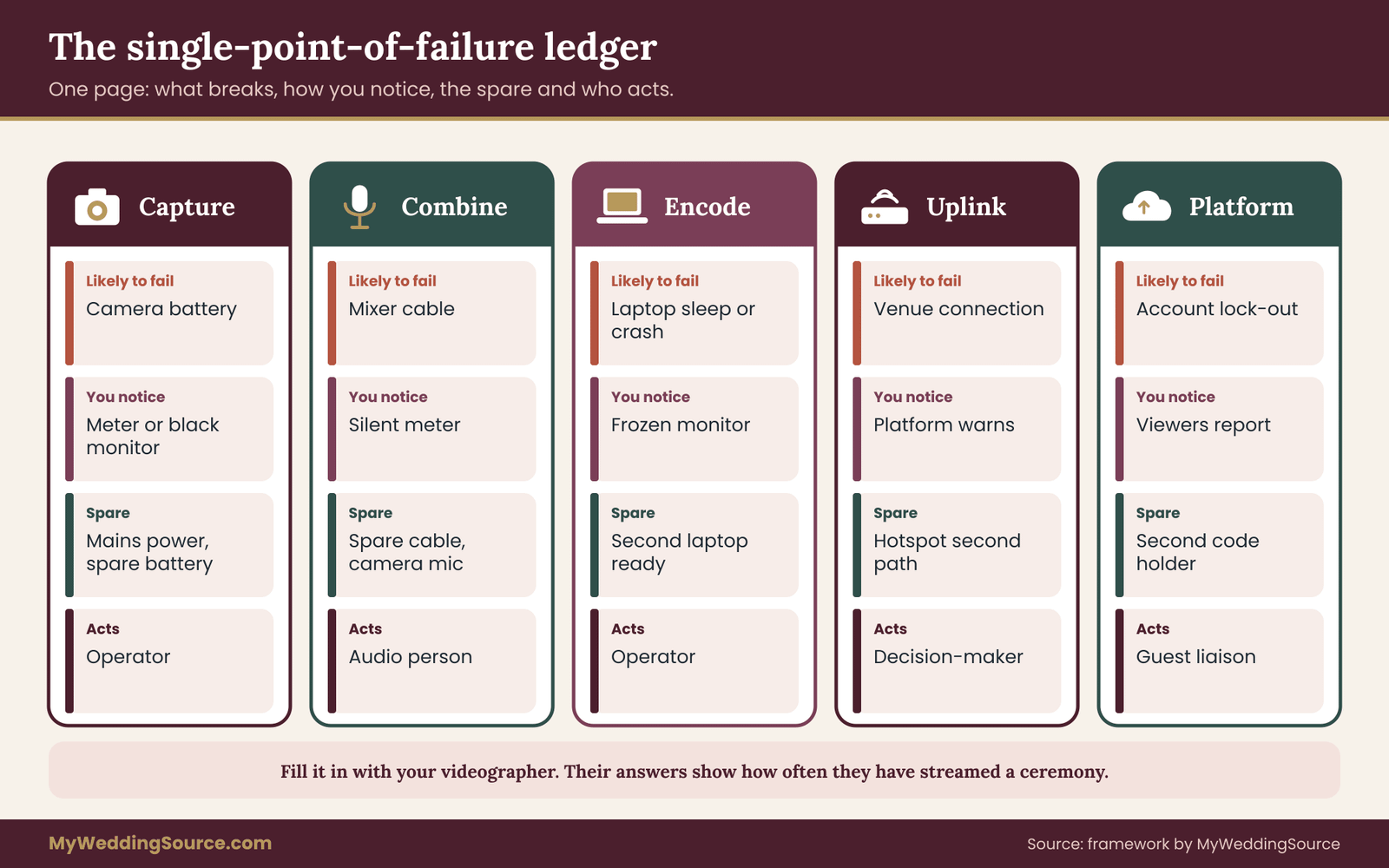
In this example, the ledger says the following in plain words. For capture, the camcorder’s battery is the likeliest failure, so it runs on mains with a spare battery in the bag, and the operator checks the battery meter before the processional. For combine, the mixer’s cable is the weak point, so a spare cable is taped inside the mixer bag and the camera’s own microphone is the safety track.
For encode, the laptop could sleep or crash, so a second laptop with the software installed stands ready, and the portable recorder and the camera card keep local copies. For uplink, the wired port is the primary and the hotspot is the second path; the operator changes networks if the stream stalls for a minute. For the platform, the account lock-out is the risk, so two people hold codes and a fallback is agreed: the couple’s cousin will post a message in the event chat and send a replacement link.
What the budget looks like in prose
The couple does not need to buy much livestream equipment. The videographer’s existing camcorder, tripod and laptop are included in the package. The extra costs are the mixer and cables if the videographer does not already own them, a rental of a second laptop or a spare capture device, and a data plan for the hotspot.
These are questions to ask the videographer in writing, along with whether streaming is included in the contract or billed separately. Nothing in the example requires a specific price; ask for a written quote and compare it with the cost of a spare for each link.
What the couple chose not to buy
It also helps to list the livestream equipment the couple decided against. They skipped a second camera, since the one angle was enough and a failure would be covered by the fallback slide. They skipped a cellular bonding unit, since the hotspot and wired path covered the risk at a lower cost. They skipped a large display, since the operator’s laptop screen was enough. Writing these down prevents arguments on the morning of the wedding, when someone suggests a late purchase.
Failure conditions: what to do when livestream equipment breaks
Plans fail in predictable ways. The best preparation is to name each failure, decide the first action and decide who acts. A one-page response card at the operator’s elbow turns a stressful moment into a routine.
Capture failures
Start with the front of the chain, where the livestream equipment meets the room. If the picture goes black on the operator’s monitor, check the camera first: battery, card, output setting and the cable. If a cable is the suspect, swap it for the spare.
If the camera has overheated, move it out of the sun and let it cool, and start the backup camera. If the focus hunts or the exposure shifts, switch to manual and lock. The viewer’s experience of a few seconds of soft focus is minor; a black screen is major, so act on black first.
Audio failures
If the meter drops to zero while the officiant is speaking, check the mixer’s power, the cable and the microphone’s battery. Many audio failures are a muted channel or a dead battery in a wireless pack. If the main feed fails, switch the camera’s built-in microphone to the stream at a higher level, accept a poorer sound, and keep the recorder running. Tell the officiant before the ceremony that if they are asked to repeat a line, it is because of the stream and nothing else.
Encoder failures
If the software freezes or the laptop restarts, the operator should restart the stream with the saved settings, which should be stored in a profile and not typed from memory. If the capture device is not recognized after a restart, unplug and replug it in a different port. If the laptop will not recover in about a minute, bring up the backup device. Keep the backup’s software open and tested so that it only needs the stream key.
Uplink failures
If viewers report buffering or the platform shows an unstable stream, check the connection from the operator’s laptop. If the wired path is down, switch to the hotspot, expecting a reconnect of a few seconds. If both are weak, lower the bitrate in the software to reduce the data demand; a softer picture is better than a stalled one. Know where that setting is, and decide in advance which lower value you will choose.
Platform failures
If the platform rejects the stream or the event shows an error, confirm that the key is correct and the event is live. If the account is locked, use the second person’s codes. If the platform blocks the stream because of music, mute the music portion or switch to audio the platform will accept. If the platform itself has an outage, which is rare but possible, announce on the guest messaging channel that a replay will follow and publish the recording from the local files as soon as possible.
Human failures
People operate the livestream equipment, so people are part of the failure list. People are the most variable part of the chain. The operator may be pulled into a photo, a helper may unplug a cord for a phone charger, a guest may step in front of the camera.
Reduce these risks by assigning one person, with one backup person, to each of the roles: operator, audio, communication with guests and decision on switching to the backup. Tape a short sign to the power strip that asks people not to unplug it. Tell the ushers where the camera is and ask them to keep the aisle clear.
The decision rule for when to give up
Some failures cannot be fixed in time. Agree in advance on the point at which the team stops trying to restore the live stream and switches to the recording and replay promise. A reasonable rule is that if the stream has been down for more than a few minutes and the cause is not understood, the operator stops troubleshooting and focuses on making sure the local recording is intact.
A message to remote guests, prepared in advance, says that the stream has had a problem and that a recording will be sent. The ceremony is the point of the day, and a calm message serves guests better than a visible scramble.
{{INFOGRAPHIC:3}} ## Rehearsing the livestream equipment: timeline, test and packing
A rehearsal turns a list into a skill. It does not need to be long, and it should happen at the venue with the same devices, cables and network that will be used on the day. If the venue cannot allow a full run, schedule a shorter test at the camera position and do the rest at home.
The timeline that keeps the livestream equipment honest
Think in four time blocks. Two weeks out, the platform event is created, the account is secured, the gear list is confirmed and the venue’s written answers about power and connectivity are in hand. One week out, a private test stream runs on the real platform with the real encoder, and the recording is reviewed for audio and picture.
The day before, the batteries are charged, the cables are labeled and packed, the software is updated and then left alone, and the response card is printed. On the day, the team arrives early enough to set up without rushing, usually at least ninety minutes before the ceremony, and runs a final test with the officiant’s microphone.

What to test on the day
The day-of test proves that all the livestream equipment works together. Run the full chain for about ten minutes before guests are seated. Watch the picture on the stream itself, not just on the camera screen, using a second device such as a phone, ideally one on a different network, so you see what viewers see. Check that the audio from the officiant’s microphone and from the lectern reaches the stream.
Check the delay by clapping once and watching when it appears. Confirm that the local recording is running and that the file grows. Switch to the hotspot and back, to prove that the second path works. Then reset the stream to its starting state and stop.
The test script, in words
A short script keeps the test from drifting. Ask the officiant or a helper to stand at the lectern and speak for a minute at the volume the ceremony will use, including a pause and a quiet line. Ask a second helper to walk down the aisle to check the framing.
Have the operator watch the meters and the monitor while a third person on a separate device describes what they hear and see. Write down any problem and its fix. If a fix is not obvious, do not leave the test until it is solved or until you have recorded a workaround.
Buy, borrow or rent your livestream equipment
Sorting each item into buy, borrow, rent or skip is where the ledger turns into a budget. Buy the small things you will reuse and that are cheap to replace: cables, adapters, batteries, tape and a power strip.
Borrow carefully: a friend’s tripod is fine, but a friend’s only laptop on the day is a risk, because they may need it. Rent the specialized livestream equipment that you will use once, such as a wireless microphone system or a hardware encoder, and ask the rental company for written terms on damage, late return and what happens if a unit fails on the day.
Hiring a professional changes the sorting. A videographer or an audio-visual company already owns the camera, the tripod, the mixer and often the encoder. The contract question becomes which livestream equipment is included, which is extra, who supplies the spares, and what happens if their equipment fails.
Ask for those answers in writing, and ask whether the stream is covered by the same insurance and liability terms as the rest of the work. A professional who has streamed a ceremony before will usually answer without hesitation; one who has not may be learning on your day.
Do not let a low quote hide a thin list. A package that includes a camera and a laptop but no spare cable, no second network path and no backup recording is cheaper because it carries more risk. Compare quotes by the ledger, not by the total.
Common mistakes with livestream equipment
Several mistakes appear again and again in ceremony streams, and none needs special skill to avoid.
The first is testing at home and not at the venue. The laptop, the camera and the encoder may all work at home, and the venue’s network, power and light are different. The second is trusting the camera’s microphone. The third is running the livestream equipment on batteries when a wall outlet was ten feet away. The fourth is forgetting that the platform account, not just the hardware, can fail: a locked account, an unverified channel or a missing code stops the show as completely as a dead camera.
The fifth is leaving the operator with too many jobs. One person who also answers guests, adjusts the microphone and watches the clock will miss the one problem that matters. The sixth is changing something on the morning of the ceremony. A software update, a new cable or a different microphone position, introduced without a test, is the most common source of a surprise. Freeze the livestream equipment list the evening before and change it only to replace something that has failed.
Roles on the day
Assign four roles by name. The operator runs the encoder and the camera. The audio person watches the meters, the microphones and the batteries.
The guest liaison monitors the remote guests’ messages and answers questions in the chat or by text, so the operator does not have to. The decision-maker, often the couple’s planner or a trusted friend, decides when to switch to the backup or to give up on the stream. In a small team one person may hold two roles, but the operator should never also be the liaison, since the person running the stream cannot answer a guest message at the same moment as a failure.
Packing the kit
Pack the livestream equipment by link, not by size. Organize the kit into labeled bags: a camera bag with batteries, cards and cleaning cloth; an audio bag with microphones, batteries, cables and headphones; a power bag with strips, extension cords, adapters and tape; a network bag with the router or hotspot, cables and adapters; and a paper bag with printed cards, the contact list and the venue’s written answers.
Keep the bags together at the operator’s position and keep the paper bag on top. After the ceremony, pack in the same order so nothing is left behind.
What to print
Paper is livestream equipment that never loses power. Print four short items: the signal chain with each link and its spare, the response card for each failure, the steps for switching networks, and a contact list for the venue’s technical person, the officiant, the platform’s help page and the couple’s planner. Do not rely on a phone or laptop to show these, because a failure may take them away. The contact list does not need an email address; names and phone numbers suffice.
After the ceremony
The livestream equipment still has one job left after the ceremony ends. The stream ending is not the end of the job. Stop the recording on every device, check that each file opens, and copy the files to at least two places before the team leaves. Download the platform recording if it is available.
Decide who keeps the originals and who gets copies. Then thank the team and note what to fix next time. The records guide on the site covers how to keep the files organized after the event, and the ledger from this article is a useful note to keep with them.
Your next steps
Start with the ledger. Draw the five links and, for each one, write the part most likely to fail, the spare, the person who acts and the first action. That page will show you what to buy, borrow or ask for. Then walk through these steps in order.
- Decide the platform and create the event, so the encoder’s destination and limits are known.
- Ask the venue, in writing, about power outlets, wired network, upload speed and where the camera may stand.
- Choose the camera and support that meet the clean-output, runtime and mains-power checks.
- Decide the audio source: the venue’s system, a close microphone, or both, and confirm who operates it.
- Choose the encoding method your operator already knows, and arrange a backup device.
- Plan the two paths: a wired primary and a cellular secondary, and test both at the venue.
- Print the response card and the contact list, name the four roles and schedule a rehearsal.
If you hire a videographer or a rental company, send them the ledger and ask them to correct it. A short exchange about the ledger will show quickly whether they have done single-camera livestreams before. The related guides on venue technical walkthroughs and the ceremony cue sheet will help you gather the details the equipment plan needs, and a vendor contract that names the streaming deliverables protects both sides.
FAQ
What livestream equipment do I need for a basic wedding ceremony stream?
At minimum you need a camera with a clean output, a support such as a tripod, a way to get voice audio from a microphone near the speakers, power for each device, an encoder such as a laptop with streaming software, and a network connection with spare capacity. Add a second internet path and one spare of the cheapest critical part. A phone can handle several of these roles for a short, simple ceremony.
Can I use just my phone as the camera and encoder?
Yes, for a short ceremony with a good connection and a tolerant audience. Mount it in a clamp on a tripod, plug it into power, switch on do not disturb and test for heat. The main weaknesses are a weak built-in microphone at distance and dependence on a single device. Add an external audio source and keep a second device ready as a fallback.
Is the camera’s built-in microphone good enough?
Rarely, if the camera is at the back of the room. It captures room noise and echo more than the vows. A feed from the venue’s sound system, a lavalier on the officiant or a recorder placed near the lectern gives clearer speech. Keep the built-in microphone running at a low level as a safety track.
How much upload speed does a ceremony stream need?
Check the platform’s help page for its recommended bitrate, then plan for steady upload capacity of about twice that number, measured at the camera position at the time of the ceremony. Download speed is not the figure to use. A wired connection is more stable than Wi-Fi, and a cellular hotspot makes a useful second path.
Do I need a second camera?
Usually not. A single locked angle covers a ceremony well. A second camera adds cost and complexity. A better use of money is a backup for the weakest link, such as a spare battery, a spare cable, a second path to the internet, or a phone on a separate tripod that can be switched on in a minute.
Will music in the ceremony cause problems on the stream?
It can. Platforms scan for protected recordings and may mute audio, block a stream or remove a replay. Live music by your performers, original or public-domain works, or music with a clear license lowers the risk. Read the platform’s current policy, check the U.S. Copyright Office for general copyright information and decide in advance whether to mute that portion.
What should I do if the stream drops during the ceremony?
Follow the response card. Check the operator’s monitor to see which link failed. Swap a cable, restart the encoder profile or switch to the second network. If the stream is down more than a couple of minutes and the cause is unclear, stop troubleshooting, protect the local recording and send guests a prepared message promising a replay.
Should I keep the recording, and where?
Yes. Record a file on the camera card and on the encoder at the same time as the stream, then copy both to two separate drives before leaving the venue. Download the platform’s replay if available. The local file is the master, and the stream is only a compressed live copy that may have gaps.
Sources
- U.S. Copyright Office: general information on copyright and music
- Federal Trade Commission: truthful advertising and consumer protection guidance
- Federal Communications Commission: wireless microphone and radio frequency rules
- YouTube Help: live streaming settings and recommended encoder ranges
- Facebook Help Center: live video settings and music rules
- Zoom Support: webinar and meeting streaming guidance
- OBS Project: streaming software documentation and local recording
- Cybersecurity and Infrastructure Security Agency: multi-factor authentication guidance
- ADA.gov: effective communication and accessibility information