A shared calendar gives your wedding vendors one place to see the date, the time and the address, and one wrong click can put a photographer at the right venue two hours early or an hour late. This guide shows how to set permissions on a shared calendar so that almost nobody can change the facts, and how to correct a wrong edit quickly when someone does.
Keep one master shared calendar that only you, and at most one trusted coordinator, can edit. Give every vendor view-only access, or a view-only published copy, and route every change request through a written message that you confirm before anyone edits an event. Write each event with the same fixed fields: start, end, time zone, address and one phone contact. When a wrong date or time appears anyway, freeze edits, check the signed contract and the latest run-of-show, correct the master, notify every affected vendor by a second channel and log what changed.
Most wedding timelines live in somebody’s calendar now. A couple adds the ceremony, a planner adds the vendor arrival times, the caterer adds a tasting, the florist adds a delivery window, and a month later nobody is sure which entry is the real one. The tools are not the problem. Google Calendar, Outlook and Apple Calendar all work well. The trouble is that a shared calendar mixes two jobs that need different rules: showing information to many people, and changing information that one person is responsible for.
When those two jobs are separated, a shared calendar becomes one of the calmest tools in a wedding. When they are mixed, you get the version of the day where the DJ’s phone says load-in is at 3:00 PM because someone nudged an event during a scroll, the venue manager sees the old time, and the couple find out at 2:45 on the wedding day.
This article is about the permission side of that problem. It explains what each access level actually lets a person do, how to build a role map that fits a real wedding team, how to write events so that errors are easy to spot, and what to do in the first hour after a wrong-date or wrong-time edit is found. It also covers privacy, because a shared calendar often carries guest names, phone numbers and a home address that you would rather not hand to everyone who ever touched the wedding.
A note on scope. This is general information, not legal or financial advice, and the screens and setting names in calendar apps change, so confirm each setting in the app you actually use and ask your vendors what systems they rely on. If your wedding already has a wider digital backup routine, the guide to a wedding day digital contingency plan covers backup communication, files and permissions across the whole day; this article goes deeper on the calendar alone.
A shared calendar is a calendar that more than one person can see, and in some setups more than one person can change. For a wedding, it usually carries four kinds of entries: fixed commitments (the ceremony and reception), vendor logistics (arrival, setup, load-in, breakdown), deadlines (final headcount, final payments, proofs) and appointments (tastings, fittings, walkthroughs).
It helps to be clear about what it is good at. A shared calendar is good at showing the same time to everyone, adjusting for each person’s time zone, sending reminders and keeping a visible history of what is scheduled. A phone alert at the right hour is worth a lot on a day when forty small things happen close together.
It is not good at everything. It is a weak place to store contracts, a weak place for long discussion, and a weak source of truth on its own. A calendar entry says “Photographer arrives 1:30 PM.” It does not say that the contract promised eight hours of coverage starting at 2:00 PM, that the venue only lets vendors enter after 1:00 PM, or that the couple asked for a getting-ready hour of detail shots. If the calendar and the contract disagree, the contract and the latest signed or confirmed run-of-show decide, and the calendar is corrected to match.
That ordering is the foundation of everything else here. The shared calendar is a display of decisions made elsewhere. It should never be the place where a decision is quietly made by someone’s drag-and-drop.
Who actually uses it
Think of the people who touch a wedding shared calendar in three groups.
The first group makes decisions: the couple, and sometimes a planner or a parent who is paying. The second group carries out decisions on a schedule: the day-of coordinator, the venue manager, the caterer, the photographer, the DJ or band, the florist, the rental company, the transport company and the officiant. The third group only needs reassurance that the plan exists: bridal party members, family helpers, and sometimes a few close relatives who are hosting a dinner.
The first group may need edit rights. The second group needs to see accurate times and, ideally, nothing else. The third group usually needs a printed or texted summary and does not need the calendar at all. Most permission problems come from treating all three groups as one.
What goes wrong when everyone is an editor
When everyone is an editor, every person’s phone is a possible source of error. A vendor adjusts the end time of a load-in block because it conflicts with another client of theirs, thinking it only changes their own view. A relative accepts an invitation and drags the entry to see if it fits. A well-meaning planner assistant fixes a “typo” in a date that was correct. A sync glitch duplicates an event and someone deletes the wrong copy.
Each of these is small. The cost comes from the delay: the change is rarely noticed when it happens, and the person who made it often does not remember it. By the time somebody spots the mismatch, three vendors have planned around the wrong version.
How wrong-date and wrong-time edits actually happen
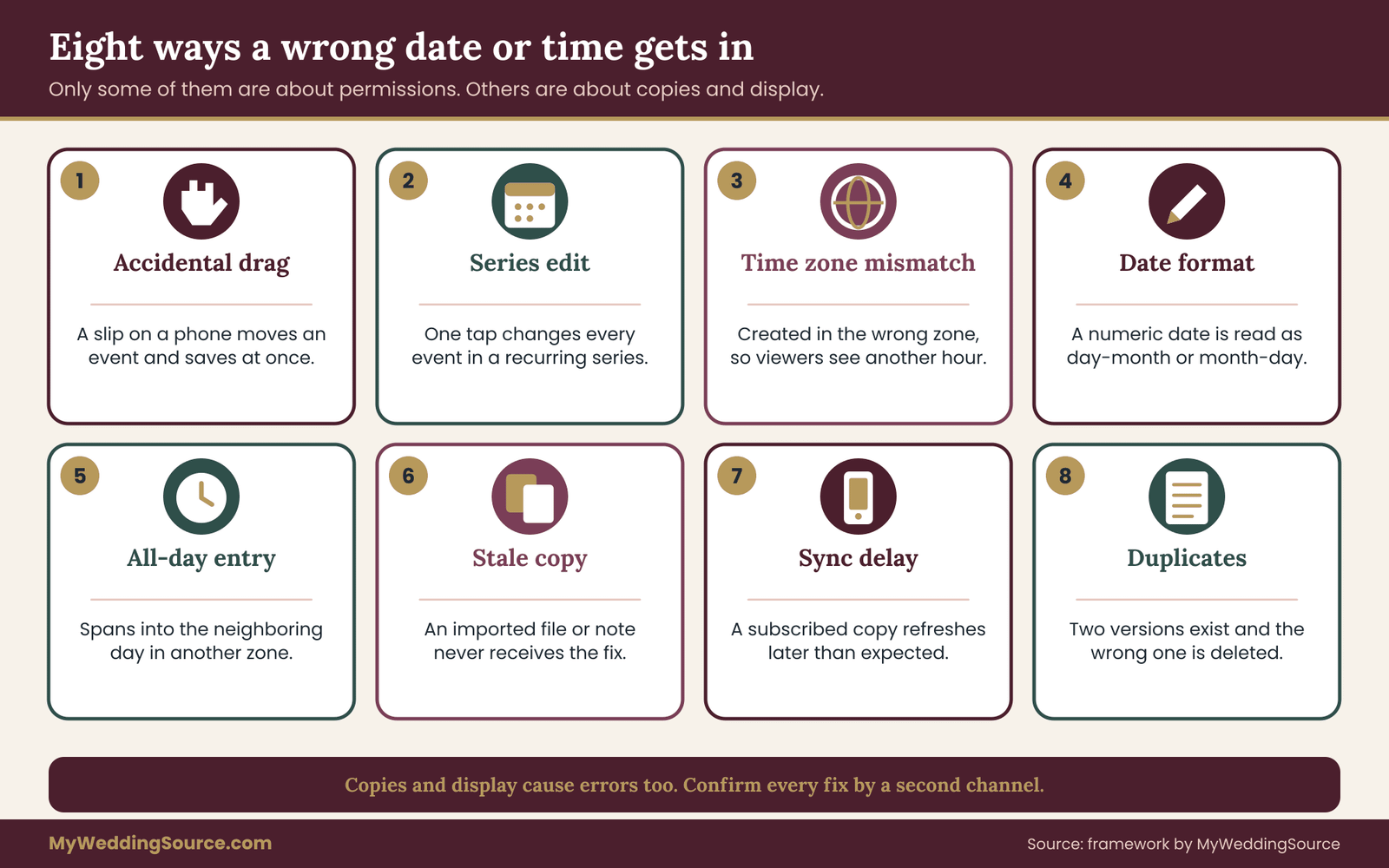
Understanding the causes makes the controls easier to choose. Almost every wrong-date or wrong-time problem on a wedding shared calendar falls into one of eight patterns.
Accidental drag or resize. On a phone or in a week view, an event is easy to move by a half hour or a whole day with a slip of the finger. The app saves it immediately. Nobody is notified unless notifications for changes are turned on and the editor also invites others.
Edit applied to the whole series. If a recurring event is used for something like a “vendor check-in” every Friday, changing one occurrence can change all of them if the editor picks the wrong option. Weddings rarely need recurring events, and the habit causes trouble.
Time zone mismatch. An event is created while the creator’s device is set to a different time zone, such as during travel, or the event itself is set to a time zone other than the venue’s. The event looks correct to its creator and shows a different hour to everybody else.
Date format confusion. Someone types “5/6” meaning June 5 in one convention and May 6 in another, particularly with a vendor or relative who works in a different country. This is rare in the United States but common in international wedding teams.
All-day versus timed entries. An all-day entry for “Wedding” on a Saturday can display as spanning the previous evening in a different time zone, and a timed entry that crosses midnight can show up on two dates.
Stale copies. A vendor exports the shared calendar or imports an event file at one point in time. Later changes never reach their copy. This is not an edit at all, yet it produces the same result: a vendor acting on the old time.
Sync delay. Some calendar subscriptions and shared copies refresh on a schedule set by the app, not instantly. A correction made at noon may not appear on a vendor’s subscribed copy for a while, and the delay varies by service. Check the behavior of your own tools instead of assuming it is immediate.
Duplicate and orphaned events. When two people add the same event, two versions with slightly different details exist. Someone later “cleans up” by deleting the wrong one, or edits one and leaves the other untouched.
None of these patterns needs bad intent. They need only many hands and no clear rule about who is allowed to change what. Notice also that two of the eight, stale copies and sync delay, are not about permissions at all. They are why the correction process later in this guide always ends with confirming by a second channel, not just fixing the entry.
Three questions that sort the risk
When you review your own wedding shared calendar, three questions sort most of the risk quickly.
Who can change an event today? Open the sharing settings and read the list of people and their access level, not what you remember granting.
Would anyone be notified if an event changed? If not, a quiet error can sit for weeks.
Which copy do vendors actually look at? Some use the shared calendar directly, some use an emailed invitation, some copy times into their own scheduling software, and some rely on a printed sheet. Ask them. The answer decides where an error will do damage.
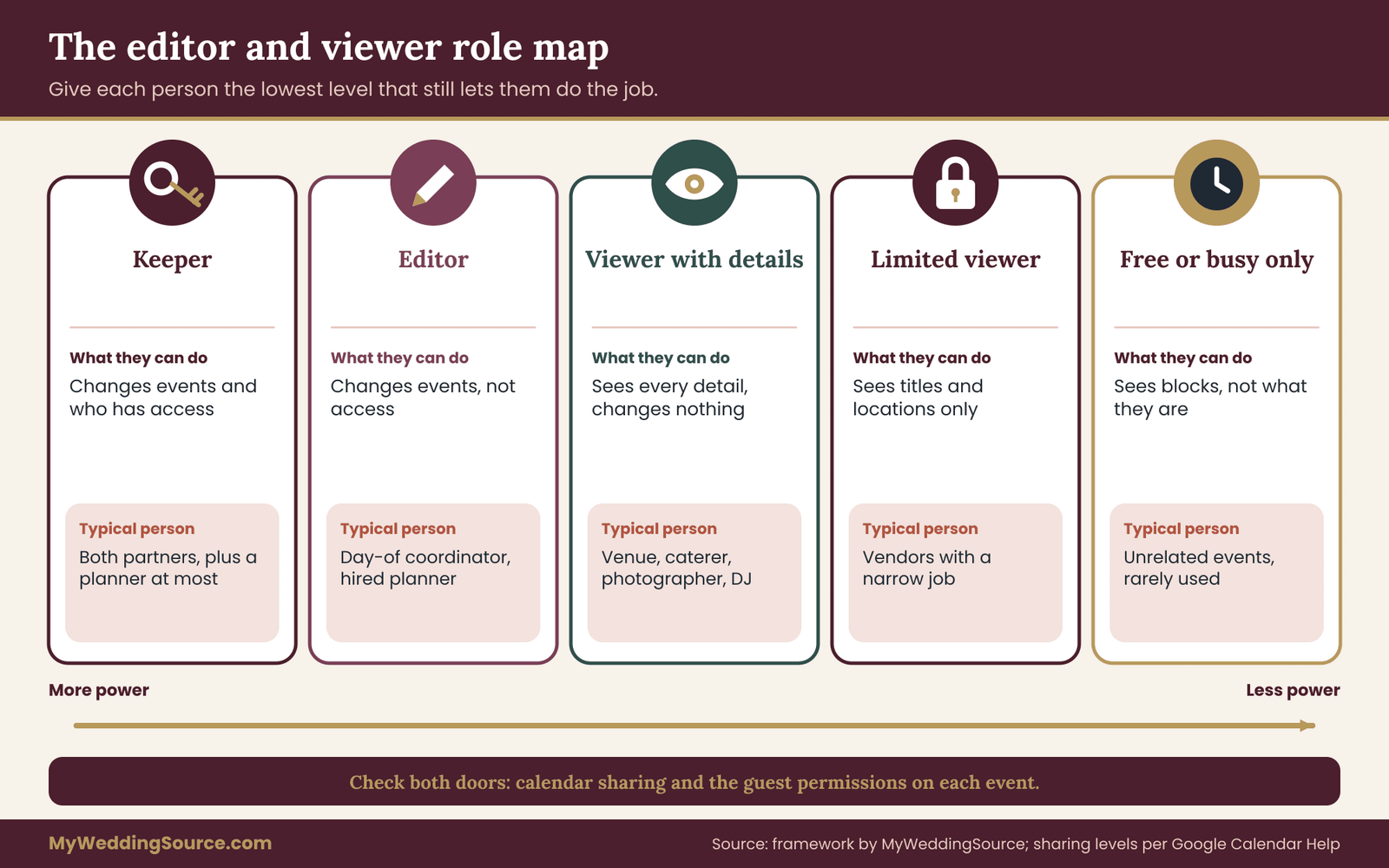
The core of this guide is a role map: a short written list that says, for each person on your team, what they can do in the shared calendar and why. Writing it down takes twenty minutes and removes most of the guesswork later. The role map has five levels. Different apps use different labels, so the map below uses plain descriptions and then shows how to match them to the labels in your app.
The five levels
Keeper. Can change events and can change who has access. Give this to the two partners, and nobody else. If a planner is hired and takes over the scheduling, the planner can be a second keeper, but two partners plus a planner is the practical maximum. Each extra keeper is one more person who can quietly remove a vendor or grant access to a stranger.
Editor. Can change events but cannot change who has access. Give this sparingly: a day-of coordinator in the final week, or a planner whose contract includes running the schedule. An editor should be someone who is accountable for the schedule and who will tell you what they changed.
Viewer with details. Can see every detail of every event but cannot change anything. This is the right default for vendors who need the full picture, such as the venue manager, the caterer and the photographer.
Viewer with limited details. Can see titles and locations, or only the parts of the calendar that concern them. This fits vendors who do not need the whole timeline, and it fits anyone you are not sure about.
Free or busy only. Can see that a time block is occupied but not what it is. This level is rarely useful for wedding vendors, though it fits a relative who is only coordinating an unrelated event the same weekend.
Most weddings need only three kinds of people in the first two rows: the partners as keepers, one coordinator as editor if that role exists, and everyone else as viewers. If you find yourself wanting to make more than three people editors, that is usually a sign that you need a better change request process, not more editors. The process is covered in the correction section below.
Matching the map to your app
Google Calendar offers four sharing levels for a person or group: see only free or busy, see all event details, make changes to events, and make changes and manage sharing. Those line up with free or busy only, viewer with details, editor and keeper. Limited-details viewing is not a standard Google level, so if you want vendors to see only part of the schedule, you create a separate calendar for them, which the next section explains.
Microsoft Outlook offers a similar ladder with labels along the lines of can view when I am busy, can view titles and locations, can view all details, can edit and delegate. Apple’s iCloud calendars can be shared with a person as view only or view and edit, and a calendar can also be published as a public read-only link, which carries privacy risks discussed later.
Because labels and menu locations change, treat the names above as a guide and confirm in your own app. What matters is the idea behind each level, not the exact words.
Guest permissions on individual events
There is a second layer of permissions that people often miss. In some calendar apps, when you create an event and invite people, the event itself has guest permissions: whether guests can modify the event, invite others, or see the guest list. In Google Calendar these are three separate settings on each event. For a wedding, turn off “modify event” and “invite others” on every event, and keep the guest list hidden unless there is a reason to show it.
This matters because an invitation is a different path from calendar sharing. A vendor who sees the calendar as a viewer cannot edit it. The same vendor, invited to an individual event with modify rights switched on, can. Treat invitations and shared calendar access as two doors, and check both.
Why view-only is the default
A vendor almost never needs to edit your master calendar. What a vendor needs is accurate information and a way to say “that time does not work.” The second need is met by a message, and a message gives you something an edit does not: a record that you can read.
If a vendor can change a time directly, three bad things happen at once. The change is silent, the other vendors who depend on it are not told, and the reason for the change is lost. If a vendor must write to you, the change is visible, you can check it against the contract and the venue, and you can tell the people it affects before anything moves.
Two roles that need extra thought
The planner. A hired planner often asks for edit rights to your calendar because it is faster. That is reasonable, since keeping the schedule accurate is part of the job. Agree on three things in writing: the planner will tell you about any change to a fixed commitment, the planner will keep the venue’s and vendors’ copies aligned, and when the planner’s contract ends, access ends too. If you do not have a planner, the rest of this guide applies to you directly.
A parent or relative who is paying. Often generous and eager to help, sometimes with strong views about timing. Give them viewer access or a summary, not edit access. If they need to propose a change, they send you a message, and you decide.
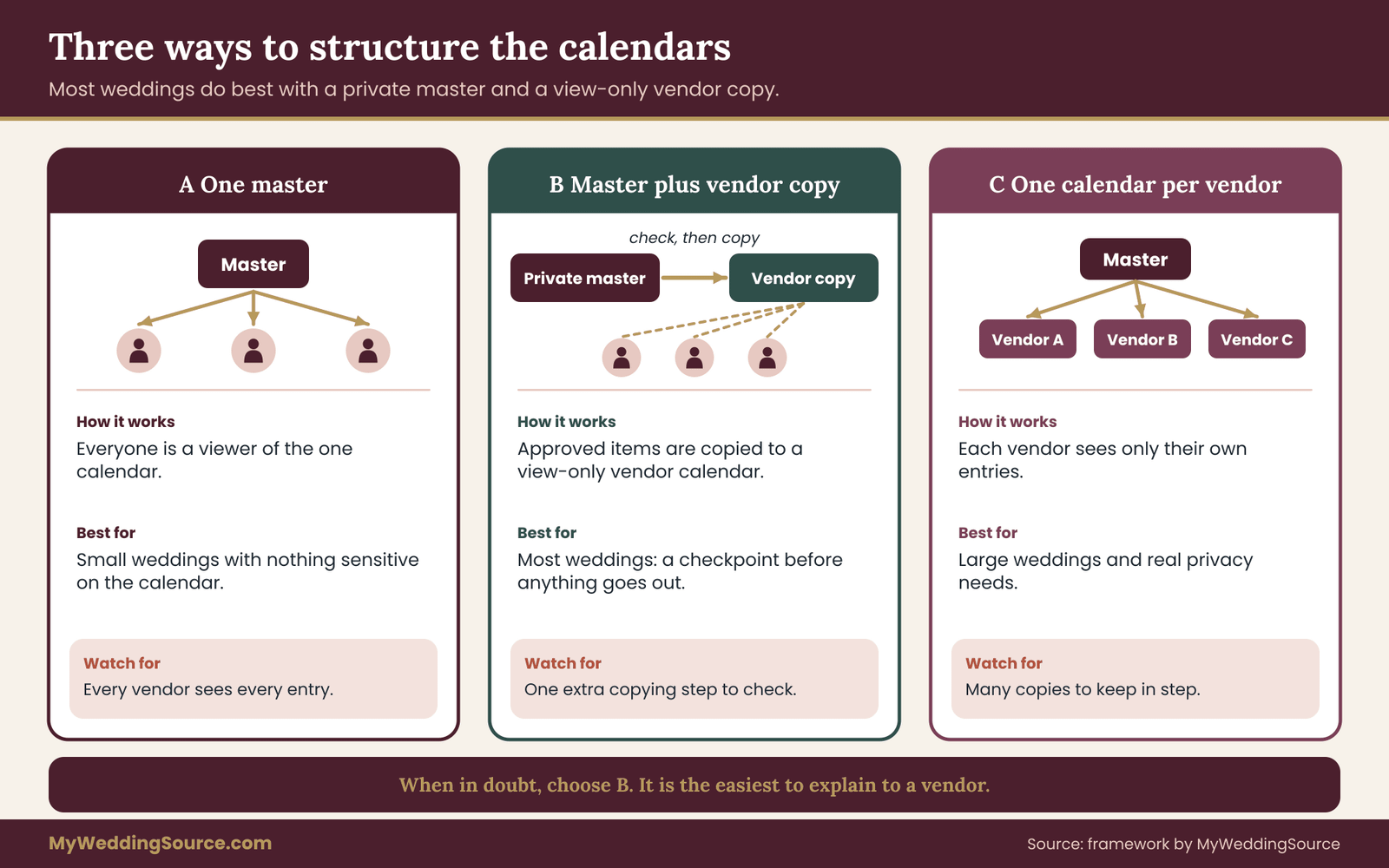
The role map tells you who can do what. The structure decides which calendars exist. For most weddings, three structures are workable, and the right one depends on the size of the team and how many vendors you have.
Structure A: one master calendar, everyone as viewers
This is the simplest. You create one calendar named for the wedding, add yourself and any coordinator as keepers, and share it with every vendor as view-only. It suits small weddings with five to eight vendors, where everyone can reasonably see everything.
Its weakness is exposure. Every vendor sees every entry, including the payment due dates, the notes about a family conflict and the hotel room number for the couple’s night. You can reduce that by keeping private items off the shared calendar, but it takes discipline.
Structure B: a master calendar plus a vendor calendar
This is the structure most couples should use. The master shared calendar holds everything, including private deadlines and notes. A second, vendor-facing calendar holds only the schedule items vendors need: arrival times, load-in windows, ceremony and reception times, breakdown and address details. You copy or recreate approved items from the master to the vendor shared calendar, and only the vendor shared calendar is shared with vendors.
The extra step is a small cost for a real gain. Vendors cannot see private data because it is not in the calendar they can reach. A mistake in the master does not reach vendors until you publish the item. And you have a natural moment to check each entry before it goes out: the moment you copy it across.
Structure C: one calendar per vendor
Here each vendor gets their own small calendar with only the entries that concern them. The photographer sees getting-ready, portraits and the timeline. The caterer sees arrival, service windows and breakdown. This is the strongest privacy structure and the weakest on consistency, because you now have many copies to keep in step. It makes sense for large weddings with a planner who maintains the copies, and for a wedding with a sensitive element, such as a guest who needs address confidentiality.
How to choose
Use Structure A if the team is small and nothing on the calendar is sensitive. Use Structure B if you have more than eight vendors, if any entry carries private information, or if you want a checkpoint before changes go out. Use Structure C only if somebody is willing to maintain it and the privacy need is real. When in doubt, choose B, because it is the easiest to explain to a vendor: “this calendar is the official schedule, and you can only view it.”
Whichever you choose, name the shared calendar so that nobody can mistake it. A title such as “Rivera-Okafor Wedding: Vendor Schedule (view only)” tells a person what they are looking at. A title such as “Wedding” does not.
A short rule for the copying step
In Structure B, the copying step is where errors can enter. Make the rule that an entry is copied only from the signed or confirmed source, such as the contract or the latest run-of-show, and not from memory or from a text thread. After copying, someone other than the person who copied checks each entry against the source. A thirty-second second look catches an AM that should be PM and a date one day off.
Once the structure is chosen, the setup is mostly a matter of making a few decisions once, so that nobody has to make them again on a busy day. The decisions fall into four groups: the calendar’s own settings, a naming rule, an event template and a notification rule.
Calendar settings to fix first
Set the calendar’s own time zone to the time zone of the venue, not the time zone of whoever creates it. If the ceremony is in Denver and you live in Chicago, the calendar should be a Denver calendar, and every event should display Denver time. Many calendar apps let you set a default time zone for a specific calendar and a separate one for your device; check both, because a mismatch is the most common source of an hour of confusion.
Turn on the display of the time zone in event details if your app allows it. Seeing “Mountain Time” next to “4:30 PM” takes a fraction of a second to read and prevents a family from assuming the ceremony is on their own clock.
Check the default notification settings. A reminder one day before and one hour before is enough for most vendor entries. A reminder on every entry for every vendor leads to ignored alerts. Reminders cannot be controlled on a vendor’s own phone, but a default on the calendar gives each vendor a reasonable starting point.
Finally, look at the setting that controls whether people who can see the calendar get notified when an event is changed. Where it exists, turn it on for the vendor calendar. A silent change is the worst kind, and a notification gives a vendor the chance to say “that is not what we agreed.”
A naming rule that prevents confusion
A consistent title format makes entries scannable and makes mistakes visible. Use the same pattern for every event: the vendor or activity first, then the action, then a short qualifier. For example:
- Photographer: arrive and set up
- Florist: delivery to ceremony site
- Caterer: load-in via service entrance
- Ceremony begins
- Reception: grand entrance
Avoid titles that depend on context only you know, such as “Meet Sam.” Avoid putting a time in the title, because a time in a title and a time in the event field can drift apart when one is edited and the other is not. The event’s time field is the only place the time belongs.
The event card
Every event on the vendor shared calendar should carry the same short block of information in its description. Call it the event card. A good event card has seven fields, always in the same order.
- What: one line saying what happens.
- Who: the vendor or team responsible.
- When: start and end, with the time zone spelled out in words, such as Mountain Time.
- Where: the full street address and the specific entrance or room.
- Contact: one name and one phone number that will be answered on the day.
- Source: where this time comes from, such as “per signed contract, section 3” or “per run-of-show version 4.”
- Version: the date the entry was last verified against the source.
The last two fields do the most work. A source line means that anybody who doubts a time knows where to check. A verified date means that a stale entry is visible at a glance. If an event says “verified October 3” and today is November 15, it invites a second look.

A sample event card, as it might appear in a description:
What: Floral delivery and ceremony setup. Who: Fernhill Florals. When: 11:00 AM to 12:30 PM, Mountain Time. Where: Garden Terrace, east gate, 120 Orchard Lane. Contact: Dana, 555-0142. Source: florist contract, delivery clause, and run-of-show v4. Verified: October 3.
That example uses an invented vendor and a placeholder phone number in the reserved fictional range. In real use, enter a real number that a person will answer on the wedding day, and keep the card short enough to read on a phone while standing in a parking lot.
Dates and times to write out
Where the app allows free text, write the date with the month spelled out in the description, for example “Saturday, June 14,” even though the event field already holds the date. The spelled-out month removes the day-and-month ambiguity that numeric dates carry. It is a duplicate, and in this one case a deliberate duplicate is worth the small risk of drift, because the card is checked at every verification.
Write times with AM or PM, never in a bare twelve-hour format without a suffix. If any vendor works in a twenty-four-hour clock, add the twenty-four-hour time in parentheses for them. Use “noon” and “midnight” as words, since 12:00 AM and 12:00 PM are a common source of mistakes.
One person owns the master
Choose a person who is responsible for the master shared calendar. This person is not necessarily the only editor. They are the one who answers the question “what is the right time for this?” and who updates the master after any confirmed change. Often it is one partner. If a planner exists, it is the planner, with a partner as backup. The owner’s name goes in the calendar’s description, so that a vendor who finds a problem knows where to send it.
The change request path
Put the process for requesting a change into the calendar description and into the first message you send a vendor with the link. Keep it short. For example:
This calendar is view-only. If a time, date or address looks wrong, or if you need a change, send a message to the schedule owner. We will confirm in writing before updating the shared calendar and will tell everyone affected.
This short paragraph does two things. It sets the expectation that edits flow through one person, and it gives a vendor who spots an error a clear action, which is more useful than a silent fix that might be wrong.
Checking a new calendar before sharing
Before anyone besides you sees the calendar, run a five-minute review. Open it on a phone as well as a computer, because mobile views sometimes hide details. Read three events as if you were a vendor who has never seen the plan. Confirm that the time zone is right, the address is complete and the contact is real. Open the sharing settings and read the list of names. Look for unexpected entries, for example an old email from a previous planner or a vendor you did not hire.
If you have an existing calendar with many entries, do not share it as is. Create the vendor shared calendar fresh and copy approved entries across. Retrofitting permissions onto a calendar that already holds years of casual notes is harder than starting clean.
The role map is a general rule. Applying it requires thinking about each vendor type, because their needs differ. Start from a default of viewer with details on the vendor shared calendar and adjust from there.
Venue manager or coordinator
The venue holds the most binding schedule: when you can enter, when music must stop, when you must be out. Give the venue viewer access to the vendor calendar, and do not let them edit it. Ask them to confirm in writing any time that comes from their own rules, and keep that message as the source for those entries. Many venues keep their own internal event schedule. Ask how it is updated and who can change it, because the venue’s own copy is a second place where a wrong time can live.
Planner or day-of coordinator
As discussed, an editor on the vendor shared calendar if their contract includes the schedule, with an agreement to report every change. If they are a day-of coordinator only, grant access from about a week before and remove it a week after.
Photographer and videographer
Viewer with details. They need the full timeline, including family portrait blocks and the transitions between locations. They also tend to be the vendors with the most travel, so the time zone and address fields matter. If they use their own scheduling software, ask how a time reaches it, whether by manual entry, by an imported file or by a link to the calendar. Manual entry is the most error-prone path and worth a double check.
Caterer and bar service
Viewer with details limited to the logistics they need: arrival, load-in, service windows, last call and breakdown. They do not need the ceremony script or the family seating notes. Caterers often work from a printed banquet event order, a document that lists the timeline for a specific event. If the order and the calendar disagree, they will follow the order, so make sure the two match before the final headcount is due.
DJ or band
Viewer with details for arrival, sound check, ceremony music, reception segments and end time. Bands may have contractual load-in and sound-check windows tied to their own travel, so their entries need extra care. A one-hour error here can cost the sound check.
Florist, rentals and delivery vendors
These vendors work in narrow windows at a venue that may not be staffed all day. Give them viewer access limited to delivery and pickup entries. A wrong time for a rental delivery is a particular problem, because a driver who arrives to a locked gate may simply leave and reschedule. The guide to a venue technical walkthrough explains how to confirm access routes and windows with the venue, which is where those entries should originate.
Transportation
Viewer, with the pickup address, time and a phone contact. Always add the buffer you want as its own line instead of editing the pickup time to be earlier than the real one. A calendar that holds padded times looks wrong later and invites someone to “fix” them.
Officiant
Often the least technical vendor and sometimes the most important to get right. A viewer link may be more than they want to use. A short message with the date, time, address and contact, plus a calendar invitation with guest modify rights turned off, is usually better. Confirm by reply.
Family and bridal party
Do not share the vendor shared calendar with them. A one-page timeline, printed and texted, is what they need. This guards against edits, protects vendor contact details and reduces the number of people who can forward the link.
Anyone you have not met
If a vendor representative or an assistant asks for access, ask first who they are and what they need. Share the narrowest access that serves them, and make it expire if the app allows.
A one-line summary per vendor
When in doubt, remember that the right access is the minimum that lets a person do their job. The photographer needs to know where to be, not what the florist is paid. The DJ needs to know when to stop, not who is not speaking to whom. A shared calendar works best when each viewer sees exactly the part of the day that concerns them.
A wedding shared calendar often holds more personal information than anyone intended. Addresses, phone numbers, flight details, the hotel where the couple stay, the name of an elderly relative who needs a wheelchair-accessible entrance, a note about a guest with an allergy. Some of this is guest data that belongs to other people. The first rule of privacy on a shared calendar is simple: put in the vendor shared calendar only what the vendor needs to do their job.
What to keep out
Keep out guest names beyond what a vendor genuinely needs, such as a head table list a caterer must see. Keep out medical details and dietary notes tied to named individuals; those belong in a separate document sent to the caterer, not in a calendar description that others can open. Keep out payment information, account numbers and login details. Keep out private contact numbers for the couple on the wedding day; use the coordinator’s or a designated helper’s number instead, so that the couple are not fielding vendor questions during portraits.
Keep out the couple’s home address unless a vendor must visit it, and keep out the exact location of a gift or cash box. If a vendor needs to know where a family member is staying for a pickup, add the address to that one pickup entry and remove it after the event.
The public link trap
Most calendar apps allow a calendar to be made public, or to be shared by a link that anyone holding the link can open. This is convenient and risky in the same way. Anyone who receives the link can forward it, and a link posted in a group chat or a shared document may travel far beyond the people you meant. Search engines can also index some publicly shared calendars. For a wedding calendar, make the calendar private and share it with specific accounts. If you must use a link, prefer one that requires a sign-in and, where the app allows, one that can be revoked.
Treat any secret address for a calendar, such as a private feed address, like a password. If it leaks, you will need to reset it and ask people to subscribe again. A reset is a good routine action after the wedding as well.
Accounts, not just links
Share to named accounts wherever you can. When a vendor’s email address is on the access list, you can see who has access and remove it later. When a link is shared, you cannot tell who has opened it. Check each vendor’s account email before adding it, because a typo, or a shared inbox that three of their staff read, changes who can see the shared calendar. Ask whether a vendor wants a team address or an individual’s, and choose the individual’s when the information is detailed.
Two-step sign-in for owners
The owners of a master calendar hold the keys to every vendor’s schedule. A hijacked account can change dates, remove vendors or share the calendar with a stranger. Turn on two-step verification for the account that owns the calendar. The Cybersecurity and Infrastructure Security Agency and NIST both publish plain guidance on multi-factor authentication and password hygiene. Use a unique password for the account, and do not share the login with a vendor or a relative as a shortcut to edit access. If a person needs to edit, grant their own account the right level.
Third-party tools and automations
Some couples connect a calendar to a planning app, a scheduling bot, a spreadsheet script or an AI assistant that proposes or edits entries. Each connection is another party with access to the calendar’s contents, and each can change events.
Before connecting one, check what permissions it asks for and whether it can read, write or delete. If you test an automation or an AI assistant that suggests times, treat its output as a draft to check against the contract and run-of-show, never as a confirmed schedule. An assistant that drafts a vendor timeline can invent a plausible but wrong time, and a calendar that accepts the suggestion silently will display the error to everyone.
After the wedding
Access should end when the job ends. Within a week or two after the wedding, remove vendors from the shared calendar, or archive the calendar and keep a copy for your records. Stale access lists are a quiet privacy risk: a vendor who worked with you last year can still see an address list if nobody removed them. Keep one export of the final schedule with your wedding records. The article on organizing wedding records after the event covers how long to keep that and where to store it.
The calendar correction process
Even with view-only access, a wrong date or time can appear. Perhaps the keeper made the mistake, perhaps a typo came from a contract summary, or perhaps a venue changed its own rules and nobody updated the shared calendar. What matters then is a short, repeatable process that finds the correct answer and gets it to every affected person. The process below has seven steps. It fits on a card and can be run by anyone on the team, including a stressed person on the wedding week.
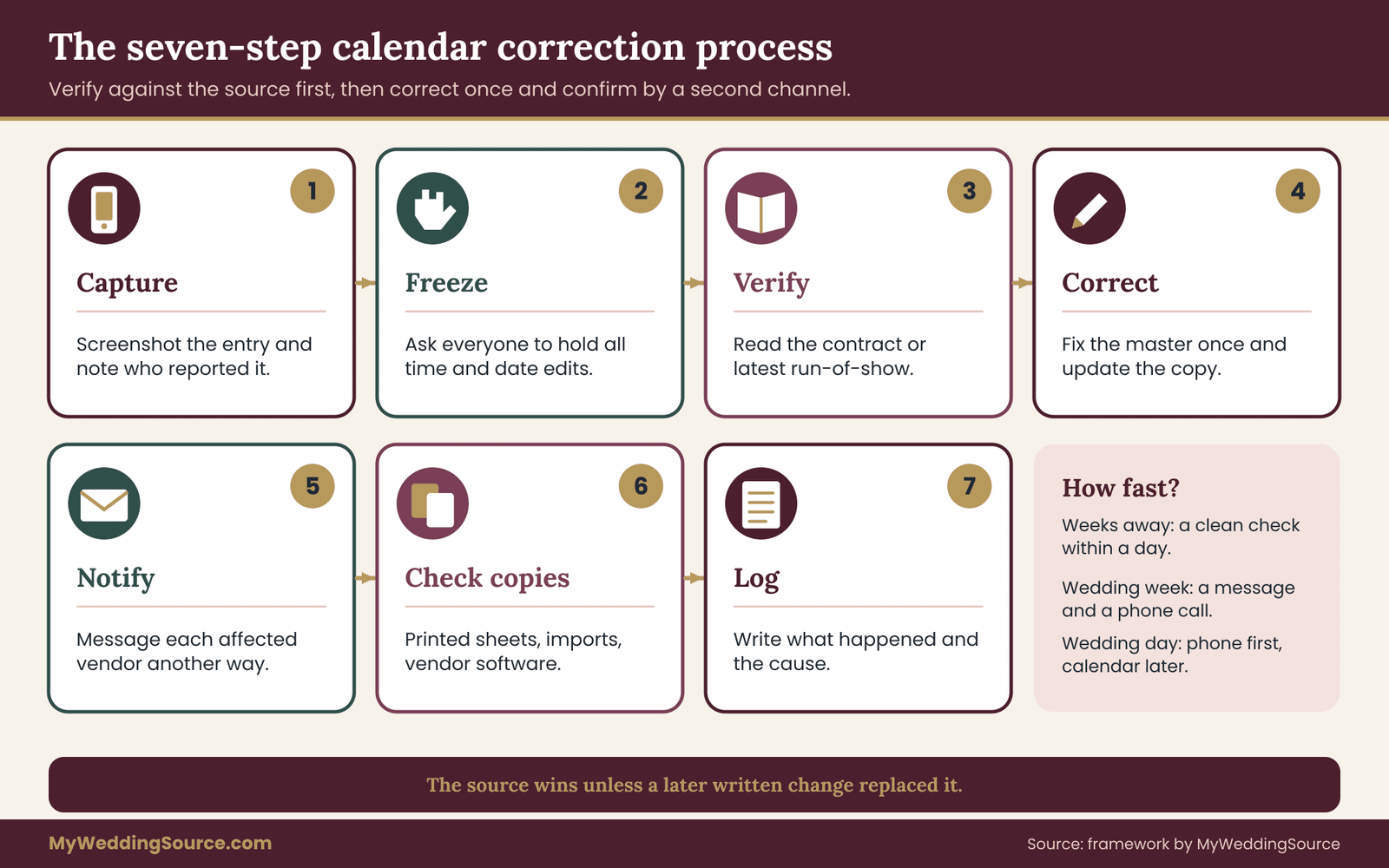
Step one: notice and capture
When someone reports a wrong date or time, or when you spot one yourself, capture the evidence before touching anything. Take a screenshot of the entry showing the date, time and time zone, and write down who reported it and when. Some calendar apps show a history of changes; if yours does, note who changed the event and when, since that tells you whether the error came from a person, a sync or a creation mistake.
Capturing first matters because the next steps change the entry, and you may need to know what it said.
Step two: freeze
Tell the team that, until you say otherwise, nobody changes any time or date. Say it in the channel the team actually reads, which may be a group text. If anyone has edit rights, ask them to hold. A freeze stops a second well-meaning correction from compounding the first, and it prevents the situation where two people fix the same entry in two different ways.
For a short freeze, such as the hour while you check a contract, a short message is enough:
Please hold off on editing any times in the wedding calendar for the next hour. We are checking one entry against the contract and will confirm the right time shortly.
Step three: verify against the source
Open the source the entry claims. For a vendor arrival, that is the contract or the latest confirmed run-of-show. For a venue rule, it is the venue’s written policy or email. For a ceremony start, it is whatever you confirmed with the officiant and venue. Read the actual document. Do not rely on memory, on a text message that says “I think it was three,” or on another calendar.
If the source and the calendar agree, the entry is right, and the person who reported it may be looking at a stale copy or a time zone view. If the source and the calendar disagree, the source wins, unless a later written change superseded it. If the source is itself unclear, ask the vendor or venue to confirm in writing before correcting anything.
Step four: correct the master
Make the correction in the master shared calendar, once, by the person who owns it. Update the time, the date and the time zone if wrong. Update the event card: the source line and the verified date. If the entry was copied to a vendor calendar, correct that copy at once, and check that no duplicate exists.
Resist the urge to edit several events at once to “tidy up.” Correct only what was wrong. Extra changes make it harder to tell later what happened.
Step five: notify through a second channel
A calendar change that nobody is told about is a repeat of the original problem. Send each affected vendor a direct message that says what the entry said before, what it says now, why it changed and what you need them to confirm. Use a channel other than the calendar itself, such as email or text, because the calendar may be the thing that failed.
Hi, we corrected one entry in the vendor calendar. The florist delivery was showing 1:00 PM; the contract says 11:00 AM, Mountain Time. The shared calendar now shows 11:00 AM. Could you reply to confirm you have the corrected time?
Ask for a reply. A confirmation is stronger than a read receipt, and it also finds the vendor whose own copy is stale.
Step six: check downstream copies
List every place the wrong time may have traveled: the vendor’s own software, a printed run-of-show, a banquet event order, an emailed invitation, a guest-facing text schedule, a driver’s pickup sheet. For each, decide who fixes it and by when. A calendar correction does not reach a printed page, and a printed page is often what a vendor actually follows on the day.
Step seven: log and review
Write a short log entry: what was wrong, how it was found, what it was corrected to, who was told, who confirmed. Keep it with your wedding records. Then ask the question that prevents a repeat: how did this happen? If the answer was a stray edit, check permissions. If it was a copy error, tighten the second-look rule. If it was a time zone, check the calendar’s settings. A correction that ends with a cause found is worth more than one that ends with a fix.
How fast is fast enough
Match the pace to the stakes. An error in a deadline three weeks away can wait a day for a clean check. An error in a vendor arrival time during the week of the wedding deserves a call as well as a message. An error on the wedding day itself is handled by phone first and calendar second, because the person walking toward the wrong door cannot read a calendar update in time. Decide in advance who makes those calls and keep the phone numbers somewhere that does not depend on the calendar.
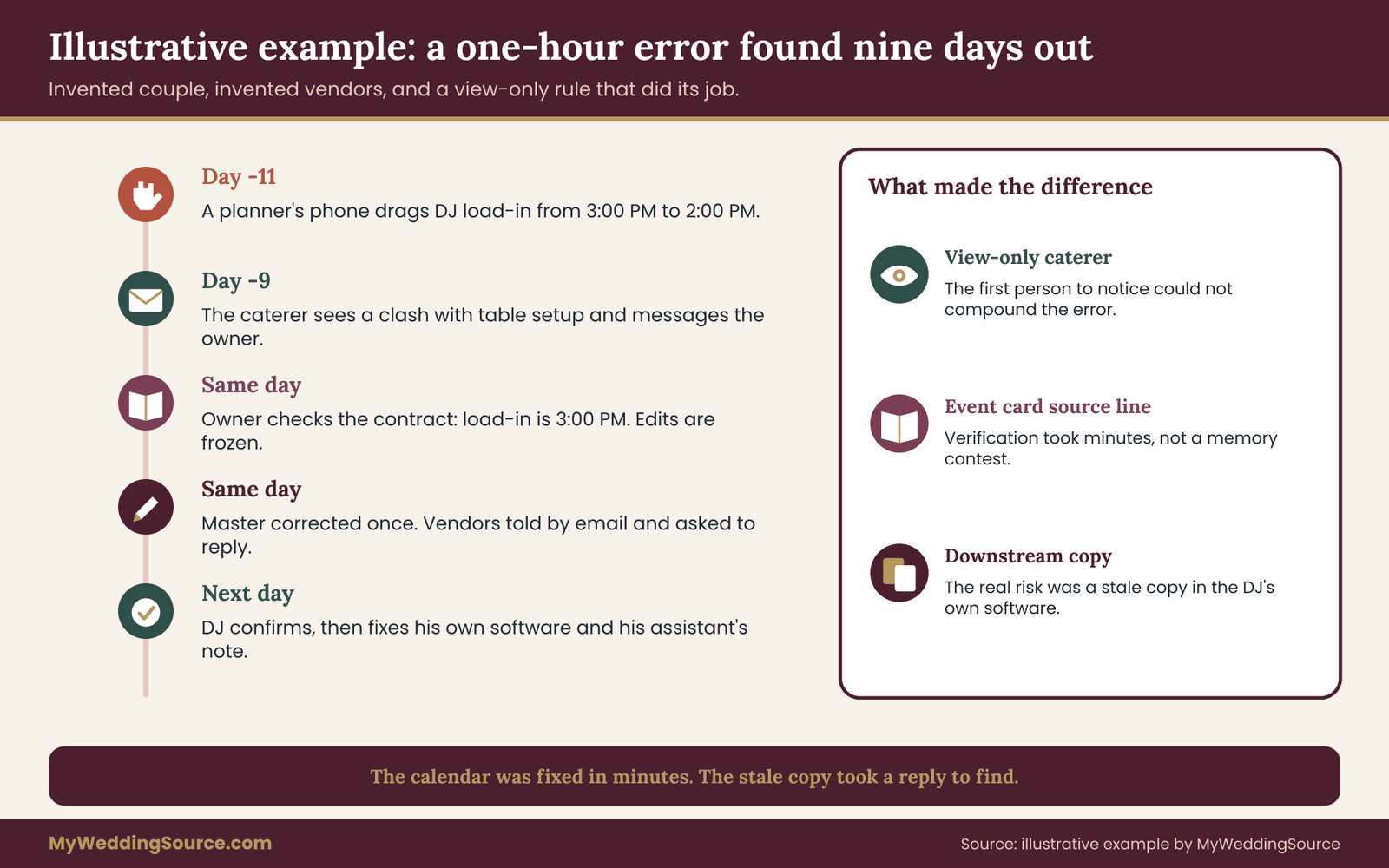
An example makes the role map and the correction process concrete. The couple below are invented, as are the vendors, and the numbers are chosen for clarity, not drawn from any real wedding.
Marisol and Theo are marrying on a Saturday in a garden venue outside Denver. They have eleven vendors and a part-time planner, Priya, hired for scheduling support and the final two weeks. They chose Structure B: a private master calendar owned by Marisol, with Theo as a second keeper, and a vendor calendar titled “Rivera-Okafor Wedding: Vendor Schedule (view only).” Priya has editor access to the vendor shared calendar. Everyone else has viewer access with details. Every event carries an event card.
Eleven days out: the quiet error
Eleven days before the wedding, Priya opens the vendor shared calendar on her phone while standing in a grocery line. She sees the DJ’s load-in block, scrolls, and accidentally drags it one hour earlier. The app saves it. Because notifications for changes were switched on for the vendor shared calendar, the DJ’s phone shows a short alert, but the alert reads like many others he has received that week, and he does not open it.
The entry now says load-in at 2:00 PM instead of 3:00 PM. Nothing else on the calendar changed, so the error looks tidy and plausible. Plausible is the dangerous part. A time that is wildly wrong gets noticed within hours; a time that is one hour off can survive for days.
Nine days out: how it is found
Nine days out, the caterer’s manager, Jordan, builds the service timeline and compares the calendar with the venue’s banquet sheet. The venue’s sheet says vendors may enter the ballroom at 1:00 PM and the band or DJ must load in after the caterer’s tables are set, which the caterer expects to finish at 2:30 PM. Jordan sees a DJ load-in at 2:00 PM and thinks it clashes. Jordan does not edit anything, because Jordan has view-only access. Jordan sends Marisol a message:
The vendor calendar shows DJ load-in at 2:00 PM, but our tables will not be clear until 2:30. Is that right?
That message is the system working. A viewer cannot edit, so the only path for the concern is a note to the owner. Had Jordan been an editor, the likely move would have been to quietly move the DJ to 3:00 PM, which would have happened to be correct this time, but the habit would not be.
Running the process
Marisol runs the seven steps.
Notice and capture. She screenshots the DJ entry and checks the change history in the app. It shows that Priya’s account changed the time nine days earlier. She does not assume blame; she notes the facts.
Freeze. She texts Priya and Theo: please hold on changing any times until she has checked the DJ entry against the contract.
Verify against the source. The event card says “per DJ contract, load-in clause, run-of-show v4, verified October 3.” Marisol opens the contract. It says load-in begins at 3:00 PM and sound check ends by 4:15 PM. The run-of-show agrees. So the calendar is wrong and the source is right.
Correct the master. She corrects the vendor shared calendar to 3:00 PM Mountain Time and updates the verified date on the card. She checks for a duplicate, finds none and leaves everything else alone.
Notify through a second channel. She emails the DJ, Jordan and the venue manager: the entry showed 2:00 PM from a stray edit, the contract says 3:00 PM, the shared calendar now says 3:00 PM, please confirm. She also asks the DJ directly whether he has already planned around 2:00.
Check downstream copies. The DJ replies within the hour. He had not acted on the 2:00 PM time, but he had already copied it into his own scheduling software and into a note for his assistant, who would drive the van. He fixes both. The venue manager confirms the venue’s own sheet always said 3:00 PM. The printed run-of-show Marisol sent to the caterer still shows 3:00 PM, so no printed copy needs correction.
Log and review. She writes a three-line log: what happened, the cause (a stray drag on a phone), and the fix. Then she asks whether the permissions should change. Priya remains an editor, since the work needs it, but they agree on two additions: Priya will turn on a confirmation step in her phone’s calendar app if it has one, and she will note in the group chat each time she changes anything on a fixed commitment.
What this example shows
Three things stand out. First, the view-only default meant the first person to notice the mistake could not accidentally compound it. Second, the event card’s source line turned verification into a two-minute task. Without it, Marisol would have started by trying to remember what the DJ had said. Third, the real hazard was the downstream copy: the DJ’s own software and his assistant’s note. The shared calendar was corrected in minutes. The stale copy took a reply to find.
A variation: the error is discovered on the wedding day
Change the timeline. Suppose the error is not found until noon on Saturday, when the DJ’s assistant arrives at the venue at 2:00 PM and finds the ballroom still full of caterers. The correction process looks different in speed but not in order. Capture is quick: a screenshot, if there is time. The freeze is a spoken instruction to the coordinator. Verification is a glance at the printed run-of-show in the coordinator’s folder. The correction to the shared calendar happens later, after the immediate problem is handled by a phone call and a short wait.
The lesson is that on the day, the printed run-of-show and the phone numbers are the working tools. The shared calendar is the record to be repaired afterward. A team that trusts the calendar alone has no way to settle a disagreement under pressure. For more on building that fallback, the guide to a wedding ceremony cue sheet shows how to write the ceremony part of the timeline so that it survives without a screen.
A second example: the venue changes its own time
A different failure involves no stray edit at all. In the same wedding, the venue sends an email four days before, saying that because of a prior event the garden will not be available until 11:30 AM instead of 11:00 AM. Marisol updates the master, and then must decide whether the vendor shared calendar changes too.
She checks the signed venue contract for the access time, finds that it allows the venue to adjust by up to thirty minutes with notice, and confirms with the venue manager by reply. Only then does she correct the vendor shared calendar, with a note in the event card: “per venue email, changed from 11:00 AM.”
She messages the florist, the rental company and the photographer, whose entries depend on that window, asks each for a reply, and moves their entries by the same thirty minutes, one by one, checking each against its own contract. The florist’s contract promises a delivery window, so the shift stays within it. The rental company’s driver is booked for a fixed slot with a fee for changes, so Marisol asks the company before assuming the move is free.
Notice what drives the order: the source first, then the master calendar, then the vendors, then each dependent entry. When a time changes upstream, a chain of entries may need to move, and each one deserves its own check, not an automatic shift.
Many calendar errors that look like wrong edits are really display problems. Understanding how a shared calendar handles time lets you avoid errors that no permission can prevent.
How time zones work in a shared calendar
An event is stored with a specific moment in time and, in most apps, a time zone label. Each viewer sees that moment translated into the zone set on their own device or account. So a ceremony at 4:30 PM in Denver appears as 5:30 PM to a viewer in Chicago and 6:30 PM to a viewer in New York. All three are the same moment, and all three are correct.
The error comes when the event is created with the wrong zone. If Marisol creates the event while her device is set to Chicago time and does not specify a zone for the event, it may be stored as 4:30 PM Chicago, which is 3:30 PM in Denver. A viewer in Denver sees 3:30 PM and sets off early. Nobody edited anything.
To prevent this, set the zone on the event itself where the app allows, and write the zone in the event card in words. For out-of-town weddings, the guests and vendors travelling in matter most. Ask each vendor whose device shows what, and test with one vendor before sharing widely.
Travel and device settings
When a keeper or editor travels, their device may change time zones automatically. A new event created during travel can pick up the new zone. If a keeper will be away, such as on a pre-wedding trip, ask them to avoid creating or editing entries while the device is in another zone, or to check the zone on each entry afterward.
Daylight saving time
If your wedding weekend falls near a daylight saving change, extra checks are needed. Events scheduled across the change can shift in display in some setups, and a vendor’s own software may handle the change differently from yours. Check all entries on the weekend of the change, and confirm the arrival times in writing with the vendors who rely on early starts. The timing of the change in the United States is set by federal rules, and the U.S. Department of Transportation publishes the current information.
Dates written as numbers
Spell the month out in descriptions, as noted earlier. For vendors outside the United States or couples with an international team, add the day of the week as well. “Saturday, June 14” is nearly impossible to misread, while “6/14” is fine only when the day is above twelve. An invitation to a vendor in another country should carry both the spelled date and the day of the week.
All-day events and multi-day weekends
A multi-day wedding weekend, with a welcome dinner, a ceremony and a farewell brunch, should use timed entries for anything with a start and end, and all-day entries only for true date markers such as “Wedding weekend begins.” All-day entries behave unpredictably across time zones: in some views they stretch into the neighboring day. Do not use an all-day entry as the only record of when something happens.
For events that cross midnight, such as a late reception with a shuttle running after, split them into two entries, one ending at 11:59 PM and one beginning at 12:00 AM, or label them clearly. A single entry that spans two dates can appear on both days and confuse a vendor scanning a day view.
Avoid recurring events
Weddings are one-off. Avoid recurring events for wedding logistics. A recurring “weekly vendor check-in” can seem harmless, but editing one instance is where the “this event, all events or this and following events” choice appears, and a wrong tap changes the whole series. If you need repeated reminders, create separate entries. The tiny convenience of recurrence is not worth the risk.
Imports and feeds
Many vendors, especially those with their own scheduling tools, import calendar files or subscribe to a feed. A subscribed calendar is typically read-only for the subscriber, which is good, but it refreshes on the schedule set by the subscriber’s app. A fix made now may not show on their side for some time. When you correct an entry that matters within the week, do not rely on the feed. Send the corrected time directly and ask for confirmation. An imported file is a one-time snapshot and will never update on its own, so tell vendors who import to re-import after any change, or better, to subscribe instead.
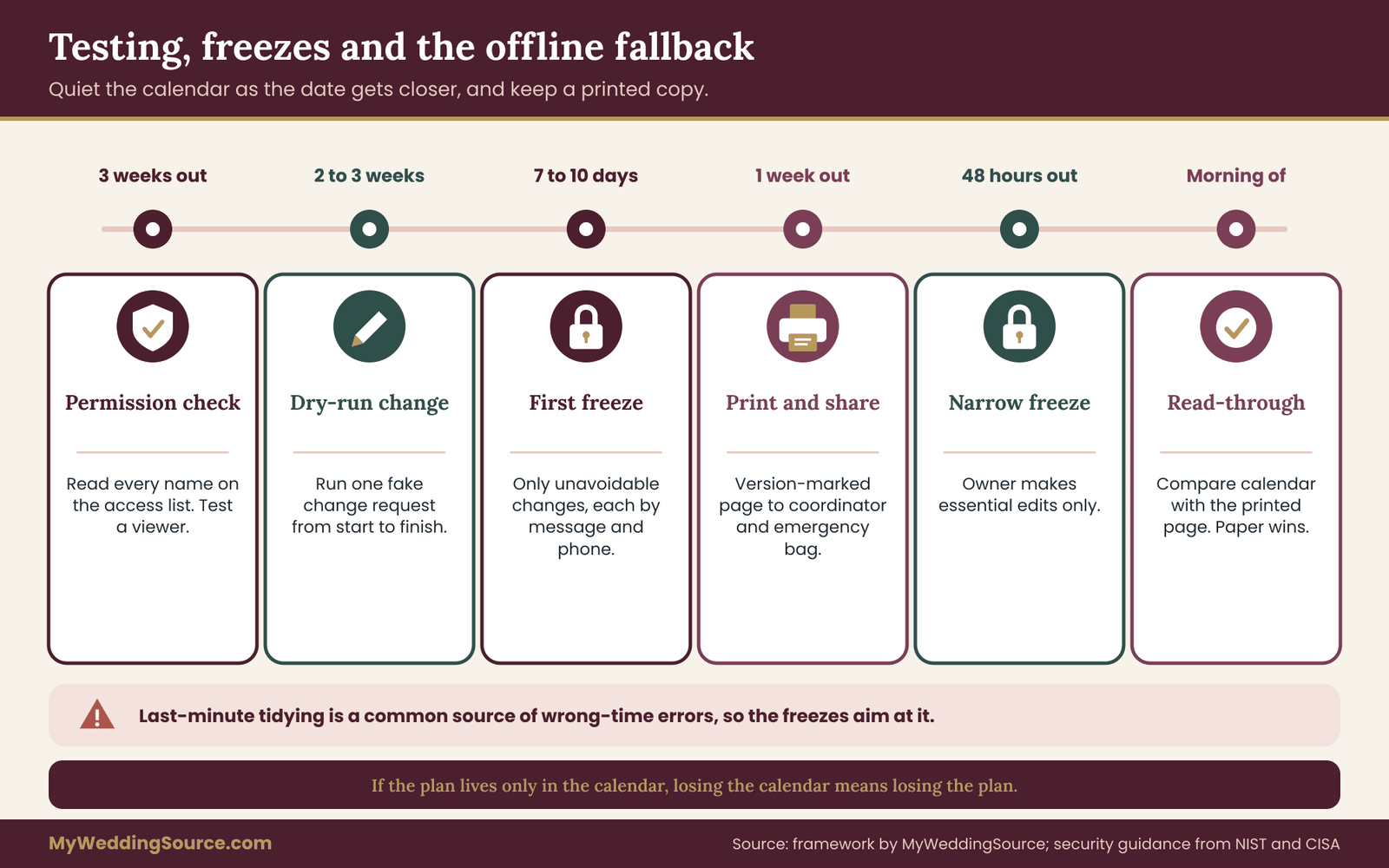
A shared calendar that has never been tested is an assumption. A short test, done two to three weeks before the wedding and repeated in the final week, turns the assumption into something you can rely on. The test has three parts: a permission check, a dry-run change and a failure drill.
The permission check
Open the sharing settings of both the master and the vendor shared calendar and read every name aloud, so to speak. For each person, ask whether their level matches the role map. Look for three common surprises: a former planner or a family friend who still has access, a vendor with edit rights because a default was left in place, and a calendar that is accidentally public.
Then test one viewer’s actual view. Ask a friendly vendor, or a trusted friend, to open the vendor shared calendar from their own account and try to move an entry. Nothing should happen, or the app should refuse. If the friend can move it, the permission is wrong, and it is far better to learn that in a test than on the day. Test the invitation path as well: send a test event to your own second email address with guest modification switched off, and confirm that the recipient cannot change it.
The dry-run change
Pick a low-stakes entry, such as a deadline for final headcount, and run the change request path from start to finish. A vendor, or a friend playing one, sends a message asking to move it. The owner verifies against the source, updates the master, updates the vendor copy, sends the second-channel confirmation and logs it. Time the exercise. If it takes ten minutes with no pressure, it will take longer on a busy day, which tells you how much lead time a real change needs.
The dry run also tests your habits. Does the change history show who edited the entry? Do change notifications arrive? Does the event card get a new verified date? Each gap found is a gap closed.
The failure drill
Imagine the calendar app is unavailable on the wedding morning, or the owner’s phone is lost. Where is the schedule? The answer should be a printed run-of-show in the coordinator’s folder, a copy as a file saved offline on at least two devices, and a list of vendor phone numbers that does not depend on the calendar. Ask yourself who calls whom, and in what order, if the calendar and a time disagree at noon.
You are not testing the shared calendar app. You are testing whether the team can function without it. A calendar is a convenience layered over a plan. If the plan lives only in the calendar, then losing the calendar means losing the plan.
A printed and offline copy
About a week before the wedding, export or print the vendor schedule. A printed page works with no battery and no signal, and it shows everyone the same thing. Mark it with the date and version, the same way you mark an event card. Hand a copy to the coordinator or a trusted helper, put one in the couple’s emergency bag and send a PDF to the vendors who prefer it. Say plainly that after a given date, the printed version is the reference and that any change will be sent as a message and a corrected page.
This fits the broader backup routine in the guide to a wedding day digital contingency plan, where the printed run-of-show is one of several fallbacks, along with phone numbers and downloaded files.
The change freeze
A freeze date makes the shared calendar quieter and safer. Choose a date about seven to ten days before the wedding after which no fixed time changes unless a vendor or the venue cannot meet it. Announce it to the team. After the freeze, any change goes through the owner with a direct phone call, because the cost of a wrong change rises as the date nears.
Announce a second, narrower freeze about forty-eight hours before the wedding. During that window, even the owner makes only essential edits, and each one is announced by message and phone. A common source of wrong-time mistakes is someone tidying things in the last few days, so the freeze is aimed squarely at the last-minute tidy.
The morning-of check
On the wedding morning, the owner or coordinator reads the vendor shared calendar against the printed run-of-show one entry at a time, in a few minutes, before the first vendor arrives. Any difference is resolved by checking the source, not by choosing the version that feels right. If a mismatch cannot be resolved by a quick look at the contract or a call, the printed version wins for the day and the calendar is repaired afterward.
Keeping notes of what each vendor uses
Alongside the role map, keep a short sheet that lists, for each vendor, which copy they work from: the shared calendar itself, an emailed invitation, their own software or a printed sheet. Update it as you learn. This tells you where a correction has to travel, and it makes the downstream-copy step of the correction process a lookup rather than a guess. Vendors usually answer this question quickly when asked politely, and it often starts a useful conversation about how they track changes.
A shared calendar is a useful tool, and it has limits. Knowing them keeps you from asking it to carry more than it can, and it helps you ask better questions of your vendors.
What a shared calendar cannot do
It cannot prove an agreement. A calendar entry is not a contract, and a vendor who sees the wrong time in the calendar has not necessarily agreed to it. The signed contract and the written confirmations remain the record. It cannot guarantee that every vendor looks at it; some will never open it, and your correction process must reach them by message anyway. It cannot protect against a compromised account, so the account controls described earlier matter. And it cannot replace a person who calls a late vendor.
It also cannot be fully controlled once shared. Even a viewer can take a screenshot, export entries where the app allows, or forward details. Share only what you would be comfortable having copied.
Questions to ask each vendor
A short conversation with each vendor, early in the relationship, saves trouble later. Ask what they use to track events: a calendar, a booking system or a paper diary. Ask whether they will use your vendor shared calendar directly or copy times into their own tools, and who in their team does that. Ask how they confirm changes and whether they will reply to a written confirmation request. Ask which phone number answers on the day, and whether it is a person’s mobile or an office line that closes at five.
Then ask about edits specifically: do they intend to change anything in your calendar, and are they comfortable with view-only access? Almost all vendors are. If a vendor insists on editing a calendar they do not own, that is useful information about how they work, and you can offer an alternative, such as a shared document where they list requested changes.
The vendor due diligence checklist lists broader questions to ask before you hire, and it is a good companion for this conversation. If you are drafting or reviewing agreements, the guide to the wedding vendor contract explains what a contract should say about times, changes and cancellations, which are the terms that decide who is right when a calendar entry and a signed page disagree.
Contract language worth checking
Look at how the contract describes time. A contract that says “coverage from 2:00 PM to 10:00 PM” is clear. One that says “evening coverage” is not, and a calendar entry cannot repair that. Look for who may change times and how: some contracts require written notice, some allow a window of flexibility, and some charge a fee for changes within a set number of days. These terms decide whether a one-hour move is free, costs money or is simply not allowed.
Check overtime language too. If a vendor’s entry on the shared calendar runs later than the contract’s end time, an invoice may follow. A calendar error that extends a block by an hour is, in the worst case, a billing question as well as a scheduling one.
Vendor policies and official guidance
Calendar apps publish their own help pages on sharing and permissions, and those pages are the right place to confirm current labels and behavior. For security practices such as multi-factor authentication, strong passwords and phishing awareness, the National Institute of Standards and Technology and the Cybersecurity and Infrastructure Security Agency publish guidance meant for ordinary users. For the timing of daylight saving changes, the U.S. Department of Transportation is the authority. The sources list at the end of this article points to each of them. Policies and screens change, so confirm the details yourself before you rely on them.
When a shared calendar is the wrong tool
For a very small wedding with two or three vendors, a shared calendar may be more than you need, and a single emailed timeline with a confirmation reply from each person is simpler. For a wedding where a key vendor does not use calendars, a printed timeline and a phone call serve better. For a wedding with a highly sensitive guest list, such as one with a person under a safety concern, avoid putting guest-related detail in any calendar and keep it in a controlled document with named recipients.
In each case the principle is the same one that runs through this guide: one source of truth, few editors, a second channel for changes and a fallback that works without a screen. The wedding vendor timeline page sets out what the schedule itself should contain, and the wedding planning checklist places the calendar setup among the other tasks in the months before the wedding.
Your next steps
You do not need to rebuild your whole schedule to make a shared calendar safer. Work through these steps in order, and stop when the team is covered.
- Read the access list. Open the sharing settings for every wedding calendar you own and write down each person and their level. Remove anyone who no longer belongs.
- Write the role map. Name the keepers, the one or two editors and everyone else as viewers. Put the map somewhere the whole team can find it.
- Pick a structure. Choose one master calendar with a vendor-facing copy unless your wedding is very small.
- Fix the calendar’s time zone to the venue’s, and turn off guest modification and guest invitations on each event.
- Add event cards. Give every entry the seven fields: what, who, when, where, contact, source and version.
- Send the change request path to every vendor with the calendar link, in two or three plain sentences.
- Run the dry-run change and the failure drill, then print the schedule and give one copy to the coordinator.
- Set a change freeze about a week before the wedding and a narrower one two days before.
If you only have an hour, do the first three steps and the print-out. Those four remove most of the risk.
FAQ
Should wedding vendors be able to edit a shared calendar?
Usually not. Vendors need to see accurate times, not change them, and a view-only link covers that. If a vendor needs a different time, they message you, you check the contract, and you update the calendar once. A planner or day-of coordinator may reasonably hold edit rights, with a written agreement to report every change.
What is the safest access level for a vendor on a shared calendar?
View-only with event details is the safest level that still lets a vendor do the job. Use free or busy only for people who need no detail at all. Check the labels in your own calendar app, because names differ between Google, Outlook and Apple, and confirm that both calendar sharing and individual event invitations block editing.
How do I fix a wrong time in a shared calendar after vendors have seen it?
Capture a screenshot, ask the team to pause edits, and check the contract or latest run-of-show for the correct time. Correct the master once, then message each affected vendor through a second channel and ask for a reply. Also check their own copies, printed sheets and imported files, because those do not update when the calendar does.
Can a wedding shared calendar be made public with a link?
It can, but it is a poor choice for most weddings. Anyone who gets a public or unrestricted link can open it and pass it on, and you cannot see who has it. Share with named accounts instead, and use a sign-in required link only if you must. If a link leaks, reset it and send a new one to the team.
Why does the time look different to vendors in another time zone?
Calendars store one moment and show it in each viewer’s own time zone, so a 4:30 PM Denver ceremony shows as 5:30 PM in Chicago. That display is correct. The error appears when an event is created in the wrong zone. Set the zone on the event, write it in words in the event card, and test with one out-of-town vendor.
Is it safe to let an AI assistant or scheduling app edit our wedding calendar?
Only with care. Each connected tool is another party with access, and it may read, write or delete events. Check the permissions it asks for. Treat any suggested time as a draft to verify against the contract and run-of-show, never as confirmed. An assistant can produce a believable but wrong time, and a calendar will show it to everyone.
When should we stop making changes to the shared calendar?
Set a freeze about seven to ten days before the wedding, after which only unavoidable changes happen, each announced by message and phone. Add a narrower freeze about forty-eight hours before. Last-minute tidying is a common source of wrong-time errors. Print the schedule at the first freeze so that everyone has a version that does not depend on a screen.
What should we do with the shared calendar after the wedding?
Remove vendor access within a week or two, or archive the calendar. Export the final schedule and the correction log and keep them with your wedding records. Reset any private link or feed address. Stale access lists are a quiet privacy risk, since a vendor from last year could still see addresses and phone numbers if nobody removes them.
Sources
- National Institute of Standards and Technology publishes guidance on authentication, passwords and account security for ordinary users.
- Cybersecurity and Infrastructure Security Agency offers plain guidance on multi-factor authentication, phishing and safe sharing.
- Google Calendar Help explains sharing levels, event guest permissions, time zone settings and subscribed calendars.
- Microsoft Support documents Outlook calendar sharing permissions and delegate access.
- Apple Support describes iCloud calendar sharing, view-only access and public calendars.
- U.S. Department of Transportation publishes the federal rules and dates for daylight saving time.
- Official U.S. time shows the current official time in each U.S. time zone.
- Federal Trade Commission gives consumer guidance on data privacy and on online scams and account security.
- USA.gov points to current federal consumer and security resources.