
Digital signage screens at a wedding are the TVs, LED panels and projector displays that show your welcome message, seating lookup, schedule or photo loop. This guide gives you a one-page export spec for the files that feed them, a method for proving they play with no internet, and a set of backup images that keep the room readable if everything else fails.
For every one of your digital signage screens, write down the screen’s native resolution, orientation and input, then export each slide as a still image at that exact size. Keep a video or slideshow file only when motion truly matters. Copy everything to the playback device, turn off Wi-Fi, and run the whole loop for at least an hour. Export a numbered set of backup images, one per slide, onto a plain USB drive and into a shared folder. Hand the venue or AV contact the spec, the files and a printed fallback sign before the day.
A screen is one of the few wedding items that can fail silently. A printed sign is either on its easel or it is not. A screen can be on its stand, powered and bright, and still show a black rectangle, a spinning wheel, a “no signal” message or a half-loaded web page. The cause is usually small: a file format the player did not like, a slideshow that depended on Wi-Fi, a laptop that went to sleep after fifteen minutes, or a resolution that stretched your names into something unreadable.
None of that is hard to prevent. It just needs to be written down before the day, by someone who owns the job. This article treats digital signage screens as a small production problem with three parts: what you send (the files), what plays them (the player), and what happens when either one stops working (the backup images and the handoff).
A note on scope. This is general information, not legal, technical-warranty or financial advice, and every venue and AV vendor has its own equipment and rules. Where a rule or a spec matters, the article points to the issuing organization so you can check the current version for your own signage screens.
If you want the wider picture of what can go wrong on the day with phones, files and logins, the guide to wedding day digital operations covers backup communication and access. This article stays on one narrow piece of it: getting content onto display hardware reliably.
What digital signage screens actually do at a wedding
Start with the job, not the hardware. Couples ask for signage screens because they want to solve one of a handful of problems, and each problem calls for different files.
Welcome and identity. A single slide with your names, the date and a short line. It sits on a screen at the entrance or beside the ceremony space. It is static, so a still image is enough.
Wayfinding. Arrows, room names, restroom and parking directions, or a “shuttle departs at” message. These are static too, but several signage screens may need different images.
Seating lookups. A list or search that tells guests their table. This is the riskiest use, because it contains guest names and sometimes meal choices, and because live lookups depend on a network. The lookup itself is a separate topic; here the concern is how the display content is exported and protected.
Schedule and updates. “Cocktail hour until six” or “Cake cutting in ten minutes.” Content that changes during the day is the hardest to keep reliable.
Photo and video loops. An engagement slideshow, a memory loop, or a live feed. This is the only common use where motion and many files are involved.
Most weddings need the first two and a simple version of the third. A phone-sized decision tree helps: if the content will not change after the files are exported, use still images. If it changes during the event, decide who changes it and on what device, and write that into the spec. If it needs motion, keep the motion short and test it harder.

What digital signage screens do not replace
Screens add flexibility, but they do not replace the basics. A few printed items should survive any screen decision: a printed seating list or table cards if names appear on a screen, a printed schedule for the family and vendors, and at least one printed welcome sign. Screens are also a poor fit for anything a guest must read from far away in bright daylight, because many indoor displays wash out outdoors. The guide on wedding signage as a system explains how to decide which messages belong on paper, which on a screen, and which on both.
There is also a power and placement cost. A screen needs a stand or mount, a power outlet, a cable path guests will not trip over, and a place for the player. Each of those has to be agreed with the venue. If the room has no outlet near the entrance, the screen idea may be dead before it starts, no matter how good the files are.
The three layers behind signage screens: file, player, display
Think of every screen as three layers stacked together.
The file is what you create: an image, a video, a slideshow or a web page. The player is whatever reads the file and sends it out: a laptop, a streaming stick, a media box, a USB port on the TV, a cloud signage app, or the venue’s own system. The display is the panel or projector that shows it, with its own resolution, input list and settings.
Failures happen at the joins between layers. A file that looks perfect on your laptop may not play on the TV’s USB port. A player that works at home may not find the venue’s network. A display that was fine in the showroom may crop the edges of a slide, a behavior commonly called overscan. The whole point of an export spec is to settle those joins in writing before anyone drives to the venue.
Who owns the signage screens: venue, AV vendor, or you
The first practical question is not about formats. It is: whose screen is it, and who is allowed to touch it? The answer changes your whole workflow.
Venue-owned signage screens. Many venues have lobby TVs, ballroom displays or projectors already installed. They may be tied into a venue system with its own playback software, a fixed list of accepted file types and a staff member who loads content. You often cannot plug in your own laptop. You send files and trust the venue to play them.
AV vendor signage screens. An audio-visual company brings signage screens, stands, players and a technician. They usually give you a spec sheet or an upload portal. This is the best case for reliability, because a person whose job is playback is responsible for it. It is also the most expensive.
Rented or borrowed signage screens. You or a friend bring a TV or two. You own the whole chain, including setup and fault-finding. This is cheaper and the riskiest, because nobody on staff knows your gear.
Questions to ask before you design anything
Send these in writing and keep the replies in the same folder as your contract. Short answers are fine.
“For the signage screens we may use at the event, what is the native resolution, what inputs do they have, and who operates them on the day?”
“Which file formats can your system play from a USB drive or upload, and is there a size limit per file?”
“Can the signage screens run with no internet connection, and do you allow us to bring our own playback device?”
“What is the deadline for content, and who approves changes after that deadline?”
“Is there a charge for loading content, for a technician, or for extra signage screens?”
The reply to the last question matters because cost logic is easy to miss. A screen that looks free because the venue already owns it can come with an AV technician fee, a content-loading fee or a setup window that starts and ends at fixed times. Ask for the number in writing. If the answer is “it depends,” ask what it depends on.
Reading the answers
Three patterns come up often. If the venue says content must be submitted by a deadline in a specific format, your spec is mostly their spec, and your job is to follow it exactly and confirm receipt. If the venue says you can bring your own device, you take on the player layer, and the offline playback verification in this guide becomes your main safeguard. If the venue says it can show “anything,” treat that as a request to test, not as a promise. Ask for a short site visit, or at minimum a photo of the screen’s input panel and the model number.
Model numbers are valuable. Manufacturers publish specifications for each model, including native resolution, supported file types from USB and available ports. A quick search of the model number on the maker’s own site tells you more than a verbal answer from someone who has not looked at the screen in a year. If a screen is part of a venue’s integrated system, the venue’s AV contact is the authority, not the maker’s general page.
Put one person in charge
Whatever the setup, name a single owner for the content and a single owner for playback on the day. They can be the same person. They should not be either partner. A friend, planner or coordinator who is not in the wedding party can take a short checklist, a USB drive and a phone number for the AV contact. The handoff section later in this guide describes exactly what that person needs.
What signage screens cost, and when they are worth it
Screens are sold as a modern touch, and the real price is rarely the screen itself. It is everything around it. When you compare signage screens with printed signs, price the whole chain, not the headline rental line. This section gives you a way to do that without inventing numbers: you collect real quotes and test them against a few plain rules.
The cost lines people forget
Start with a list of the items that can each carry a fee. Ask the venue or vendor about every line, because a quote that says “screen rental” may leave several of them out.
- Delivery, setup and pickup of the signage screens, including any minimum labor time.
- A technician on site during the event, or only during setup.
- Stands, mounts, floor protection and cable covers.
- A player device, spare cables and a spare player.
- Content loading, proofing time and charges for changes after the deadline.
- A site test slot before the event.
- Power, including any generator or extra circuit.
- Cloud signage subscriptions, which may bill monthly or per screen.
- Printing the fallback signs that every set of signage screens still needs.
Compare that total to a printed alternative: a few well-made signs on easels. Printed signs have their own costs, but fewer moving parts. If three or four signage screens cost several times what the printed set costs, the decision is not about taste. It is about whether the extra flexibility buys you something you will actually use.
What a screen buys you that paper cannot
There are three honest reasons to choose signage screens over paper. The first is content that changes: a schedule that shifts, a seating list updated late, or a rotating photo loop. The second is reach: a screen can carry one message to a large, busy entrance that a single easel cannot. The third is reuse across several rooms or events during a weekend, such as a welcome slide that runs at the rehearsal dinner, the ceremony and the brunch.
If none of those apply, paper is simpler. A static welcome sign does not need a power outlet or a technician. That is not a loss of ambition. It is a decision to put the budget and the stress somewhere else.
A simple worth-it rule
Score each screen on three questions, and keep only the ones that earn a clear yes.
- Will the content change after the files are frozen, or does it need motion?
- Is there a safe, tested place to power and mount it, with a person assigned to watch it?
- If it fails, does a printed fallback exist that fully covers the message?
A screen that earns yes on the first question and the other two is a good candidate. A screen with no on the second or third needs more work before it earns a place. When you decide to keep fewer signage screens, tell the venue early, because it frees their AV schedule and may lower the quote. The wedding budget guide shows where to record these lines so a late screen fee does not surprise you.
Quote comparison without the guesswork
If you receive quotes from more than one AV vendor, ask each to price the same scope, written the same way: number of signage screens, sizes, inputs, setup window, technician hours, content loading, and the offline behavior of the player. A cheaper quote may leave out the technician, and a pricier one may include the test slot. The guide on comparing vendor quotes walks through asking each vendor the same questions so the numbers can sit side by side.
Keep every quote and confirmation with your other agreements. If a fee changes later, a written scope is what you point to. The same habit applies whether the signage screens come from the venue, an AV company or a friend who offers to bring two televisions.
The screen content export spec for digital signage screens
A spec is a single page that tells anyone, including a stranger at the venue, exactly what to make and exactly what each screen will receive. It should take ten minutes to read and leave no room for guessing. Build one spec per event, with one block per screen.
Here are the fields. Each one exists because skipping it has caused a real failure somewhere.
Screen name and location. “Screen A, entrance, left of the double doors.” Use plain names you will also use on file names and in messages.
Native resolution. The number of pixels the panel really has, such as 1920 by 1080 or 3840 by 2160. Content exported at a different size gets scaled by the display, and scaling softens text. Find the number on the maker’s spec page or the venue’s equipment list. If nobody can tell you, set it as “unknown, to be confirmed” and make the deadline for confirming it a date.
Orientation. Landscape or portrait. Many venues mount signage screens in portrait for seating lists. A landscape file rotated by the display can end up sideways or mirrored. State which way the physical screen is mounted and whether the player rotates the image or the file is already rotated.
Aspect ratio. The shape of the screen, usually 16 by 9 for modern TVs. Ultra-wide and video-wall layouts are different. If a screen is part of a wall of several panels, ask whether the wall is driven as one big canvas or as separate signage screens, because that changes the file size.
Input and player. What feeds the screen: a USB stick in the TV, HDMI from a laptop, a streaming device, a cloud signage account, or the venue’s media server. Name the exact device and who owns it.
File type and codec. The list in the next section covers choices. In the spec you simply write what you will deliver, for example “PNG stills” or “MP4, H.264 video, no audio.”
Duration and loop. How long each slide shows and whether the loop repeats forever. “Eight seconds per slide, loop continuously” is clear. “Rotate slowly” is not.
Sound. State “no audio” unless audio is part of the plan. Most signage should be silent. Unexpected sound from a lobby screen is a common surprise.
File name and version. A naming rule makes it hard to play the wrong file. A good pattern is the screen, the slide order and a version: “ScreenA_01_welcome_v3.png”. Increase the version for every change, and put the same version number in the spec.
Content owner and approver. Who can change the content, who must approve it, and the cutoff time after which no changes are accepted.
Backup. Where the backup images live and who has them.

Why one page matters more than a long email thread
Email threads hide the final answer. After six messages, nobody knows whether the entrance screen is portrait or landscape. A one-page spec makes the current answer obvious. Date it. When something changes, issue a new version and tell everyone which version is current. The venue contact, AV technician, planner and file owner should all hold the same version.
If you are working with a planner or coordinator, ask whether they already have a template. Many keep a production sheet for lighting, music and signage. Adding a block for signage screens to that sheet is better than creating a second document that can drift out of date.
Worked example: filling in a spec block
Take an invented couple, Mara and Devon, who want three signage screens. A short block for one of them might read like this in practice.
Screen A, entrance. Venue-owned 55-inch display, mounted landscape. Native resolution confirmed by the venue as 1920 by 1080. Input is USB, played by the display’s built-in media player. Delivered as four PNG stills, each 1920 by 1080, named ScreenA_01 through ScreenA_04. Eight seconds each, looped. No audio. Content owner is the planner. Cutoff is noon on the Wednesday before. Backup images are on a USB drive with the planner and in a shared folder.
That is about eighty words, and it prevents the most common failures. Notice what is not in it: design choices. The spec is about delivery, not about whether the slide is pretty. Design belongs to a different step, covering readability and layout.
What to do when you cannot get a number
Sometimes the venue cannot or will not answer. In that case, build for the safe default and record the risk.
If the display is probably a modern TV, export at 1920 by 1080 for a landscape screen. Keep important text well away from the edges, because overscan can crop the outer few percent. Use large type. If the file is a still, a 1920 by 1080 image on a 4K TV will be upscaled and may look slightly soft, but it will be readable. Exporting at a higher size than the screen is generally safe for stills, while exporting lower is where blur appears.
If the screen is portrait and you are not sure, export a landscape file and a rotated copy, label both clearly and test them on site. A site visit or an early-morning test slot is the only real cure for unknowns. Put the test slot in the venue schedule, not in your hopes.
Safe margins and text sizing on signage screens
Treat every digital signage screens layout as if the outer edge might be cropped. Keep names, times and arrows inside an inner box. A reasonable habit is to leave a border around the whole slide about as wide as five percent of the screen, then place nothing essential in it. Background colors and decorative elements can run to the edge.
Text size follows viewing distance. Someone reading across a room needs much larger type than someone at arm’s length. The Web Accessibility Initiative publishes contrast guidance used for web content, and its contrast ratio ideas carry over well to signage screens: strong contrast between text and background, no thin script fonts for essential information, and no text over busy photographs. Guests with low vision need the most margin, and the principle is simple. If you have to squint at your own slide on a laptop from two meters away, guests will not read it from the back.
Color and brightness surprises on signage screens
Screens do not all show color the same way. A soft blush background can look cream on one display and gray on another. A pale gold text can disappear under room lighting. Use a dark background with light text, or the reverse, and avoid mid-tone combinations. Plan one extra check: look at the actual screen in the actual room at the time of day the guests will arrive. Daylight, string lights and candlelight all change how a display looks.
Many displays also have picture modes such as “vivid,” “cinema” or “game.” The mode can change colors, sharpness and motion smoothing. Ask the venue or AV technician which mode is set, and ask them to keep it. A “vivid” mode can make white backgrounds painfully bright in a dim room, while an eco mode can dim the screen when it detects a bright room. Write the preferred mode in the spec.
The spec as a contract of intent
A spec is not a legal document, but it gives everyone a shared reference. If a screen shows the wrong thing, the spec lets you check quickly: was the file wrong, was the player wrong, or did the display ignore the spec? That question is much easier to answer on a Saturday evening with a one-page record than with a stack of messages. Add the spec to the folder that holds your vendor contracts, so it is found with the rest of the agreements when someone asks.
File formats for digital signage screens: stills, video and slideshows
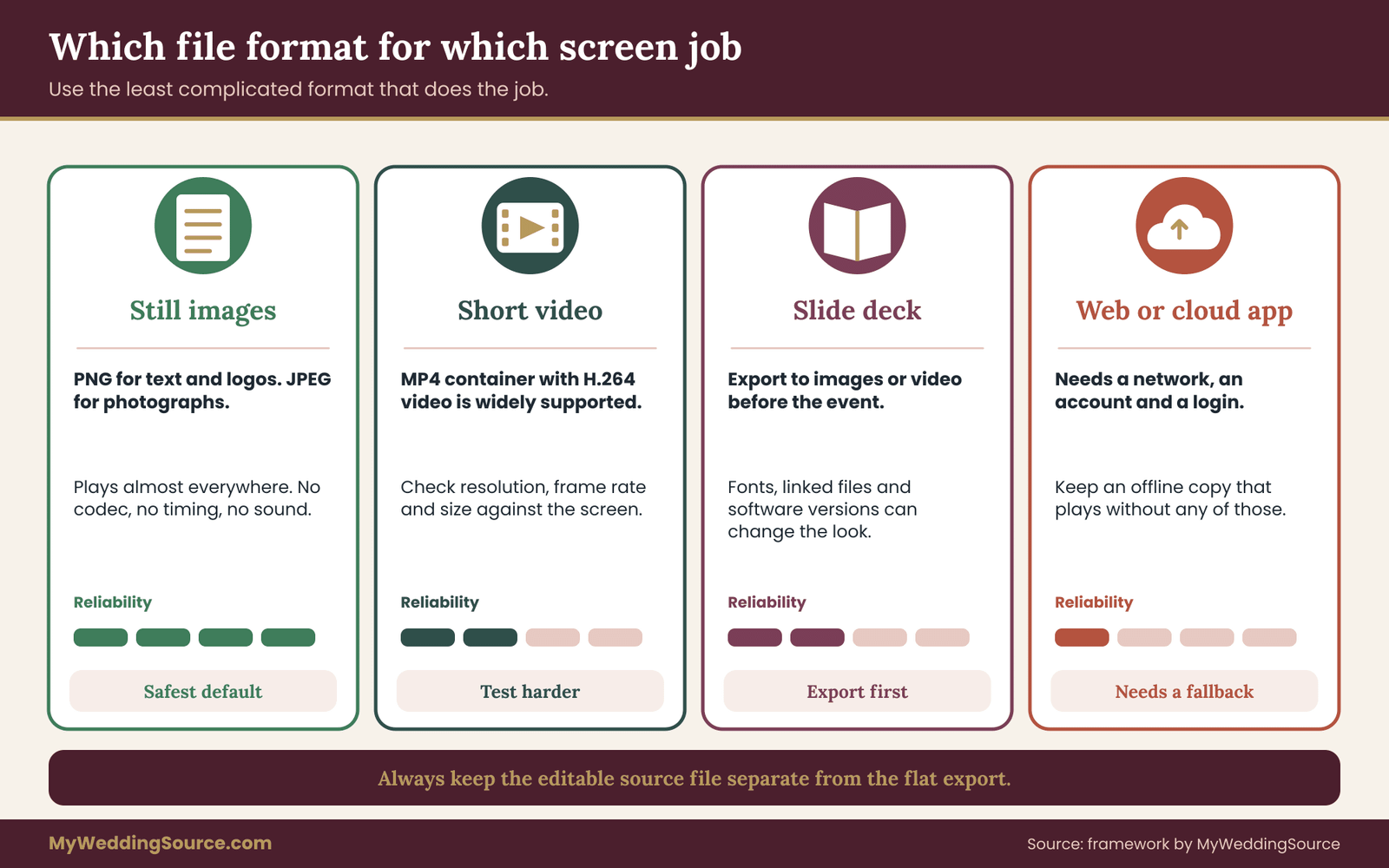
The file format decision is where most couples either overthink or underthink. The rule of thumb is simple. Use the least complicated format that does the job, because every extra feature is something that can fail without anyone noticing.
Still images: the safest choice for most digital signage screens
A still image is a single frame. It has no timing, no codec, no audio track and no playback engine to misbehave. Nearly every player and television can show a PNG or JPEG. That makes stills the default for welcome signs, directions, schedules and menus on digital signage screens.
PNG stores images without losing detail and handles sharp text and flat colors cleanly. It is the usual choice for slides that contain type, logos or illustrations. File sizes are larger than JPEG for photographs, but a single slide is rarely a problem.
JPEG compresses photographs well and is the usual choice for photo slides. Heavy compression can leave fuzzy halos around text, so do not use a low-quality JPEG for a slide full of words.
Avoid exotic formats for anything that has to play unattended. Files from design apps, vector files, layered documents and slide deck files may not open at all on a TV’s USB port. Export a flat image instead, and keep the editable source file separately.
Where a screen loops several stills, a numbered set of images is often all you need. Many built-in TV media players can play a folder of images as a slideshow with a chosen interval. That setting lives in the TV, not in the files, so check it during the test.
Video: only when motion is worth the risk
Motion is the part guests remember, so it is tempting. It is also where compatibility problems concentrate. A video file has a container, such as MP4 or MOV, and inside it a video codec and often an audio codec. Two files with the same extension can differ inside, and a player may handle one and refuse the other.
The most widely supported combination for general playback is an MP4 container with H.264 video. Even so, support varies by device, resolution, frame rate and bit rate. A television’s USB player may accept an H.264 file at 1920 by 1080 and refuse a 4K file of the same type. Always check the screen’s published list of supported formats, or the venue’s, and match it.
A few practical rules help:
- Export at the screen’s native resolution, not above it, unless the player is documented to handle more.
- Choose a standard frame rate, such as 24, 25, 30 or 60 frames per second, and avoid unusual variable rates. Ask the venue which they prefer.
- Keep clips short and loop them in the player rather than exporting a very long file.
- Remove audio unless sound is intended.
- Keep file sizes modest. Large files take longer to copy and are more likely to stutter on weak players.
If your photos are moving in a slideshow video, remember that a video is a copy. A mistake in a name or a date means re-exporting the whole thing, while a stills set only needs one image replaced. For content that might change, stills win.
Slideshow files and presentation decks
Presentation software is a common way to build signage, and it is also a common way to fail. A deck can depend on fonts installed on the computer that made it, on linked media that sits in another folder, and on the version of the software on the playback computer. Opening the file elsewhere can swap fonts, shift text and break video playback.
If you use a deck, export it as images or as a video before the event and play the exports. If you must play the deck itself, embed fonts where the software allows it, put every linked file in the same folder, and test on the same computer that will run it on the day. Also turn off any animations that are not essential. Transitions and builds are small features with outsized risk.
Web pages and cloud signage apps
Some services display a web page or a cloud-based playlist on a screen. These are convenient for remote edits, and they depend on a network and an account. Unless the venue provides a controlled system, treat cloud-based digital signage screens as a secondary tool. Anything that matters needs an offline copy that plays without an account login, a subscription renewal or a Wi-Fi password.
Many cloud players do cache content locally and keep playing when the connection drops. Many do not behave the same way after a restart. Ask the vendor, in writing, exactly what happens if the player loses the network, and what happens if it restarts while offline. Then test both. The offline playback section covers the steps.
Fonts, text and color profiles
Fonts deserve their own warning. If a design uses a special script font and the export keeps the text as live type, the playback computer may substitute a different font. The fix is easy: export to an image, where the letterforms are baked into pixels. After export, zoom in to the final image and read every word.
Color profile is a quieter issue. Most signage displays assume the common web color space, often called sRGB. If an image is exported in a different profile, colors can look washed out or too saturated. When the export tool offers a choice, pick sRGB for anything going to a TV or projector unless the AV vendor says otherwise.
Transparency can also cause surprises. A PNG with a transparent background can show black, white or whatever the player decides is behind it. For signage, give each slide a solid background so the result is the same everywhere.
File size, storage and copying
Keep the total size of the signage folder small enough to copy in a minute or two. If the player is a USB stick in a TV, check the stick’s format. Older formats limit single files to about four gigabytes, and some televisions only read certain formats. Many TVs read FAT32 or exFAT, and a few read NTFS. The TV’s manual will say. A plain, small, name-brand stick formatted as the TV expects is a better tool than a high-capacity stick with unusual formatting.
Always copy the files to the final device, then open them from that device. Opening them from the laptop’s folder is not the same test. Also avoid sub-folders unless the TV’s player expects them. Many built-in players show only the files in the top folder or sort files in ways that surprise you, often alphabetically. This is exactly why numbered names, such as 01, 02 and 03, matter.
Names and versions for signage screens: the “which file is final” problem
Within a week of starting, a signage folder usually holds “welcome_final”, “welcome_final2” and “welcome_FINAL_really”. Prevent that by using version numbers and one folder called “Current”. When a version is approved, move it into “Current” and move the previous one into “Old”. Only “Current” gets copied to the player. If a change is needed on the day, increase the number and update the spec.
A short log helps, even if it is just a text note: date, what changed, who approved. It takes thirty seconds and saves arguments. If a seating slide shows the wrong table for a guest, the log tells you when the list changed and whether the screen got the update.
Handling guest names and personal data in files
Any file on a screen that carries guest names, table numbers or meal choices is guest information. The National Institute of Standards and Technology publishes privacy and security guidance that organizations use to think about personal data, and the same basic habits apply here: share only what is needed, store files in an account you control, and delete working copies when the event is over. A seating slide needs names and table numbers. It does not need meal choices, allergies, phone numbers or room numbers.
Strip metadata too. Image and document files can carry hidden details such as author names, locations and edit history. Exporting a flat image usually removes most of it, but a final check of the file properties is cheap. If photos include guests, consider the consent expectations you have already set, which the guide on wedding photography consent addresses. A loop of guest photos on a public lobby screen is a different audience from a private reception.
Playback: choosing the player for your digital signage screens
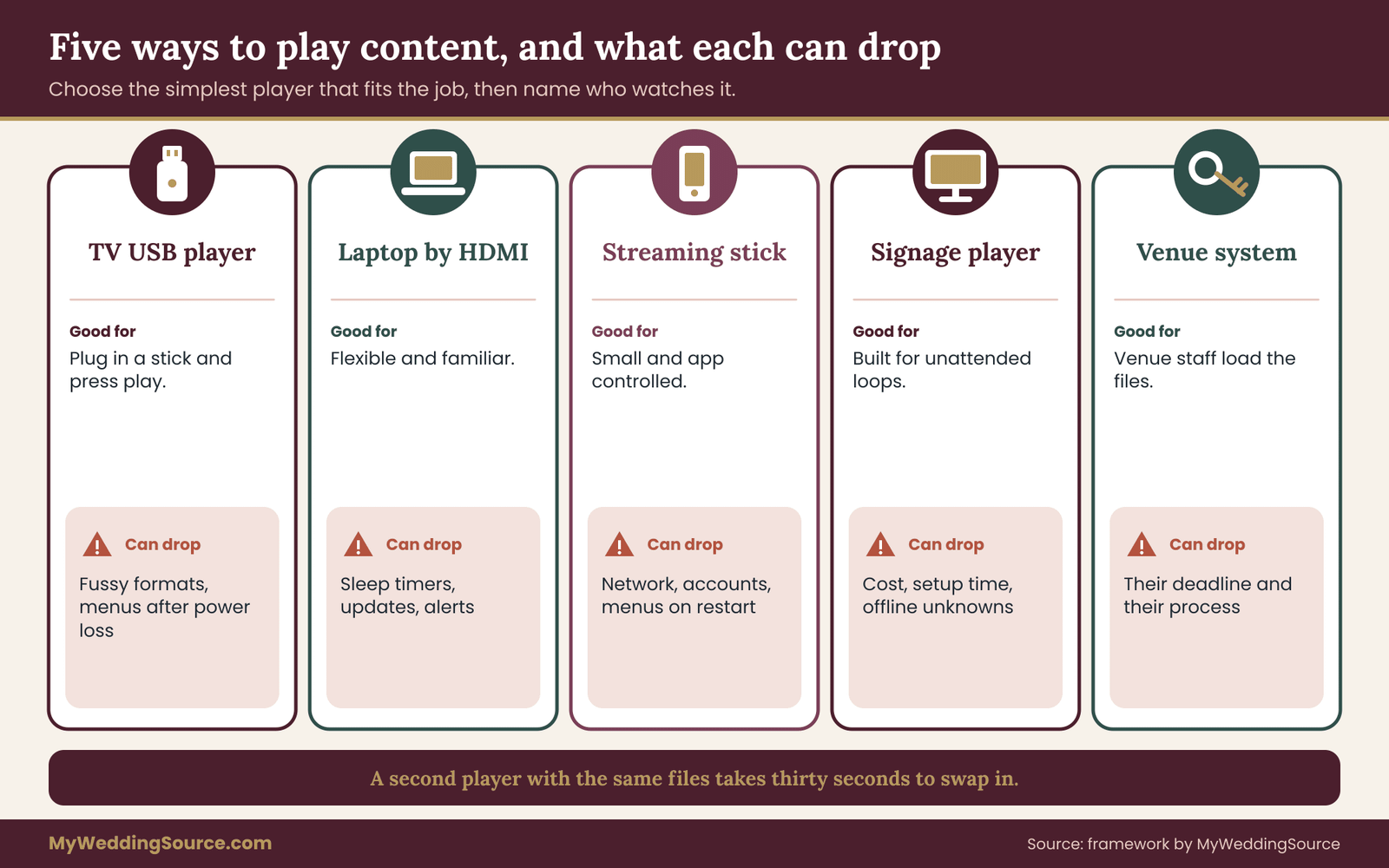
The player is whatever sends pictures to the display. Choosing it is a trade between control, cost and the amount of attention it needs on the day. Here are the common options, with the failure each one invites.
The television’s own USB player. You plug in a stick and choose “play.” It is cheap, simple and has no network dependency. The weaknesses are fussy format support, limited control over timing, and menus that can time out or return to the home screen after a power loss. It is a good fit for a small set of stills.
A laptop over HDMI. Flexible and familiar, and a laptop is also a small computer full of things that interrupt: sleep timers, software updates, notifications, battery warnings and calendar reminders. If a laptop runs your digital signage screens, treat it like a stage machine. Plug it in, disable sleep and screen savers, close every other program, turn on do-not-disturb, and pause automatic updates.
A streaming stick or media box. Small and tidy, often controlled by a phone app. Many assume a network and an account, and some show ads or menus after a restart. Good for a tested loop, poor for last-minute changes.
A dedicated signage player or cloud service. Built for unattended display. Often supports schedules, multiple signage screens and remote updates. Costs more and needs setup time. Ask about offline behavior before relying on it.
The venue’s own system. The venue’s staff operate it. You send content and approve a proof. Reliability depends on their process, so ask who is on site, when they start and who to call if a screen goes dark.
Match the player to the risk
A short decision rule keeps the choice simple. If your content is a few stills and will not change, use the TV’s USB player or the venue’s system. If it needs motion, use a laptop or a media box that someone will watch. If it needs live changes, name a person who will make them from a specific device and give that person a lower-tech fallback. If nobody will be nearby to check a screen, choose the simplest player, not the most capable.
There is also a case for having two players for important signage screens. A second device, loaded with the same files and a labeled cable, takes thirty seconds to swap in. It does not have to be fancy. A spare USB stick and a second laptop in a bag count as redundancy.
Cables, adapters and inputs
Most signage failures at the hardware level are cable problems. HDMI is common and forgiving, but long cables, cheap adapters and loose connectors cause flicker, dropouts and “no signal” messages. Keep cable runs as short as the layout allows, use cables from a reputable source, and bring a spare. If you are using an adapter from a laptop’s small port, test that exact adapter with that exact laptop and screen.
The HDMI licensing body publishes information on the standard and cable categories, which helps if you need a long run or a high-resolution connection. For most wedding uses, a good short cable is more valuable than a clever one.
Also write down the input name. Displays have several inputs, such as HDMI 1, HDMI 2 and USB, and they can switch automatically. A screen set to automatic may jump to another input if it detects a signal, or sit on “no signal” if the chosen port loses power. Locking the display to one input, when the menu allows it, avoids that.
Power, sleep and auto-off settings on signage screens
A screen that has been on for a minute is not proof it will stay on for five hours. Check every power-related setting on the display and the player.
- Sleep or screen saver on the player. Set to never.
- Auto power-off on the TV. Many sets turn off after a period with no input or no activity. Turn it off in the menu, or confirm the setting during the test.
- Eco or brightness modes. Some sets dim over time or in response to room light. Turn them off or set them where you want.
- Power loss behavior. If a power strip trips or someone kicks a plug, what does the display do when power returns? Some resume playback on their own. Others sit at a menu. Test it by pulling the plug.
- Outlets and strips. Use a surge-protected strip with a visible switch cover, tape the cable path flat with the venue’s approval, and label the plug so nobody unplugs a “spare” outlet.
Ownership of settings
Every setting you change in a TV menu is a setting the next person might change back. If the screen belongs to the venue, ask the AV contact to set the options you need, and ask them to lock them where the display allows. If the display is rented, ask the AV vendor to do it and confirm afterward by looking at the menu with them. Do not assume a setting is saved just because it was changed. Power-cycle the display and look again.
Who watches the signage screens
On a busy day, nobody is idle. If a screen is important, give one person the job of glancing at it at set times. A coordinator walking the room every thirty minutes can check each of the digital signage screens in a minute or two: is it on, is it showing the right slide, is the picture clean, is anything blocking it? Write the check times on the run sheet, tied to events such as doors opening, dinner starting and the first dance.
That person should know the first three things to try if a screen fails. Check the power light. Check the cable at both ends. Switch the input or restart playback. If that fails, replace the screen content with a printed backup sign and call the AV contact. They should not try anything stranger in front of guests.
Cloud accounts and shared logins
If a cloud service or a phone app controls a screen, the login is part of the system. Keep credentials in a password manager rather than in a text message, and do not share an account’s main login with the whole wedding party. Use a separate guest or operator role if the service offers one. The Cybersecurity and Infrastructure Security Agency publishes plain guidance on strong passwords and multi-factor sign-in, and its advice applies here. If the app needs a verification code sent to a phone, make sure that phone will be reachable and charged during the event.
Think also about subscriptions and renewals. A trial that expires on the wedding day is a surprise nobody needs. Write the renewal date in the spec, and if the service will not work after a lapse, set a reminder before the date.
Digital signage screens at an outdoor or tent venue
Outdoor spaces add weather, glare and power exposure. Most indoor televisions are not built for rain, direct sun or temperature swings. If a screen is placed outdoors under a tent or roof, ask the AV vendor whether the display is rated for it, how it will be shielded, and what happens if wind or rain arrives. Direct sunlight can make a standard display unreadable. In those cases, a printed sign is the better option and the screen becomes a bonus for the shaded indoor area.
Generators and long extension cords bring their own risks. A tent’s power may be shared with kitchen equipment or lighting, and voltage dips can restart a player. Ask the venue or rental company how power is supplied, whether signage screens share a circuit with other loads, and whether a surge protector or uninterruptible power supply makes sense. A small battery backup between the wall and a player can ride through a brief flicker, though it is a convenience, not a substitute for a tested fallback.
A note on projectors and LED walls
Projectors and LED walls follow the same logic with a few extra concerns. A projector needs a dark enough room or a bright enough lamp, a surface that suits it, and a clear line of sight. An LED wall has its own controller and a native resolution that may not match a standard video size.
In both cases the owner of the equipment should tell you the exact pixel dimensions and the file types accepted, and the venue technical walkthrough is the right time to confirm sightlines, power and throw distance. Treat any large display as an AV production item with its own technician, not as a larger television.
Offline playback verification for digital signage screens
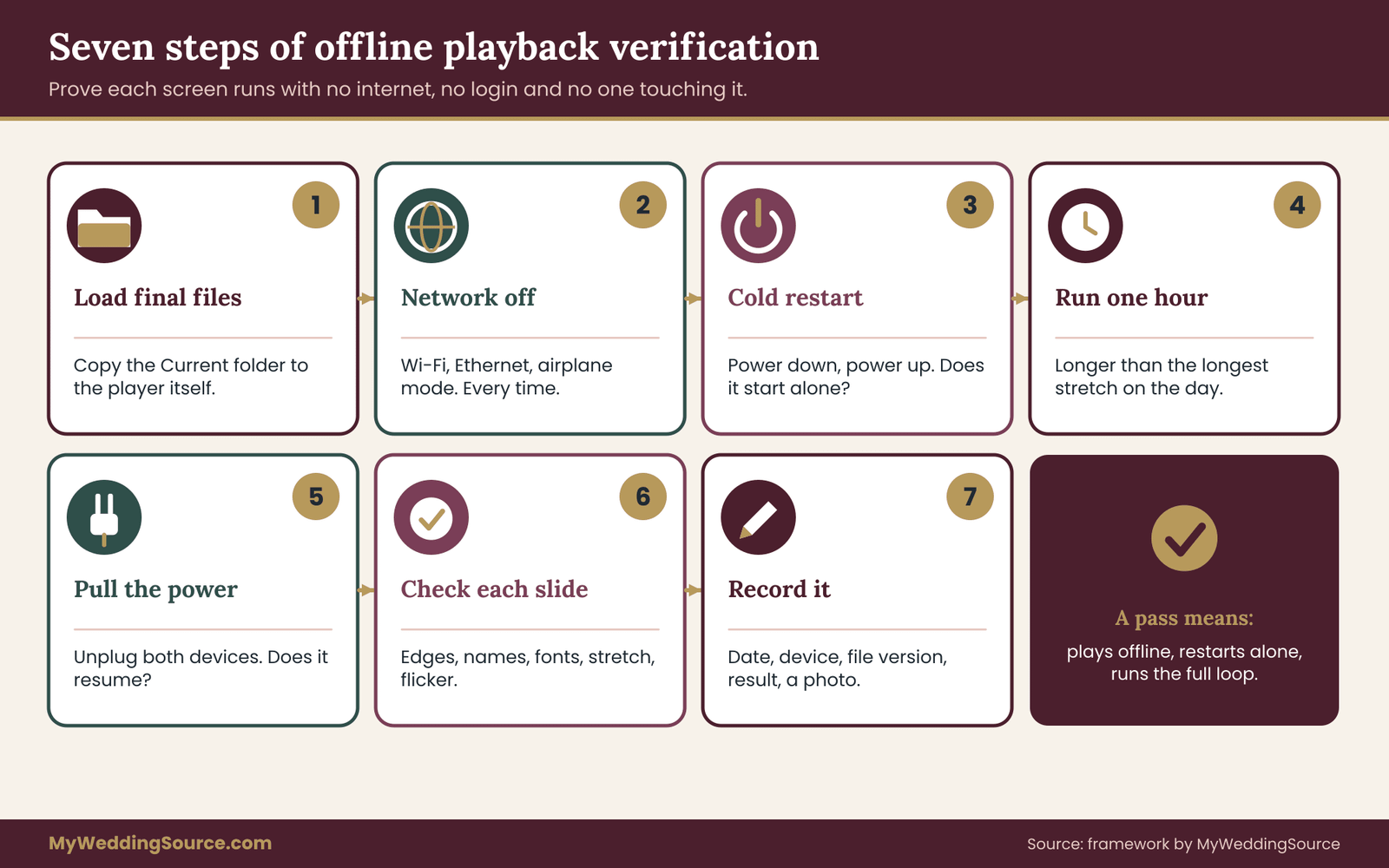
Offline playback verification is the heart of this guide. The idea is plain: before the event, prove that each of your digital signage screens can show its content with no internet, no login and no one touching it, for longer than the event itself. If that proof exists, the venue Wi-Fi can drop, a vendor portal can go down and a phone can die without the room going dark.
Many venues have good internet. Many do not, especially ballrooms in the middle of a building, barns, vineyards and tents. Guests also load the network heavily during a reception, when everyone uploads photos at once. Plan as if the connection will be slow or absent, and be pleasantly surprised if it is not.
The seven-step verification for signage screens
Run this sequence for each screen and player pair. Do it at home with the same equipment if you can, and again at the venue if access allows.
- Load the final files onto the playback device. Copy them from the “Current” folder. Do not stream them from a shared drive, a cloud folder or a web link.
- Turn off every network connection. Disable Wi-Fi, unplug Ethernet, and on a phone or tablet use airplane mode. This is the step people skip, and it is the one that matters most.
- Restart the player cold. Shut it down, then power it on. This shows whether playback starts by itself or waits for a human to press play.
- Run the loop for at least one full hour. A good rule is to test for longer than the longest stretch the screen has to run on the day, plus a margin. A slideshow that runs ten minutes proves little about a six-hour reception.
- Pull the power on purpose. Unplug the display and the player, wait ten seconds, plug them back in. Note whether the screen returns to the correct slide without help.
- Check every slide at full size. Look at each one for cropped edges, wrong names, stretched images, odd fonts and flicker.
- Record the result. Write the date, the device, the file version, what you turned off and what you saw. A phone photo of the screen with a visible clock is enough.
What counts as a pass
A pass means all of the following are true. The content played from local files with the network off. Playback started on its own after a cold restart and after a power cut. The loop ran for the full test period without freezing, skipping or changing speed. Each slide was readable from the viewing distance of the real room. The timing matched the spec. And the final file names and version numbers matched the spec as well.
If any of these fail, do not argue with the equipment. Change something and test again. The change might be a simpler file format, a different player, a replaced cable or a lowered resolution. Each change gets a new test, because fixing one problem can create another.
Common failures and what they usually mean
A few patterns come up repeatedly.
The screen goes black after a set time. A sleep, eco or auto-off setting is active. Find it in the display or the player and turn it off, then test again over the full period.
The slideshow works online but stops offline. The player was loading content from a network location or a cloud account and has no local copy. Move files to local storage, or confirm the player’s offline cache with its maker.
The first slide never shows after restart. The player waits for a button press or opens a menu. A different player mode, a different folder layout or a different device may fix it. Do not rely on a human to press play at a busy time.
Text looks fuzzy or stretched. The file’s size or shape does not match the screen, or the display is scaling. Export at native resolution and set the display’s picture size to a “dot by dot” or “just scan” style option if it has one, which shows pixels one-to-one.
Edges are cut off. Overscan. Turn it off in the display’s settings or keep important content inside safe margins, which you should do anyway.
Video stutters. The bit rate, resolution or codec is too much for the device. Lower the resolution or frame rate, or use stills.
The wrong file plays first. Sort order. Rename with leading zeros and test again.
A simple soak test schedule
Not every couple can run a six-hour test. A tiered approach covers most cases. For a small set of stills on a TV’s USB port, one full hour offline plus a power-pull test is a reasonable baseline. For a laptop or media box, run at least two hours, and include the time of day the laptop will actually run, because a battery or heat issue might show up late. For anything with video or a cloud app, run a longer test and run it twice, once with the network off and once with it on, so you know the behavior in both conditions.
If you cannot test the venue’s own system, ask the venue to run a proof. A photo of your slide on their screen, sent a few days ahead, is a reasonable request. Staff often can send one in a minute. A small detail to check in that photo: is the screen orientation right, is any text cut off, and is the file version the one you approved?
Test at the venue if you can
Hardware at home and hardware at the venue differ. The venue’s screen may have different overscan settings, a different input name, a different USB format requirement or a different power circuit. A short site test, even fifteen minutes during a walk-through, reveals most of these. The venue technical walkthrough is a good place to fit a screen test into a visit that also covers measurements and access routes.
When a full site test is not possible, test the player with another display that has the same native resolution, and ask the AV contact to confirm the venue’s screen specifications in writing. Record anything you could not test in the spec as a known risk, so the person running the day knows where to look first.
Verifying with the people who will run it
Verification is not finished until the operator has done it too. The person who will be on site should power up the system, start playback, and shut it down once while you watch. This reveals missing steps and unclear labels. It also tests the instruction sheet. If the operator needs to ask you a question during the practice run, add the answer to the sheet.
Label the equipment. A strip of tape on the player, the cable and the power plug saying “Screen A, entrance” prevents someone from borrowing the wrong cable. Add a note with the AV contact’s phone number and the spec version.
Verification for signage screens run by the venue
When the venue operates the screen, you cannot pull plugs. You can still verify in a smaller way. Ask for a written confirmation of the file types they will accept and the content deadline. Send the files early and ask for a photo of the loaded content. Ask what happens if their system loses the network. Ask who covers the screen during your event and whether they can reload a file from a USB drive if the system fails. Then write the answers down. A venue that cannot answer these questions is telling you something about how much to rely on its digital signage screens.
Offline does not mean no network at all
A fully offline player is the most predictable choice for signage screens, but some uses do need a connection: a live social wall, a live seating search, a stream. For those, define the offline fallback in advance. A live seating lookup, for example, should fall back to a printed list or to a static image of the seating chart.
A live feed should fall back to a looped slideshow. In every case, the fallback is something you have tested offline, and a named person knows how to switch to it. The same logic runs through the broader backup plan for wedding day files and phones, where every digital tool has a tested fallback.
Verification is a record, not a feeling
Couples sometimes say a test went fine and mean they glanced at it. A record is different. It says which device, which files, which version and how long. If the screen fails later, that record narrows the search to what changed since the test. It also helps the next person if someone else takes over. Keep the notes with the spec and the backup images so the three travel together.
Backup images for digital signage screens: the fallback set
A backup image is a flat, final, numbered picture of a slide, saved in a form that nearly anything can open. The backup set is the group of those images for every screen, and it is the cheapest insurance in this whole guide. Its job is to let someone, with no special software and no special knowledge, put your content back on a screen in a couple of minutes.
The backup set has three uses. It reloads a screen if the main file or player fails. It feeds a replacement device that someone brings in. And it supplies the artwork for a printed sign if the screen cannot be revived.
What goes in the backup set
For every screen, include:
- One image per slide, at the screen’s native size, as PNG or high-quality JPEG.
- A second copy at a common alternate size, such as 1920 by 1080, in case a replacement display is different.
- A printable version of the key slide, for example the welcome or the schedule, sized for letter or tabloid paper, so a copy shop or a venue printer can produce it quickly.
- A text-only version of any seating or schedule slide, so it can be pasted into a message or printed even if images will not open.
- A short readme in plain text that gives the spec version, the order of slides and the interval.
Name every file with the same rule as the spec. If a stranger opens the folder, the first image should be obviously the first slide.
Where the backup set lives
Three locations cover almost every failure.
A plain USB stick with the files at the top level, formatted the way the venue’s signage screens read. Label it and give it to the content owner and, if you can, to the AV contact.
A shared folder in a cloud account the operator can open from a phone. Use view-only access for people who do not need to edit. The shared folder helps when a USB stick is lost or a laptop is dead.
A printed set of the most important slides, in a folder kept at the welcome table or with the coordinator. This is the version that works when everything electronic fails.
This mirrors the idea of keeping more than one copy in more than one kind of place. The Library of Congress publishes personal digital archiving guidance that recommends exactly that sort of redundancy for files you care about, and the same habit applies to a wedding day set of files.

The printed fallback sign for signage screens
Every screen that carries essential information should have a printed counterpart, even if it stays in a box. For a welcome screen, that is a framed or foam-board sign. For a seating screen, that is an alphabetical list or table cards. For a schedule screen, that is a printed schedule at the entrance and in the hands of the coordinator.
Do not wait until the day to discover your printer or a nearby print shop cannot make it in time. Print the fallback at least a week ahead, store it with the coordinator, and keep one copy near the equipment. If the printed sign is never used, it cost a small amount. If the screen fails, it saves a lot of confusion.
The same principles of contrast and viewing distance apply to both a screen and a printed board.
Seating lists, privacy and what the screen reveals
Seating content deserves extra care. A screen shows names to everyone in the room, and sometimes outside the room. If a screen sits in a hotel lobby or a shared entrance, strangers can read it. The Federal Trade Commission publishes consumer-privacy guidance that stresses collecting and showing only what is needed. For a seating slide, that means names and table numbers and nothing else.
Think through a few edge cases. If a guest asked not to have their name displayed, or if someone’s table placement is sensitive, handle it by hand, not by screen. If a family has two surnames or a preferred name, confirm the preferred spelling before export to avoid errors that are awkward to fix once the slide is exported. If children’s names are on a slide, consider using first names only.
After the event, delete working copies from shared devices and accounts, and keep one archived copy of the final slides. A screen’s cache, a laptop’s downloads folder and a messaging thread can all keep guest names longer than you intend.
Accessibility basics for signage screens
Screens can help guests, and they can also exclude some of them. A few steps cover most needs. Keep contrast high and text large. Avoid flashing or rapidly changing content, which can be a problem for some viewers and is generally best avoided in a social setting. Do not rely on color alone to show meaning, so a red arrow is paired with a label. Keep slides on screen long enough to read comfortably, which for a line of text usually means several seconds, longer for a full list.
The Americans with Disabilities Act pages at ADA.gov and the W3C’s Web Accessibility Initiative are useful general starting points for accessible design ideas. Neither tells you exactly what your wedding must do, and venue rules may add requirements, so ask the venue about accessible routes and any existing accessibility features. A printed large-print version of a seating list and a staffer who can read it aloud are both easy additions.
AI-made text and images on signage
Some couples use generative tools to draft slide text or create artwork. That is fine as a starting point, but treat every output as a draft. A tool can alter a name, change a date, invent a venue detail or produce a handsome slide with a misspelled word. Read each final slide against your guest list and your confirmed facts, and have a second person proofread it.
Do not let a tool generate a guest list, a table assignment or a schedule that you have not checked line by line. The responsible approach is simple: you provide the facts, the tool may help with layout, and a human verifies the result.
Music, photos and rights on signage screens
If a loop includes music or video clips, you may need permission to use them in a public setting. Photos taken by a professional are usually covered by the photographer’s contract, which may restrict how images are shown or shared. The U.S. Copyright Office explains the basics of copyright for creators and users. Do not use a screenshot from a streaming service or a clip from a film as a background on the assumption that a private event makes it fine.
Silent slides with your own photos and text avoid the question entirely. If sound or third-party material is part of your idea, ask the venue and the photographer or DJ what their policies are before you build around it.
A final pre-flight review of your signage screens
One week out, run a single review that touches every screen once. It should take less than an hour and it replaces a lot of scattered worrying. Use the same sheet each time so nothing is skipped.
Confirm the paperwork. The spec is the current version, the venue has it, and the content cutoff is written down. Check that the file names on the player match the names in the spec and that nothing in the “Old” folder was copied by mistake.
Re-run the offline test with delivered files. Use the files exactly as sent to the venue, not the working copies. Network off, cold restart, an hour of looping and a power pull. Your signage screens should pass the same test twice in a row, and a pass on a different file version does not count.
Look at each slide as a guest would. Stand where guests will stand and read every slide. Check names against the guest list, times against the run sheet and arrows against the room. A second person should read it too, because a writer’s eye slides over typos.
Check the backup set. Open the USB stick on a different computer and confirm the files open. Open the shared folder link from a phone. Confirm the printed folder exists. A backup that has never been opened is only a hope, and the same is true for the backup images that sit behind every set of signage screens.
Confirm people and phones. The operator has the sheet, the AV contact’s number is saved, and someone knows where the spare cable is.
Decide the stop rule in advance
Agree before the day on what counts as a failed screen. For example: if a screen stays dark for five minutes after the three quick checks, the printed sign goes up and the screen is left alone until the AV contact can look. Having a stop rule saves the operator from improvising and keeps guests from watching someone fight a cable. It also gives you permission to let go. A guest who walks past a good printed sign does not know it was the fallback.
After the event, take ten minutes to write down what happened with each screen: what worked, what needed a fix and what you would change. If you share the notes with the venue or your coordinator, you help the next couple who uses the same signage screens, and you leave a clean record in your own files.
Worked example: four digital signage screens, one weekend
Consider an invented couple, Imani and Theo, with a hundred and twenty guests in a hotel ballroom. They want four digital signage screens: a welcome slide at the entrance, a seating lookup beside the cocktail space, a schedule board by the doors and a photo loop in the reception room.
They fill in a spec for each. The hotel’s AV team confirms that the entrance and cocktail displays are landscape, 1920 by 1080, read stills from a USB stick, and cannot play audio. The schedule board is portrait. The reception display is a projector driven by the AV technician’s laptop.
Imani exports every slide as a PNG at the right size. The seating slide is an alphabetical list split across three images, with names and table numbers only. The portrait schedule board gets its own file made portrait from the start. The photo loop is exported as thirty-six still images, eight seconds each, rather than a long video, because the technician prefers stills and a change takes one file.
They run the offline test on a TV at home: files on USB, network off, one hour of looping, power pulled twice. The test catches a problem. The TV returns to its home menu after a power cut. They find a setting that resumes playback and add it to the spec.
The backup set goes onto a USB stick, a shared folder and a printed folder. Theo’s cousin, who is not in the wedding party, holds the stick and the printed folder. The hotel’s AV technician gets the spec and the files by the deadline and sends back a photo of each loaded screen. A note in the spec records that the seating signage screens carry no meal choices.
On the day, the hotel loses its guest Wi-Fi for twenty minutes during cocktail hour. Nothing on the signage screens depends on it, so nobody notices. Later, one entrance display resets after a power blip and returns to the first slide on its own, because that is the behavior they tested. The cousin glances at it during a walk-through and moves on. That is the whole goal: an uneventful screen.
This example is invented and the details will differ for you. The pattern is what carries over: confirm the facts, export to spec, test offline, keep backups in three places, and hand off with a named person.
The handoff: giving digital signage screens to the person who runs them
A good spec and a clean test mean little if the person on site cannot use them. The handoff is a short, deliberate transfer of everything needed to run, check and rescue each screen. Do it at least a day before, not in the car on the way.
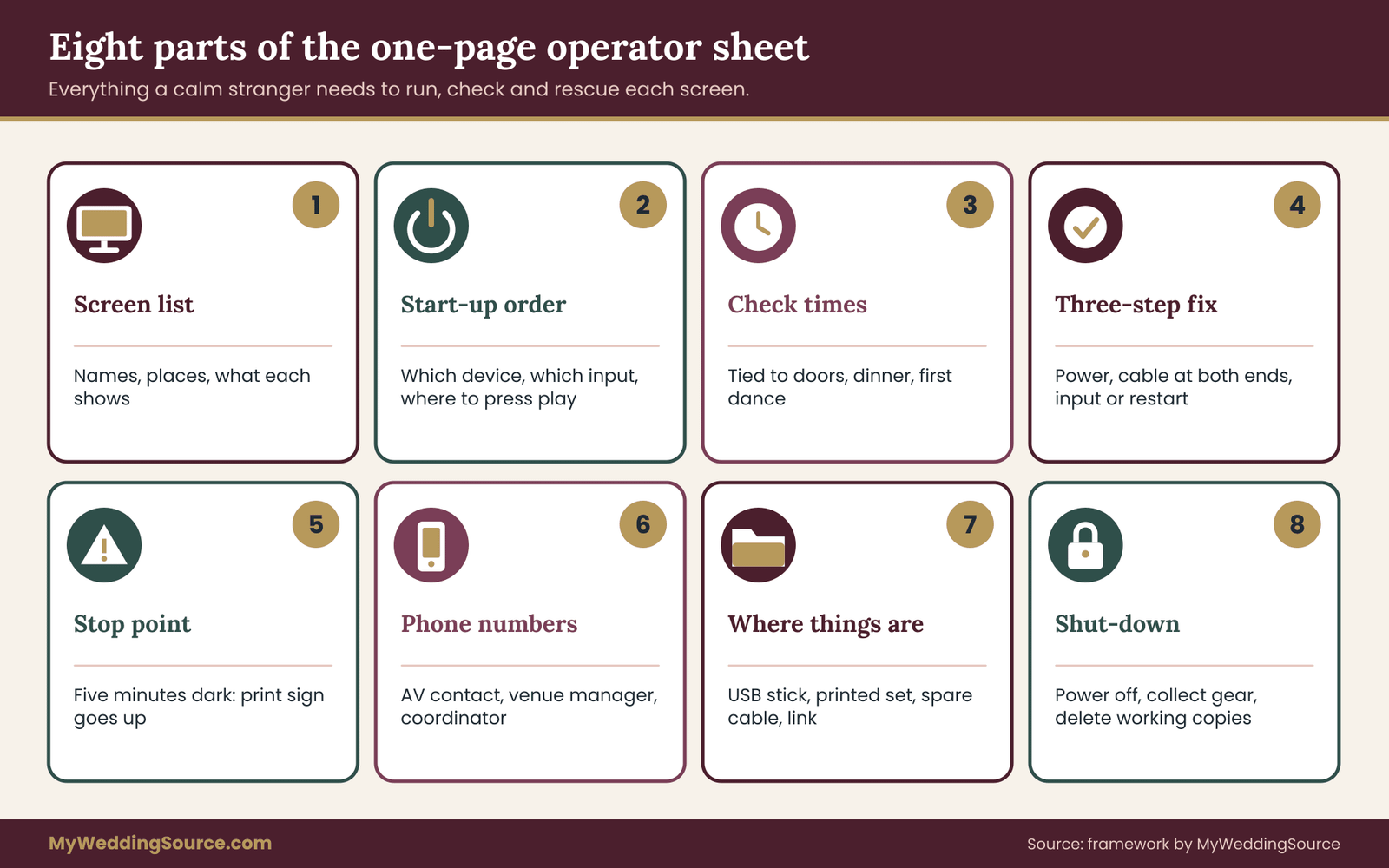
The one-page operator sheet
The operator sheet is separate from the spec. The spec describes what content and equipment exist. The operator sheet describes what a person should do. Keep it to one page per event.
- The screen list, with names, locations and what each shows.
- Start-up order: which device to power first, which input to select, where to press play.
- Check times tied to the run sheet, such as one hour before doors, at doors, at dinner and before the first dance.
- The three-step fix: check power, check the cable at both ends, switch input or restart playback.
- The stop point: if the three steps fail, stop, put up the printed sign and call the AV contact.
- Phone numbers for the AV contact, the venue manager and the coordinator.
- Where things are: the USB stick, the printed folder, the spare cable and the shared folder link.
- Shut-down: what to power off at the end, who collects equipment and who deletes working copies.
Test the sheet by handing it to someone who has never seen the setup and asking them to start one screen. Whatever stops them goes on the sheet.
What to give the venue or AV contact
Send a short package for the signage screens a few days before the deadline. It should contain the spec with its version number, the final files named per the spec, the backup set, the operator sheet, and a clear statement of who may approve changes. Ask the contact to confirm receipt and to send back a photo of each screen showing the loaded content when that is possible.
In your message, say what you need from them rather than what you hope for. For example: confirmation of the screen resolution, confirmation that the player will resume on its own after power loss, a setup time for a thirty-minute test, and the name of the person on duty during the event. The simple directness helps. AV staff handle many events, and a clear request is easier to answer than a long one.
“Attached are the final files for Screens A to D, the spec (version three), and our backup images. Could you confirm receipt and send a photo of each screen once loaded?”
Your timeline for digital signage screens
Work backward from the date for all of your signage screens. Exact numbers depend on the venue, so treat these as a rhythm and adjust to the content deadline you were given.
Several weeks out. Ask the ownership and format questions, collect model numbers and decide which signage screens you really need. Draft the spec.
A few weeks out. Settle the spec version. Build the slides and export them. Run the first offline test.
About ten days out. Freeze the content and send files to the venue or AV contact before their deadline. Print the fallback signs.
The week of the wedding. Run a final offline test with the files as delivered. Prepare the USB stick, the shared folder and the printed folder. Brief the operator.
The day before or morning of. Do the site test if allowed. Check settings. Photograph each screen for the record. Confirm who is on duty.
After the event. Collect equipment, delete working copies, keep the final spec and files with your records. The wedding records guide explains where those belong in a longer archive, and the wedding planning checklist is the place to place each of these dates among the rest of your tasks.
Change control: late changes are where errors happen
Last-minute edits are the leading cause of wrong names and wrong times on a screen. A guest drops out, a table swaps, a time moves. The tempting response is to fix the slide quickly. The safer response is a small process: one person owns the edit, the edit gets a new version number, a second person proofreads it, the new file is tested on the actual player, and only then is it swapped in.
Write the cutoff time and the name of the approver in the spec. After the cutoff, decide what is worth the risk. A changed seating slide is worth it. A restyled welcome slide usually is not.
When a late change is needed and the player is not nearby, send the revised files to the AV contact along with the old file name to replace, and ask for a photo of the result. Avoid editing files directly on the venue’s device unless the contact does it.
Limits of everything in this guide
It helps to be honest about what this guide cannot settle. Specifications change as equipment changes, and a general article cannot know your venue’s display or its network. Format support differs by model and firmware. A technique that works on one television may not work on its sibling. Cloud signage services update their behavior, pricing and terms. Venues set their own rules about outside devices, power, tape on floors and the use of their networks.
So treat the guide as a method, not as a guarantee. The method is to confirm facts with the equipment’s owner, put them in writing, export to the spec, test offline, keep backups and hand off to a named person. The details inside those steps come from your own equipment and your own venue.
Official and vendor sources to check
For the facts that change, go to the source that issues them. Each display manufacturer publishes a spec page and a manual for its models, which lists supported file types, ports and settings. Your venue and AV vendor publish their own technical rider or load-in rules, so ask for them. For general standards and guidance, the organizations listed in the sources section are good starting points.
In short: the National Institute of Standards and Technology for privacy and security principles, the Cybersecurity and Infrastructure Security Agency for account security and backups, the Federal Trade Commission for consumer privacy and endorsement rules, the Library of Congress for personal digital archiving, the W3C Web Accessibility Initiative and ADA.gov for accessibility, the U.S.
Copyright Office for rights questions, and the HDMI and SMPTE organizations for video connection and format standards.
Before you rely on any rule, check its date. This article reflects November 2026. If a vendor’s terms or a standard has changed since, the issuing source is right and this guide is not.
When to use fewer signage screens
Sometimes the right decision is to cut signage screens. If the venue has no reliable power at the entrance, if the AV fee is high compared with the benefit, if the content will change repeatedly, or if you cannot get a test slot, a printed sign may serve guests better than a risky display. Reducing from four digital signage screens to one, or to none, is a sound production choice rather than a defeat. A well-lit, well-lettered sign on an easel does the job for most welcome and direction needs.
A useful test is to ask what happens if this screen goes dark and nobody notices for ten minutes. If the answer is “some guests are mildly confused,” a fallback sign is enough. If the answer is “guests cannot find their seats,” the screen needs a stronger fallback and a watcher. Rank your signage screens by that answer and spend effort accordingly.
Your next steps
- List the signage screens you want and ask the venue or AV vendor who owns each, what its native resolution and inputs are, and who operates it.
- Write a one-page spec per screen with the fields in this guide, and give it a version number and a content cutoff.
- Export each slide for the signage screens as a still image at native size unless motion is truly needed, and name the files with numbers.
- Run the seven-step offline playback verification on the same type of player, including a cold restart and a power pull.
- Build the backup set: a USB stick, a shared folder and a printed folder of the key slides.
- Write the operator sheet, name one person to run the signage screens, and send the package to the venue or AV contact by their deadline.
- Keep the final spec, test notes and files with your other vendor contracts and your day-of vendor timeline.
FAQ
What size should I export images for wedding signage screens?
Export for your signage screens at native resolution, which you get from the venue, the AV vendor or the maker’s spec page for that model. Many modern televisions are 1920 by 1080 or 3840 by 2160. If you cannot confirm it, 1920 by 1080 is a safe landscape default for stills. Keep text inside safe margins so cropped edges do not cut off names or times.
Are PNG or JPEG files better for digital signage screens?
PNG suits slides with text, logos and flat color because it keeps edges sharp. JPEG suits photographs and keeps files smaller, but heavy compression can blur lettering. Use PNG for text slides and good-quality JPEG for photo slides. Whichever you choose, export flat images rather than design-app or presentation files, and confirm the screen’s list of supported file types.
Can digital signage screens run without Wi-Fi?
Yes, if the content and the player are set up for it. Stills or video stored on the player or a USB stick can play with no network. Cloud services and web pages may not. Verify by turning off every network connection, restarting the player cold and running the loop for at least an hour, then pulling the power once to see how it recovers.
Should signage screens show video or still images?
Stills are the safer default for welcome signs, directions and schedules. Video adds compatibility questions about container, codec, resolution, frame rate and file size, and it needs more testing. Use video only when motion adds real value, keep clips short, remove audio unless it is planned, and check the screen’s supported formats before exporting.
What should the backup images for signage screens include?
Include one flat image per slide at the screen’s native size, a copy at a common alternate size, a printable version of key slides, a text-only version of seating or schedule content, and a short readme with the order and timing. Store them on a plain USB stick, in a shared folder and as a printed set. Label them with the spec version.
Is it safe to show guest names on signage screens?
Showing names and table numbers on signage screens is common, but each display is visible to everyone nearby, including people outside your guest list in shared spaces. Display only what is needed, leave out meal choices and contact details, handle sensitive placements by hand, and delete working copies afterward. Keep a printed list ready if a screen fails or a guest prefers not to appear.
Who should run the signage screens on the wedding day?
Name one person who is not a partner or in the wedding party, such as a coordinator, planner or trusted friend, and give them an operator sheet. It should list start-up order, check times, a three-step fix, the stop point and phone numbers. If the venue or an AV vendor operates the signage screens, confirm who is on duty and how to reach them.
What if one of the signage screens fails during the reception?
Run the three quick checks: power at the display and player, the cable at both ends, then input or playback restart. If the screen is still dark, stop trying new things in front of guests. Put up the printed fallback sign, call the AV contact, and reload the backup images from the USB stick once someone can do it calmly.
Sources
- National Institute of Standards and Technology: privacy and security guidance
- Cybersecurity and Infrastructure Security Agency: account security and backup guidance
- Federal Trade Commission: consumer privacy and advertising guidance
- Library of Congress: personal digital archiving guidance
- W3C Web Accessibility Initiative: contrast and accessible design guidance
- ADA.gov: Americans with Disabilities Act information
- U.S. Copyright Office: copyright basics
- HDMI Licensing Administrator: connection standards and cable information
- SMPTE: video and media standards
- Section508.gov: accessible technology guidance