
Wedding app data is everything you typed, uploaded and tracked inside a planning app: guest names and addresses, RSVP answers, meal choices, budgets, vendor contacts, checklists and seating charts. This guide shows how to export it, test the copy and archive it before the subscription ends, using a simple manifest and a restore check.
Start at least a month before the subscription ends. List every kind of wedding app data you stored, then export each one in a format you can open without the app. Write a manifest that records what you exported, how many records it holds and where the file lives. Run a restore check by opening the files in a different program and comparing counts against the manifest. Only after the copy passes should you request deletion or cancel. Treat guest details as private information the whole way through.
A wedding planning app feels permanent while you are using it. The guest list is there every time you log in, the budget updates itself, and the checklist nags you at the right moments. Then the wedding happens, the free trial or paid plan runs out, and the account quietly becomes a liability. It holds names, addresses and dietary notes for dozens or hundreds of people, and you may no longer be paying attention to who can see it.
Good handling of wedding app data comes down to a short sequence. You decide what is worth keeping. You export it in a format that does not depend on the app. You prove the copy works. You store it somewhere safe, and only then do you close the account. Skipping the third step is the common mistake, because an export file that will not open is not a backup.
Everything below applies whether your wedding app data sits in one app or five. If your apps also ran parts of the wedding day itself, the wedding day digital operations guide covers that side.
A note on scope. This is general information, not legal, tax or financial advice, and apps, privacy laws and billing rules differ and change. Where a rule matters, the guide points you to the app’s own help pages or to the agency that sets the rule, so you can confirm the current version yourself.
What counts as wedding app data
Most people think of the guest list and stop there. A modern planning app stores far more, and each kind of wedding app data has a different value after the wedding and a different level of sensitivity. Sorting them first keeps the rest of the work small.
People records. Guest names, households, mailing addresses, email addresses, phone numbers, relationship tags, plus-one status and any notes you added, such as “uses a wheelchair” or “vegetarian.” This is the most sensitive group, and it belongs to other people as much as to you.
Response records. RSVP answers, meal selections, dietary and accessibility notes, song requests and any custom questions you asked on the wedding website form.
Money records. Budget categories, estimated and actual costs, payments marked as paid, due dates, and any invoices or receipts you attached.
Vendor records. Vendor names, contact details, contract notes, uploaded contracts, messages sent through the app and the status of each booking.
Planning records. Checklists, timeline drafts, seating charts, floor plans, inspiration boards, saved ideas and notes written by you or by collaborators.
Media and files. Photos you uploaded, documents, PDFs and anything stored in a file area of the app.
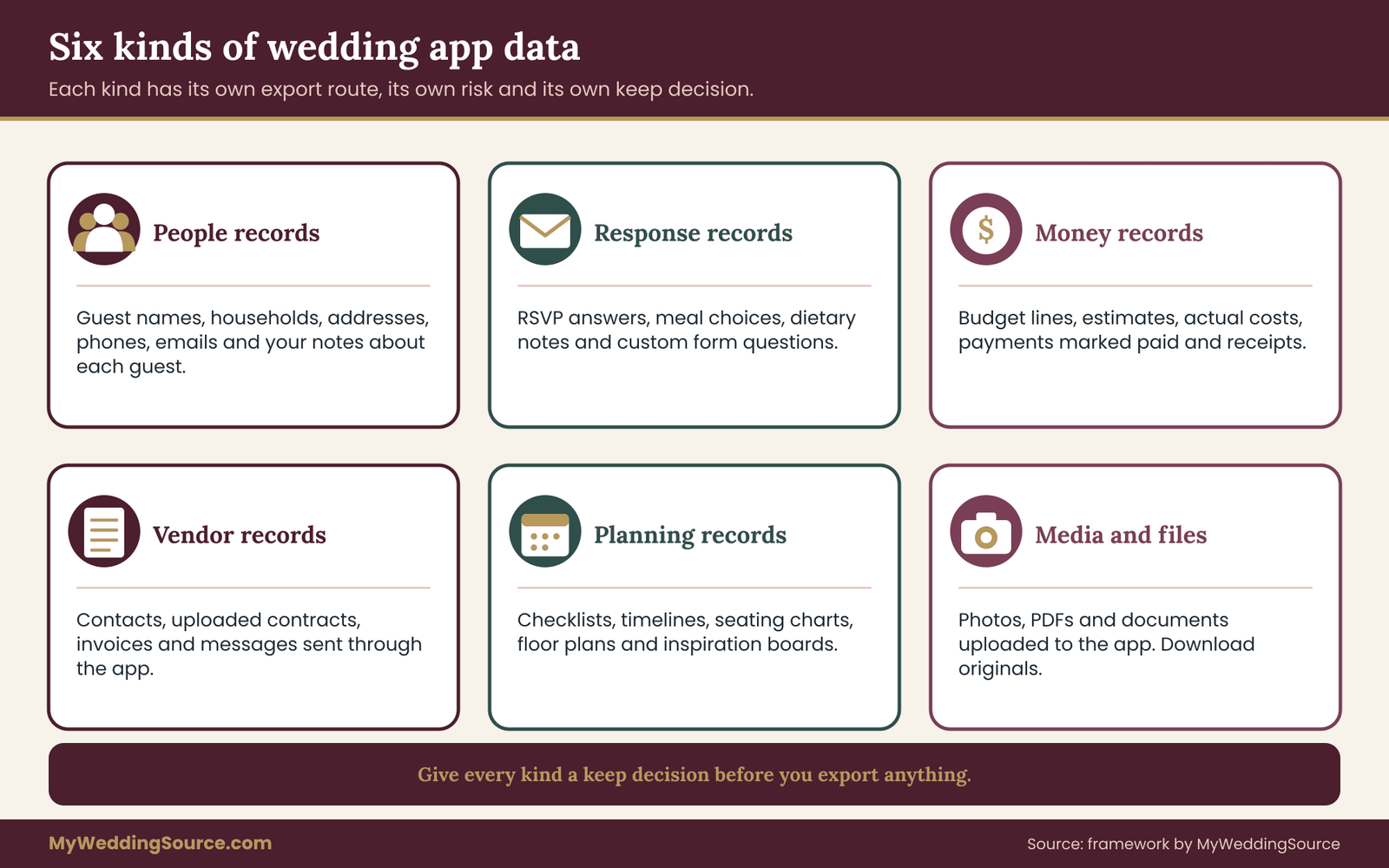
The map above shows why a single “download everything” button rarely settles the question. Some of these groups export easily as spreadsheets. Others, such as seating charts and messages, may export only as images, as a print view or not at all. Knowing the groups in advance tells you where you will have to work harder.
Which wedding app data is worth keeping
You do not need to keep everything. A sensible filter asks three questions about each group. Would we need this to prove something later, such as a payment, a promise or a contract term? Would we want it in ten years, such as a seating chart or a photo? Does it contain information about other people that we would be better off not holding?
Money, vendor and legal-looking records usually pass the first test. Photos and personal notes pass the second. Guest addresses often pass a narrow version of the first test: you may want them for thank-you notes and holiday cards, but not forever. Checklists and saved inspiration rarely matter once the day is over, and you can simply let them go.
Write the answer for each group in one line, such as “keep permanently,” “keep until thank-you notes are done” or “do not keep.” That list becomes the first column of your manifest later in this guide.
Who actually owns the wedding app data
Ownership is less obvious than it looks. You entered the content, so it feels like yours, but a guest’s address and dietary information is personal information about the guest. The app company also holds its own copy under its terms of service, and a vendor who invited you to a shared workspace may hold the master record.
In practice, this means three things. You are responsible for handling guest details carefully even after the wedding. You cannot assume the app will keep your records after you stop paying. And if a planner, a venue or a family member shared the account, you need their cooperation to export everything. The audit section later in this guide covers how to find out who holds what.
Why wedding app data can disappear quickly
Couples are often surprised by how short the window is. There is no single rule, because every company sets its own, but several patterns show up repeatedly in the terms of planning tools and similar subscription software.
Paid features lock before data disappears. Many apps let you view your information after a plan lapses but remove the export button, the guest-list tools or the collaboration features. If the export option sat behind the paid tier, you may be unable to get a clean copy once you downgrade.
Free accounts can be inactive-deleted. Some services delete accounts that have been inactive for a stated period, sometimes with a warning email and sometimes with only a line in the terms. A warning email sent to an old address you no longer check does not help.
Trials convert quietly. A free trial that turned into a paid plan, or a plan that renews annually, can keep charging you long after the wedding, while the wedding app data inside is stale. The reverse also happens: a trial ends and the account is limited before you notice.
Shutdowns and acquisitions happen. A smaller planning tool can close or be bought, and the new owner may change the terms. The risk is modest, but a copy you already hold removes the problem entirely.
People leave the shared account. A planner, a parent or a maid of honor with a collaborator login may remove their access or close their own account, and a shared workspace can become hard to open.
Think of the end date as a hard edge for your wedding app data, even when the app is vague about it.
The cost of waiting
Delay costs very little in the first months and a great deal at the end. In month one you can export calmly, ask support a question and wait for a reply. In the last week of a plan you may find that the export has to be requested through a support ticket that takes several business days, that a particular file type is not available, or that the renewal date falls before you expected.
For that reason, the advice in this guide works backward from the end date. Find the date your access ends, subtract thirty days, and treat that as your real deadline. The calendar later in the article spaces the tasks across that month.
A quick word on privacy
Most of the sensitive material in wedding app data belongs to your guests. Their addresses, phone numbers and health-related notes were shared with you for a wedding, not for storage in several apps indefinitely. The National Institute of Standards and Technology publishes a privacy framework that organizations use to manage this kind of risk, and the simple version for a couple is to keep what you need, protect it, and delete the rest on a schedule you set in advance.
That approach shapes the manifest, the storage choices and the closing steps in this guide. It also keeps the work proportionate: you are not building a data-protection program, only making sure other people’s details do not sit unattended in an account you stopped watching.
Audit every account that holds wedding app data
The first practical step is an audit. People are usually surprised by how many places hold pieces of their wedding. Spend thirty minutes listing them, and do not rely on memory alone.
Start with your email. Search both partners’ inboxes for the names of well-known planning apps, the words “welcome,” “your account,” “invoice,” “receipt” and “subscription,” and the date range of your engagement. Receipts show paid plans, welcome emails show free accounts, and password-reset emails show forgotten ones.
Check your payment records. Look at card and bank statements for recurring charges from software and website companies. Charges with names you do not recognize deserve a search of your inbox, since the billing name often differs from the app name.
Check your phone. Open the app list on both phones and look for planning, guest-list, budget, registry, photo-sharing and website tools. Some apps were installed once and never opened again.
Check logins with other services. If you signed up with a social or email login, the app may not appear in your inbox at all. The account settings of those services usually show a list of connected apps.
Ask collaborators. Planners, parents, attendants and your partner may have created their own accounts or shared lists. Ask each person which tools they used for anything involving your wedding.
Build the account list
For every account you find, write down the app name, the email or login used, who owns the account, which plan you are on, the renewal or end date, and which groups of wedding app data it holds. One line per account is enough. A typical couple finds between three and six, and the surprise account is usually the one that holds guest addresses.
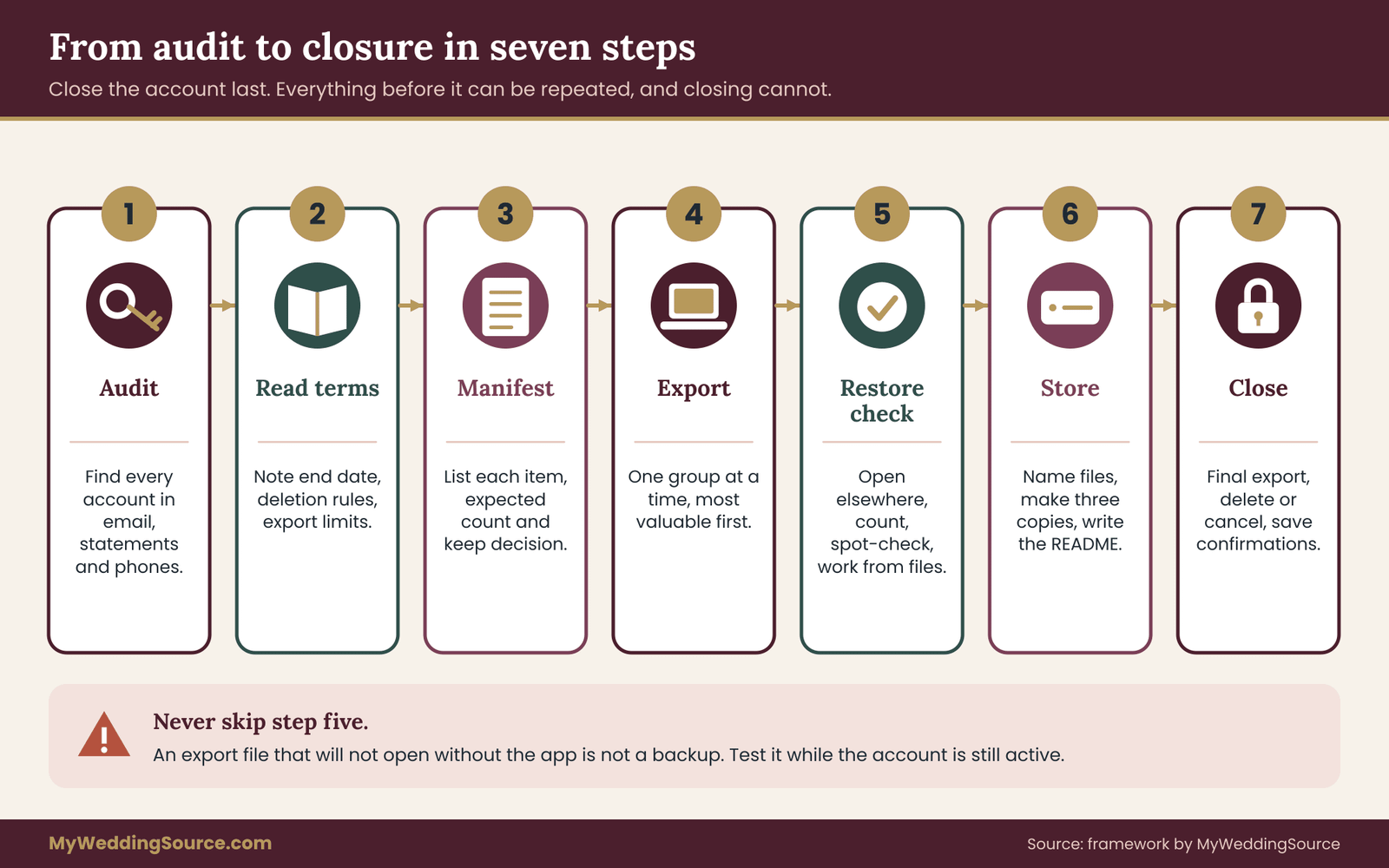
The figure above shows the order of work from audit to closure. Keep it close, because the later sections each fill in one of its steps.
Each account is a separate home for wedding app data, so each needs its own row.
Separate the accounts into three groups
Once the list exists, sort it. Accounts you will keep using might include a shared budget tool you still use as a household. They need no action beyond a quick export for safety.
Accounts you will close are the main subject of this guide. They need the full sequence of export, restore check, storage and closure.
Accounts you do not control, such as a vendor’s client portal or a planner’s shared workspace, need a request to the owner. Ask them for an export, or ask which parts of the wedding app data you are entitled to receive. The section on missing or blocked exports covers the wording.
Do this audit early enough that surprises are small. If a forgotten account turns up with a plan that renews next week, you can decide in one sitting whether to export fast, cancel the renewal or contact support.
Find out what the app will and will not export
Before you export anything, learn what the app offers. Ten minutes in the help center saves hours of guessing. Search the help pages for words such as “export,” “download,” “backup,” “print,” “delete account” and “data request,” and note what each page says.
Typical export routes. Apps tend to offer one or more of four routes. A spreadsheet export, usually a CSV or Excel file, covers lists such as guests, tasks and budgets. A document export, usually PDF, covers seating charts, timelines and summaries. A print or share view produces a page you can save as PDF. And a data request goes to the company, which assembles an archive of your account and sends it by email or a secure link, often after a delay.
What the buttons often leave out. Spreadsheet exports commonly omit attachments, comments, message history, edit history and layout. A guest-list file may carry names and RSVP status but drop the notes field or the household grouping. A seating chart may export as a flat picture that shows names but cannot be edited. Do not assume a file is complete because it opened without errors.
Write down what the app says about your wedding app data before you decide how hard to work.
Your rights depend on where you live
Some privacy laws give people a right to access, and sometimes to receive in a portable format, the personal data a company holds about them. The European Union and United Kingdom have such rules, and several U.S. states, including California, give residents rights to access and delete personal information from covered businesses. Whether a particular planning app is covered, and what it must provide, depends on the law and the company.
You do not need to settle that question to act. If the in-app export is incomplete, you can send the company a polite data request and mention the wedding app data you want. If you want to understand your options, the California Attorney General and the UK Information Commissioner’s Office both publish plain explanations of consumer data rights, linked in the sources at the end. Neither replaces the app’s own privacy policy, which usually explains how to submit a request.
Read three pages in the app’s terms
Open the terms of service, the privacy policy and the help article on cancellation. Look for four specific facts, and write them in your account list.
First, what happens to the wedding app data when a subscription ends: is it kept, limited or deleted, and after how many days? Second, whether export tools remain after downgrading. Third, how to request deletion, and whether closing the account deletes the wedding app data or only hides it. Fourth, whether the company says it keeps backups after deletion and for how long.
You may not find every answer. When a page is silent, treat that as a question for support and ask it directly. The message templates in a later section make this quick.
Check whether the export is time-limited
Some tools generate a download link that expires after a day or a few days. Others email the wedding app data archive only to the account’s primary address. If you are exporting on a company’s schedule rather than your own, note the expiry so you can download the file the moment it arrives. A request that arrives after your access has ended may not be honored in the format you wanted.
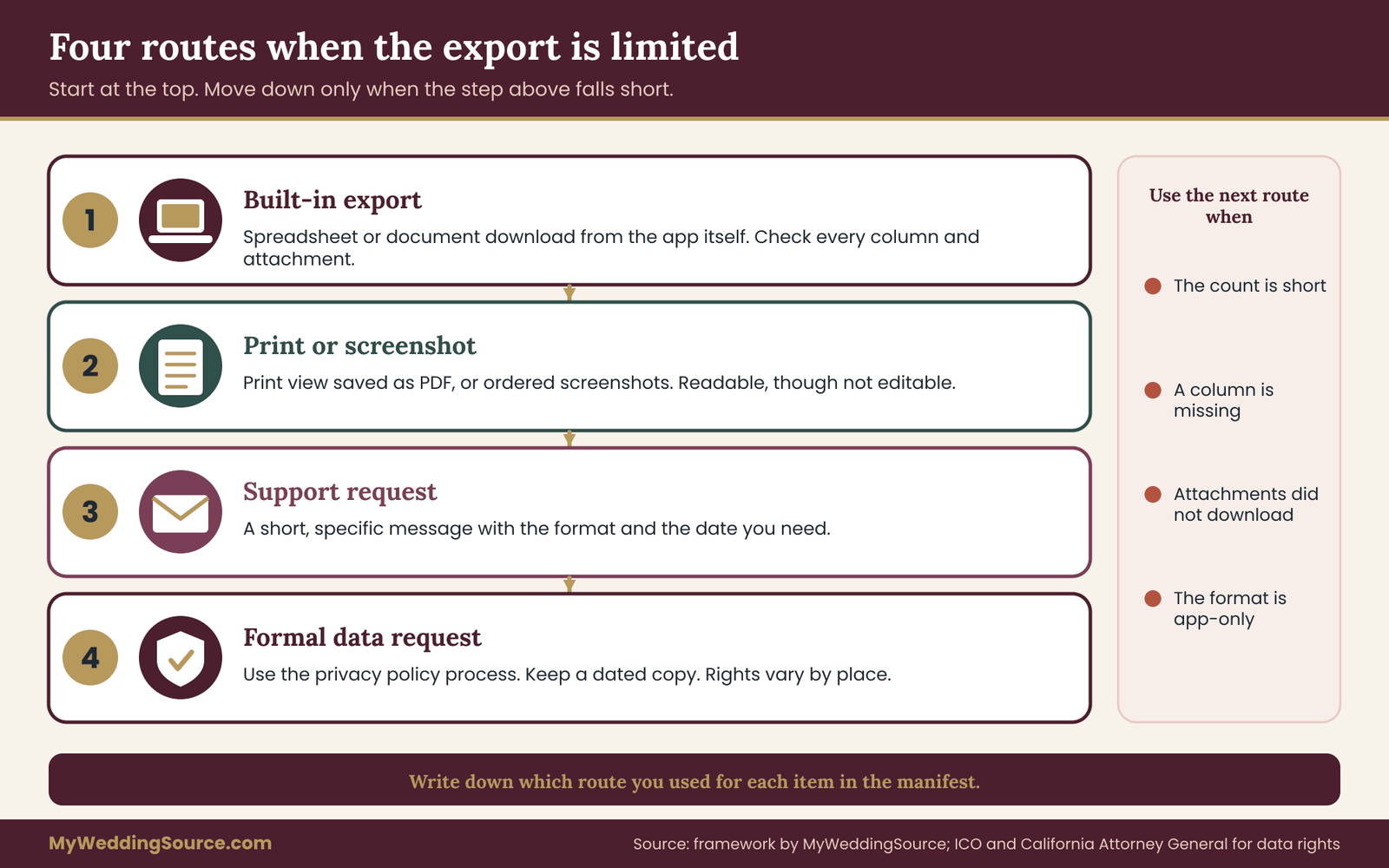
The figure above sorts the common situations into routes: a built-in export, a print or screenshot route, a support request and a data request to the company. Use it as a quick decision aid when the app offers less than you hoped.
Build the wedding app data export manifest
The manifest is the core of this guide. It is a single sheet that lists every export you plan to make and records what you actually got. It turns a vague feeling of “I think I saved everything” into a checkable record. It also makes the restore check meaningful, since you cannot verify a copy without a statement of what the copy should contain.
Build it in a spreadsheet, or in a plain text file if you prefer. One row per item. Keep it short. A manifest of ten to twenty rows is typical for a wedding.
The columns
Item. A plain name for the group, such as “Guest list with addresses,” “RSVP and meal choices,” “Budget with payments,” “Vendor contacts,” “Seating chart” or “Uploaded contracts.”
Source. The app and the screen or menu where you found it, so you can repeat the export later.
Keep decision. Your answer from earlier: keep permanently, keep until a stated date, or do not keep.
Format. What file type you plan to export, and a fallback if that is unavailable.
Expected count. The number of records you believe it holds. For a guest list, the number of guests and households. For a budget, the number of line items. For uploaded files, the number of files.
Actual count. What the exported file actually contains, filled in after the restore check.
Export date and file name. When you exported it and exactly what the file is called.
Destination. The folder or drive where the file now lives.
Sensitivity. A simple label such as “contains guest personal details,” “contains payment details” or “no personal data.”
Check result. Pass, partial or fail, with one line explaining any gap.
Delete after. The date by which you will remove it, if it is not permanent.
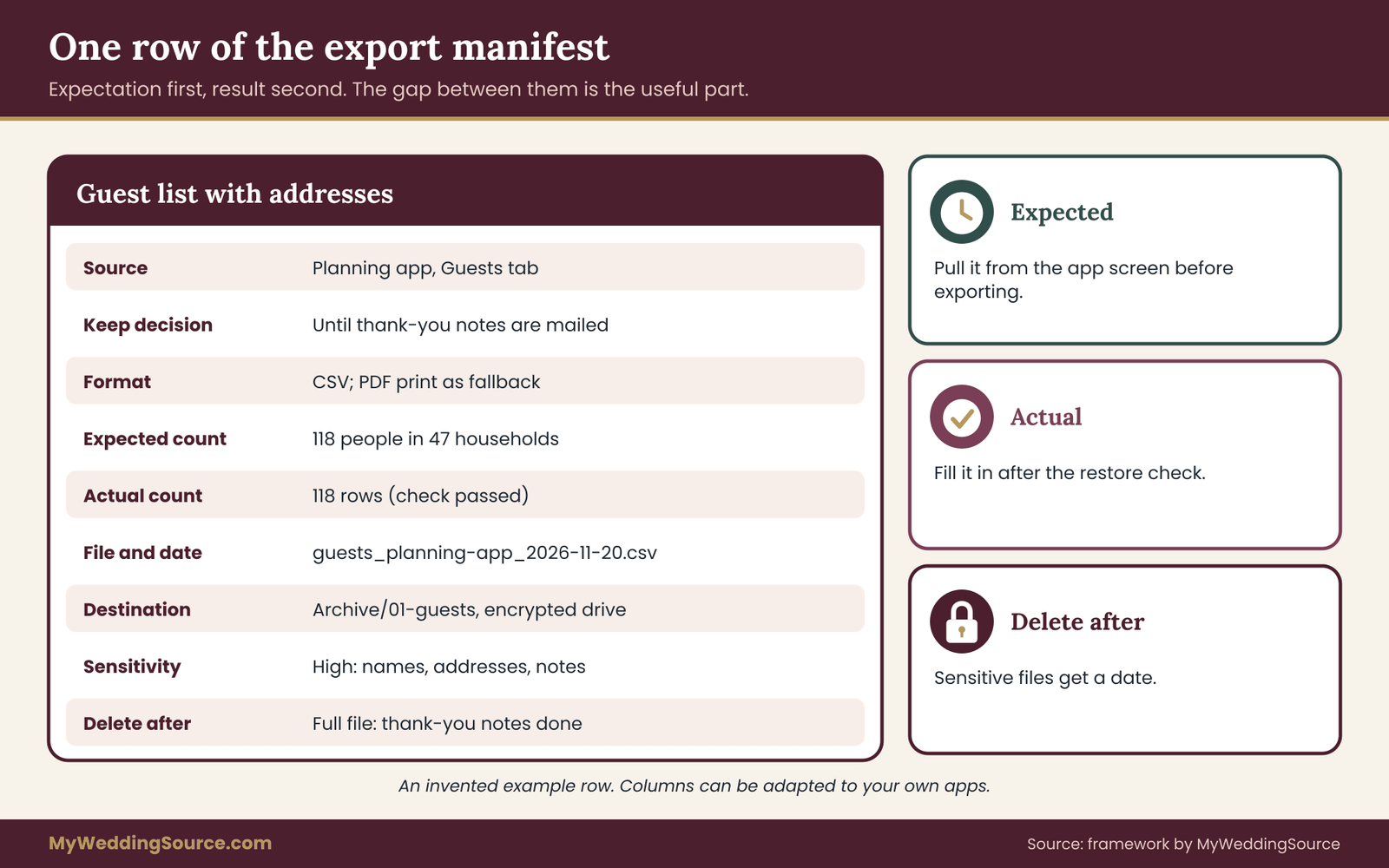
The figure above shows one manifest row as a card, so you can see how the columns fit together. Fill a card like this for every export.
Why the expected count matters
The most useful column is the expected count, and it is the one people skip. Most exports fail quietly. A file opens, looks plausible and holds fewer rows than the app displayed, because of a filter that was active, a pagination limit or a hidden archived group. If you wrote down in advance that you expected 142 guests in 58 households, a file with 120 rows tells you immediately that something is missing.
Pull the expected counts from the app’s own screens before you export. Most apps show a guest total, an item count or a progress summary on the main page.
A sample manifest in prose
To make this concrete, imagine a couple with two accounts. The first row reads: guest list with addresses, from the planning app’s guest tab, keep until thank-you notes are mailed, spreadsheet export with a PDF print as fallback, expected 142 people in 58 households, sensitivity high, delete after the thank-you notes go out. The second row reads: budget with payments, from the budget tab, keep permanently, spreadsheet export, expected 41 line items, sensitivity medium because it may contain account details, with no deletion date.
Two lines like these, repeated for each group, are the whole manifest. The worked example later in the article shows a complete one.
A manifest also tells a future reader why some wedding app data was released rather than kept.
Keep the manifest with the wedding app data archive
Store the manifest in the same folder as the exports, and add a short text file named README that says what the folder is, when it was made and who to ask about it. Years from now, a manifest and a README turn a mystery folder into something you can understand in two minutes.
Export each kind of wedding app data
With the manifest drafted, work through the groups one at a time. Do the highest-value group first, which for most couples is the guest list or the budget, so that any interruption costs less.
The same habit applies to every kind of wedding app data: export, count, compare.
Guest list and RSVPs
Look for an export option on the guest page itself. Choose all columns if the app offers a choice, and check that the export includes household grouping, address fields, contact details, RSVP status, meal choice, dietary notes and any custom answers. If the app exports guests and RSVPs as separate files, take both and note it in the manifest.
Count the rows, compare with the guest total on screen, and check the unlikely things: guests who declined, guests marked “maybe,” children, plus-ones without names and anyone you deleted by mistake. Some apps hide declined guests by default, so confirm the filter before you export.
Budget and payments
Export the budget as a spreadsheet if possible. If the app offers only a printed summary, save it as PDF. Check that both estimated and actual amounts came through, and that payment status and dates are present. If the app tracked payments you made to vendors, make sure the payment notes survived, because they are the part most likely to matter in a dispute.
The wedding budget guide explains how to structure the numbers in the first place, and a budget exported cleanly can serve as the reference record for your final spending.
Vendors and contracts
Export vendor contact lists, and download every uploaded contract and invoice as the original file. Do not rely on the app’s preview. Open a few downloaded files to confirm they are the full documents. If a vendor communicated with you through the app’s messaging feature, treat those messages as records worth saving, since they can contain promises or changes that never made it into a formal document. The wedding vendor contract guide explains why those details matter.
Checklists, timelines and seating
A checklist export is rarely worth much after the wedding, but a final version can help you remember what you did. A seating chart is different. It is often a keepsake as well as a record, so export it as PDF and as an image, and also write the final arrangement into a plain list of tables and names. A flat picture cannot be searched or edited, and a plain list can be.
Photos and files
If you uploaded photos or documents to the app, download the originals, not previews. Check whether the app compresses uploads, because the version stored in the app may be smaller than the original on your phone. If the originals are still on your phone or computer, that is the better copy, and the app’s version is only a convenience.
Treat the export as a set of small, separate jobs rather than one big one. Finish each row of the manifest before starting the next, and record the count immediately while the app’s screen is still open beside the file.
Protect guest information while you handle wedding app data
Exporting wedding app data creates new copies, and every copy is a place where guest details can leak. A guest list that was safe behind the app’s login becomes a spreadsheet in a downloads folder, an email attachment, a cloud sync folder and a forgotten USB stick. This section keeps those copies under control without turning the job into a project.
Minimize before you save. Decide which guest fields you need to keep. A thank-you list needs names and mailing addresses. It does not need dietary notes, phone numbers or accessibility details. Remove columns you do not need before the file goes into the long-term archive, and keep the full export only until the restore check passes.
Keep the sensitive file in one place. Pick one folder for exports that contain personal details, and keep it out of automatically shared locations. Do not send the guest list by email to yourself or others. If a family member needs addresses for a mailing, give them only the addresses they need.
Protect the folder. Use a device password and full-disk encryption on laptops, which most current operating systems offer as a built-in setting. For the long-term archive, an encrypted archive file or an encrypted external drive adds a layer at little cost. Store the password in a password manager or in a sealed note kept with your important papers, never in the same folder.
Watch the sync. Many computers automatically copy downloads and desktop folders to cloud storage. That is convenient and also easy to forget. Check where your downloads go, and move sensitive exports to a location you chose.
Treat guest-related wedding app data as borrowed, not owned.
Special care for health-related notes
Dietary and accessibility notes sometimes reveal health information, such as an allergy, a medical condition or a mobility need. Guests shared those details so the caterer and venue could help them, not so that they would be stored for years. Once the caterer and venue have received the final counts and the wedding has passed, there is rarely a reason to keep those notes with names attached.
Consider keeping an anonymized summary instead, such as “eleven vegetarian meals, four gluten-free, two nut allergies.” It preserves the planning lesson without keeping a health detail attached to a name. The guest list guide covers how to gather those details respectfully in the first place.
Children’s information
If your guest list includes children, treat their names, ages and any notes with the same care. Delete or minimize it early. There is seldom a reason to keep a child’s dietary or medical note after the day itself.
A simple retention rule
Choose a date for deleting each sensitive file and write it in the manifest. A reasonable default is to keep the full guest export until the thank-you notes are mailed, then reduce it to names and addresses for holiday cards if you want that, and delete everything else. Put the deletion date on your calendar so that it happens.
The National Institute of Standards and Technology describes data minimization and disposal as basic privacy practices, and the idea scales down well to a household: keep less, protect what you keep, and delete on schedule.
A worked example of wedding app data going into an archive
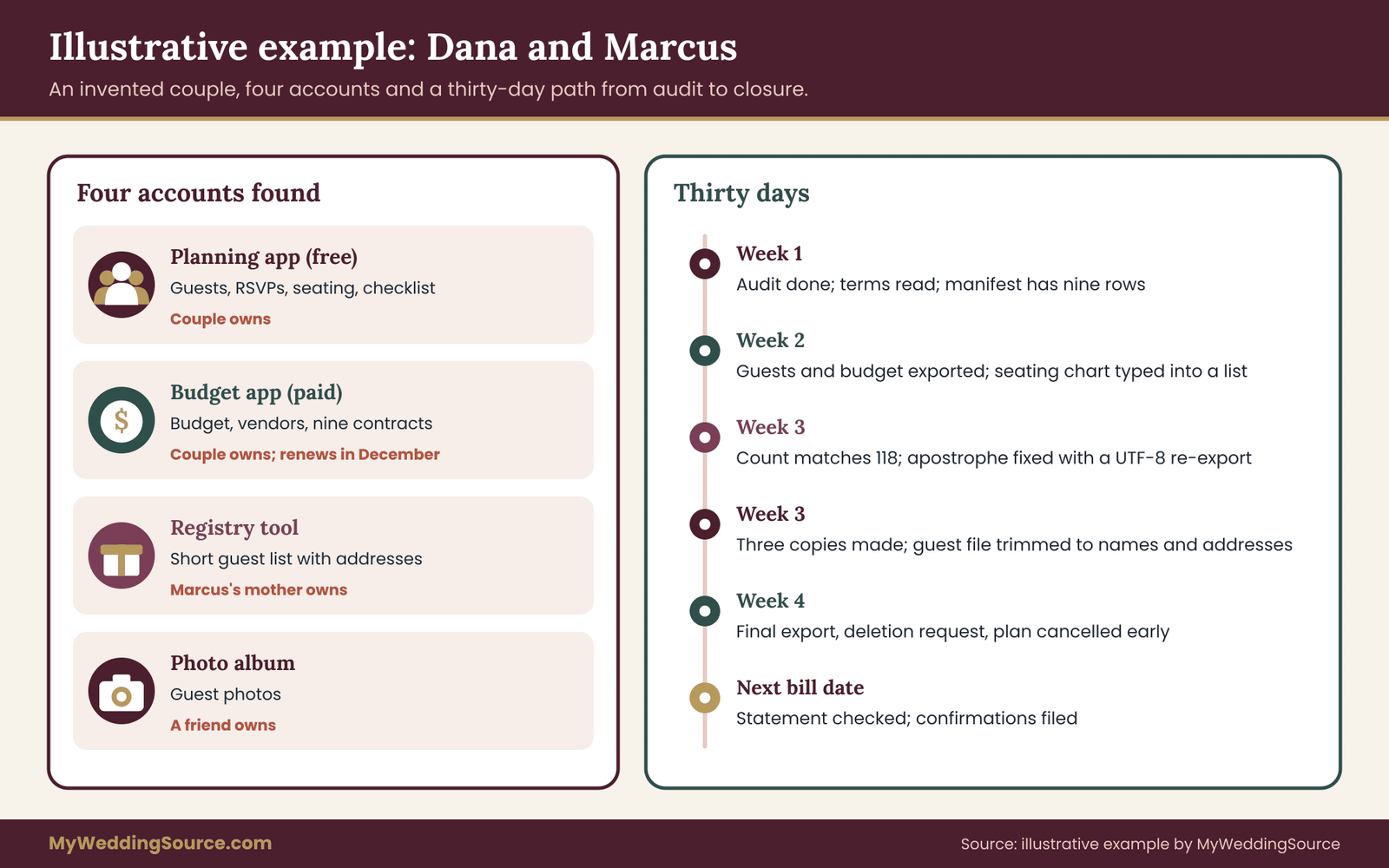
Abstract steps are easier to follow with a concrete case. The couple below is invented for illustration. Their details do not describe real people, and the numbers are chosen only to show the process.
Dana and Marcus used two tools. A free planning app held their guest list, RSVPs, checklist and seating chart. A paid budget app held their budget, vendor list and uploaded contracts. Their wedding was in September. The paid budget plan was an annual subscription renewing in early December, and the free planning app said in its terms that inactive accounts could be removed after a period they could not easily find.
This example shows how ordinary wedding app data turns into a tidy archive.
The audit
In early October, Dana searched both inboxes and found a third account: a registry tool created by Marcus’s mother for a family shower, holding a short guest list with addresses. Marcus also remembered a photo-sharing album that a friend had created. That made four places: two they controlled, one controlled by a relative, and one controlled by a friend.
The manifest
Dana wrote nine rows. Guest list with addresses: expected 118 people in 47 households. RSVPs and meals: 118 people, with 104 attending. Seating chart: 13 tables. Checklist: low value, do not keep beyond a PDF. Budget: 38 line items. Vendor contacts: 12 vendors. Uploaded contracts: 9 files. Registry list: 40 households. Photo album: owned by a friend, request a download.
The exports and the gaps
The planning app offered a spreadsheet export for guests and RSVPs, but the seating chart exported only as an image. Dana saved the image, and then typed the table assignments into a plain list from the app’s screen. The checklist exported as a PDF, which was enough. The budget app exported line items as a spreadsheet and contracts as individual files.
Two gaps emerged. The budget export left out the payment notes, which had been typed into a notes field. Dana found that the PDF summary included them, so she saved both and recorded the difference in the manifest. The registry tool offered no export, so Marcus asked his mother to send a printed copy and a screenshot of the list.
The restore check
Dana opened the guest spreadsheet in a different program than the one she used to create it and counted 118 rows against the expected 118. She then compared five random guests against the app’s screen, checking spelling, accents in two names and a long address. One surname with an apostrophe had turned into odd characters, so she re-exported using a UTF-8 option, reopened it and confirmed the name was right.
The budget export had 38 line items, matching the expected count, and the totals matched the summary on screen. Nine contracts were present, and she opened three to confirm they were complete.
Storage and closure
Dana saved everything into one folder on her laptop, copied the folder to an encrypted external drive and a second copy to a relative’s home. She trimmed the guest file to names and addresses for the long-term copy, and calendared the deletion of the full export after thank-you notes. She then asked the planning app to delete the account, canceled the budget plan two weeks before renewal and saved the confirmation emails in the wedding app data archive.
Nothing in this example required special skill. It required a list, a count and a few quiet evenings. The value showed up months later, when a vendor asked about a payment and the exported budget answered in a minute.
When the export is missing, partial or blocked
Not every app offers a clean export. Some offer nothing. Others offer an export that fails, arrives empty or covers only part of the account. The right response depends on how much the missing item matters, and there is a ladder of options that goes from simple to firm.
Step one: use the app’s own print or share view. Many apps have a print view for guest lists, seating charts and timelines. Print to PDF rather than to paper, and check that the PDF includes all pages and the columns you need. A PDF is not as flexible as a spreadsheet, but it is readable years from now.
Step two: screenshots, in order. For screens with no print option, take screenshots of each screen, in sequence, with the names visible. Name the files so they sort in order. This is slow, so use it only for the data that matters.
Step three: copy and paste. Some list screens let you select the table and paste it into a spreadsheet. This works better than people expect and gives you editable text. Check the result for merged cells and missing rows.
Step four: ask support. Write a short, specific request. Say what you need, in what format and by what date.
“Hello, our subscription ends on the stated date. Please tell us how to export our guest list, RSVP answers and budget in a spreadsheet or similar format before then. If there is no built-in export, could you send the data to us directly?”
Step five: make a formal data request. If support does not help, look in the privacy policy for the company’s data request process. Use it, and keep a copy of the request with its date. Depending on where you live and on the company, you may have rights to receive your personal data, though the details differ.
Missing exports do not mean the wedding app data is lost; they mean you take a different route.
When the app is shutting down
If a company announces it is closing, treat the notice as a firm deadline and export at once. Shutdown dates tend to arrive sooner than they seem. Check the company’s final notice for any special export tool, because services that close often provide one for a limited time.
When a vendor or planner controls the account
If a planner, venue or vendor runs a shared workspace, you may be a guest in it, not the owner. Ask them for a copy of the records that concern you. A good request names the items you need, such as the final timeline, the vendor contact list and the final guest counts. Most professionals are willing to share these, and a written request creates a record that you asked.
When you cannot get an export at all
Sometimes the answer is that the wedding app data is not recoverable. In that case, rebuild the most important items from other records. The guest list can be reconstructed from the invitations you mailed, the RSVP replies in your inbox and the final headcount you gave the caterer. The budget can be rebuilt from bank and card statements and from vendor invoices. The wedding records after the event guide explains how to match payments to contracts, and that reconstruction work is faster if you start early.
Run the restore check on your wedding app data
A restore check is a short test that proves the exported copy of your wedding app data can be opened, read and trusted without the app. It is the step most people skip, and it is the step that turns an export into a backup. Plan on fifteen to thirty minutes per important file.
The principle is simple. A backup you have never opened is a hope. Files can be empty, truncated, mis-encoded or secretly dependent on the app. Finding that out now, while the account is still active, lets you fix it in minutes. Finding it out a year later means starting from nothing.
Each check below targets a different way that wedding app data can fail quietly.
The six checks
One: open it somewhere else. Open the file in a different program than the one that created it. If you exported a spreadsheet and normally use one spreadsheet program, try another, or a plain text viewer. For PDFs, try opening the file on a phone. If a file only opens in one place, note that in the manifest.
Two: count the records. Count rows, items or files and compare with the expected count in your manifest. This catches truncated exports and hidden filters. If the counts differ, find out why before you move on.
Three: spot-check ten records. Choose records at random, including a few at the start, the middle and the end, and compare each field against the app’s screen. Check spelling, dates, numbers and addresses. Ten is enough to find systematic problems.
Four: test the awkward characters. Look at names with accents, apostrophes, hyphens and non-Latin characters. Look at dates, currency symbols and long text fields. Broken characters usually mean the file was saved in a different text encoding. Re-export with a UTF-8 option if the app offers one.
Five: check attachments and links. If the export points to files, such as contracts or photos, confirm the files exist on your drive and open them. A spreadsheet that lists “contract.pdf” is no help if the PDF never downloaded.
Six: confirm you can work without the app. Try one real task from the wedding app data archive. Find a vendor’s phone number, look up a guest’s mailing address, or check what you paid a florist. If you can do the task from the files alone, the export works.
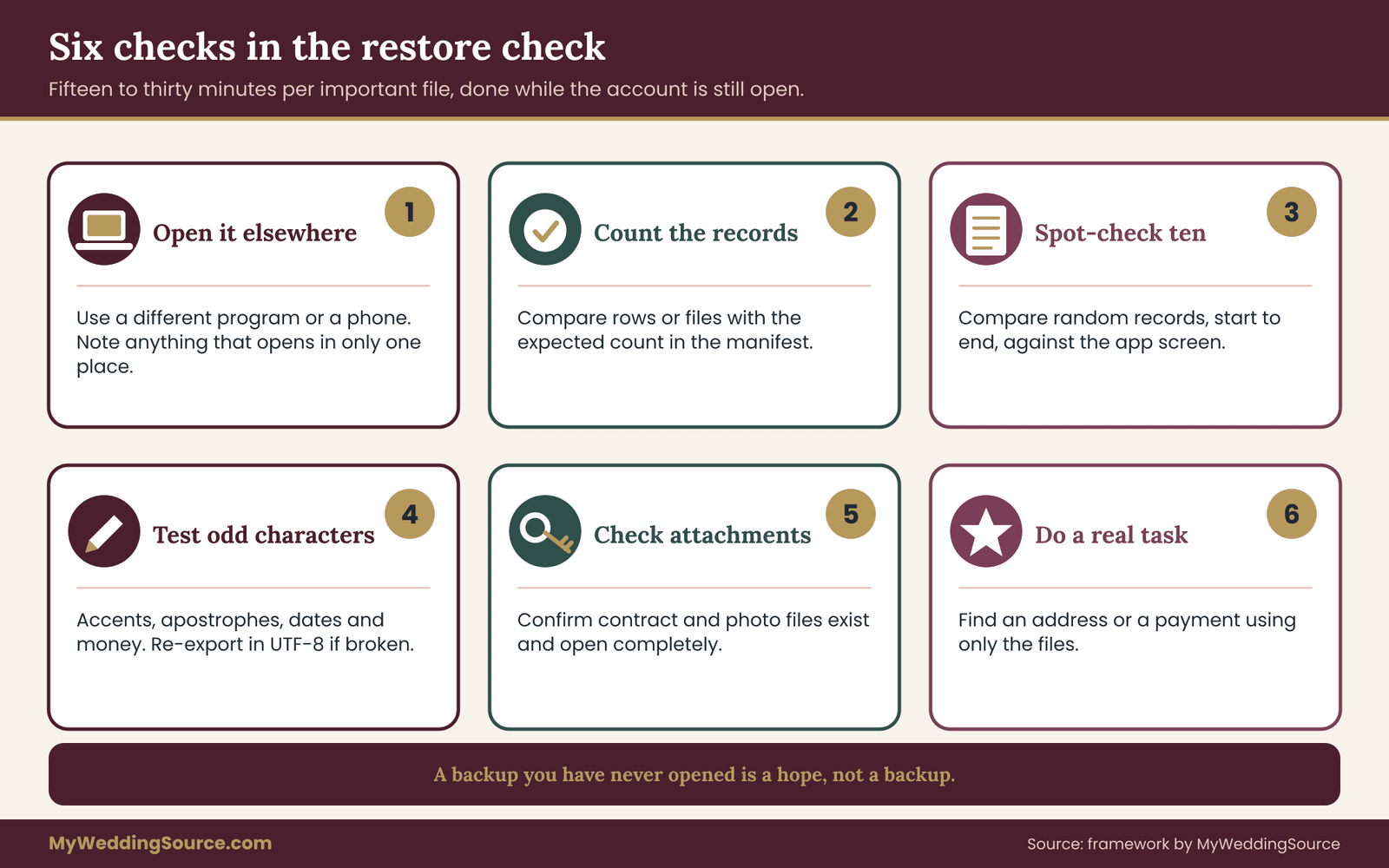
The figure above lays out the six checks as a sequence. Record the result of each in the manifest, in the “check result” column, using pass, partial or fail.
What to do when a check fails
A failed check is useful information, because it happens while you can still act. Repeat the export with different settings, such as a different file type or a different date range. Try the app’s other export route, such as the print view or the data request. If a gap remains, note it in the manifest and decide whether you can live with it or must rebuild the missing piece.
A partial result is often fine. If the budget export misses payment notes but the PDF summary includes them, keep both files and say so. The aim is a complete record across files, not a perfect single file.
Check dates and numbers carefully
Date formats cause quiet errors. A date written as 03/04 can mean March 4 or April 3, depending on the software and settings. Check at least a few dates that you know, such as the wedding date or a deposit date, to make sure they came through as intended. Money fields can lose decimals or currency symbols in some exports. Add up a column of amounts and compare it with the app’s total.
Test with the app’s help of last resort
If the app has a way to import its own export file, such as a template for uploading a guest list, you can use it as a test. Importing into a new, empty account in the same app, or opening the file in an import preview, shows whether the structure is intact. This is optional, and it is not worth doing for every file, but it is a strong test for the guest list.
Date the check and sign it off
At the end, add a line to the manifest: the date, who did the check and the overall result. This takes a minute and gives you a record that the check happened. If another family member or your partner can repeat one check independently, even better. A second person catches what the first person’s eyes have learned to ignore.
Only when every row is marked pass, or partial with a known and accepted gap, are you ready to close the account. If any row says fail, go back before you do anything irreversible.
Where the wedding app data archive should live
Passing the restore check proves the files work. Storage decides whether they will still work in five years. A good archive does not need special tools. It needs a clear structure, sensible names and more than one copy.
Storage is the second half of keeping wedding app data safe.
Folder structure
Use one top-level folder named for the wedding and the year, with a short subfolder for each group in your manifest. A typical layout has folders for guests, responses, money, vendors and contracts, seating and planning, and photos, plus the manifest and the README at the top. Keep it shallow. Deep nested folders are harder to remember and easier to lose.
File names
Name files so they make sense without context. Include what it is, the source app and the export date, in a form that sorts well, such as the year first. A file named “guest-list-with-addresses_planning-app_2026-11-20.csv” will still make sense long after you forget which tool it came from. Avoid names such as “export” or “final.”
The three-copy rule
Keep at least three copies of anything you plan to keep permanently, on two kinds of storage, with one copy somewhere other than your home. The Library of Congress publishes personal archiving guidance with this kind of advice for digital files, and the Cybersecurity and Infrastructure Security Agency publishes guidance on backing up data.
For most couples, that means the working copy on a laptop, a copy on an external drive kept at home, and a third copy either in an encrypted cloud folder or on a drive at a trusted relative’s home. Our wedding records after the event guide uses the same rule for photos, contracts and receipts, so you can store the wedding app data archive beside them.
Sensitive files need different handling
The guest-list file with personal details deserves less distribution than the budget file. Keep fewer copies, protect them with encryption and set a deletion date. A good compromise is to keep the full guest export on the working copy and one encrypted drive, and to keep only a trimmed names-and-addresses version in the wider set of copies.
Long-lived wedding app data should sit in formats that outlast any one program.
Open formats last longer
Choose file formats that many programs can read. Spreadsheets saved as CSV, documents saved as PDF and photos saved as JPEG or PNG will open for a very long time. Proprietary formats tied to one app are riskier. If the app only gave you a file type that other programs cannot read, convert it to an open format while you still have the app, and keep both versions.
Review once a year
Put a yearly reminder on your calendar, perhaps on your anniversary, to open a few files from each folder, check that the drives still work and delete anything that has passed its retention date. The review takes less than half an hour and catches slow failures such as a dying drive or a cloud account you stopped paying for.
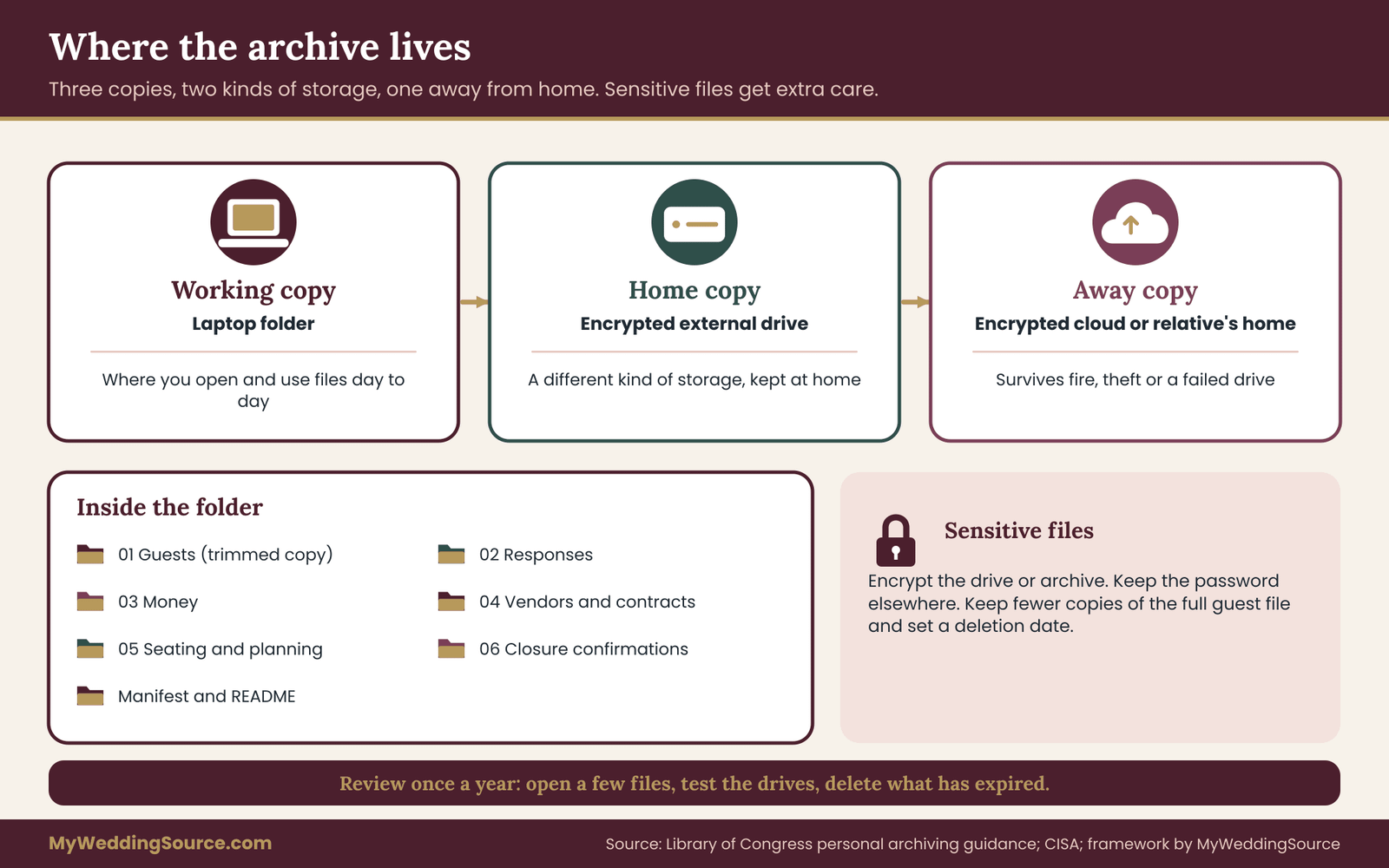
The figure above shows the storage layout in one picture, with the three copies and the two kinds of storage. Keep that picture in the README so that anyone who finds the folder knows what they are looking at.
Close the account without losing or leaking wedding app data
With a passing restore check and a stored archive, you can close the account. The order matters, because some steps cannot be undone. Cancelling a subscription is easy to reverse in many apps, while deleting an account usually is not. Work from the reversible steps to the irreversible ones.
The closing sequence
First, make a final export. Wedding app data changes until the last day, because guests reply late, vendors add notes and you edit budget items. Export again right before closing, replace the earlier files and update the counts in the manifest. This costs ten minutes and avoids an outdated archive.
Second, tell collaborators. If a partner, planner or relative shares the account, tell them the date and ask them to export anything they want. People who learn about a closure after it happens cannot recover what they needed.
Third, remove personal details you no longer need. If the app lets you delete guests, addresses or notes before closing, doing so reduces what remains if the company keeps the account for a period after you leave. This is optional, and only after the wedding app data archive is safe.
Fourth, request deletion if the app distinguishes it from cancellation. Many services treat these as two different things. Cancelling stops billing and may leave the wedding app data in place. Deleting the account asks the company to remove the wedding app data. If you want the wedding app data gone, find the deletion request or delete-account option, and read the wording about what is removed and how long the process takes.
Fifth, cancel the subscription. Cancel in the way the company describes, and look for a confirmation message with an end date. Take a screenshot or save the email. If you only deleted the account and never canceled billing, some companies keep charging, so check separately.
Sixth, disconnect linked services. If you signed in with an email, social or phone login, or connected the app to a calendar, contacts list or photo library, remove the connections. Your social or email account settings usually list connected apps and let you remove them.
Seventh, save the confirmations. Put the cancellation email, the deletion confirmation and a screenshot of the final billing page in the wedding app data archive, in a folder called “closure.” These are small records that settle a later argument about a charge.
Eighth, check the next billing cycle. Mark your calendar for the date the next charge would have occurred, and check your card or bank statement then. A charge that should not exist is easiest to resolve right away.
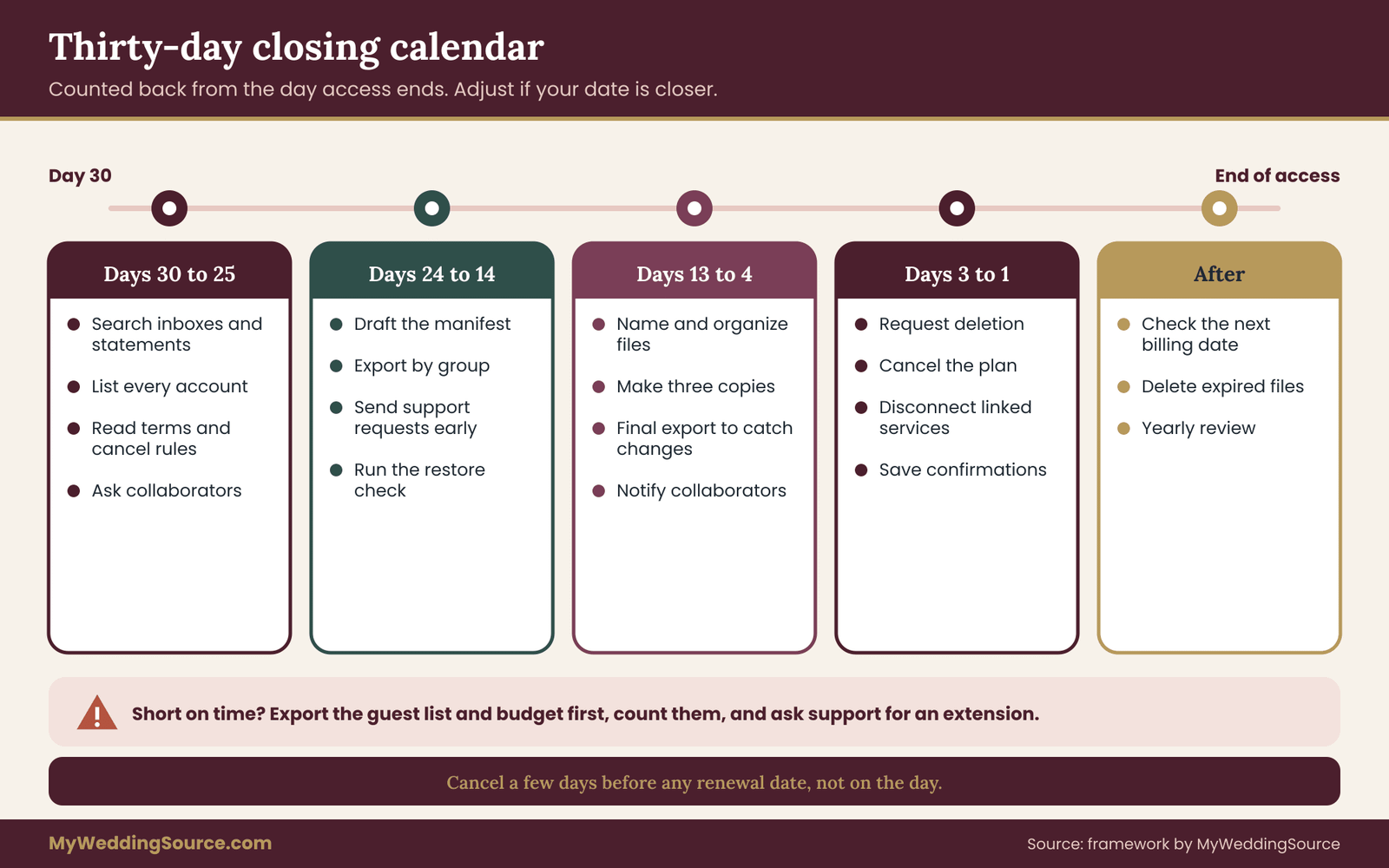
The figure above puts the closing steps on a thirty-day calendar, so each step has a date instead of floating in the back of your mind.
A closure that leaves wedding app data half-deleted is worse than either extreme.
Cancellation versus deletion
The difference between cancelling and deleting trips up many people. A cancelled account on a free tier may remain, with the wedding app data intact, for a long time or forever. A cancelled paid account may drop to a limited free tier, where your wedding app data is visible but export features disappear. Deletion may be permanent, or may begin a waiting period during which you can reverse it.
Always read the confirmation screen before you click. Take a screenshot of it. If the screen says the action is permanent, make sure your restore check has passed first.
Billing traps to check
Annual renewals. A plan that renews yearly often renews with only a short notice. Find the renewal date in your account settings, in the original receipt or in the terms, and cancel several days before it, not on the day.
Trial conversions. If you started with a free trial, check whether it automatically converted to paid. The first receipt in your inbox usually shows the date.
Add-ons. Some tools bill separately for a website, a domain, extra storage or a registry feature. Cancelling the main plan may not cancel these. Review the full billing page, not only the main plan.
Refund questions. If you were charged after you thought you canceled, contact the company first, with your confirmation attached. Refund rules differ by company and by location. If the company does not respond, the Consumer Financial Protection Bureau explains how to dispute a card charge, and the Federal Trade Commission publishes consumer guidance on unwanted charges. Dispute windows can be short, which is why the next billing date check matters.
Before you rely on any deletion promise about wedding app data, read the retention terms.
Check what the company says it keeps
After deletion, some companies keep backups or certain records for a period, and the privacy policy usually describes this. You cannot control it, but you can read it. If a company states that it keeps data for a legal or operational reason, that is normal. What you want to avoid is the situation where you assumed deletion happened and it did not. Ask support to confirm in writing when the deletion is complete.
“Hello, we asked to delete our account on the stated date. Could you confirm in writing that our personal data and our guests’ details have been deleted, and tell us if anything is kept and for how long?”
Domain names and websites
If your planning tool included a wedding website with a custom address, closing the account may take the site offline, and a domain bought through the tool may be renewed or lost. Decide whether you want to keep the address, transfer it or let it lapse. If you keep a simple page after the wedding, make sure it no longer lists guest details. The wedding day digital contingency guide explains how digital pieces fit together on the day, and the same thinking applies when you take them down.
A thirty-day calendar for the last month of the subscription
A calendar prevents the usual pattern of doing nothing for three weeks and everything in one night. The schedule below counts back from the day access ends. Adjust it if your date is closer.
Days thirty to twenty-five: audit and read. Search inboxes and statements, build the account list and read the terms. Record the end date, the renewal date and the deletion rules. Ask collaborators which tools they used.
Days twenty-four to twenty: draft the manifest. Decide what to keep and write the rows with expected counts. Decide which items are sensitive and set deletion dates.
Days nineteen to fourteen: export. Work through the groups in order of importance. Use the fallback routes where the app has no export. Send any support requests or data requests now, because replies take time.
Days thirteen to ten: restore check. Run the six checks on each file. Fix failures with a second export or a different route. Ask a second person to repeat one check.
Days nine to seven: store. Organize the folder, name the files, make the second and third copies and write the README. Encrypt the sensitive copies.
Days six to four: final export and closure prep. Export again to catch late changes. Notify collaborators. Trim guest details you no longer need.
Days three to one: close. Request deletion, cancel the subscription, disconnect linked services and save the confirmations.
Next billing date plus a few days: verify. Check statements. If a charge appeared, contact the company with your confirmation.
If you have less time
If the end date is only a week away, shrink the work to the essentials. Export the guest list and budget first. Run counts and a five-record spot-check. Download contracts. Save everything in two places. Ask support for an extension if you cannot finish, since many companies will extend access or delay deletion for a short period if you ask politely and before the deadline.
If you are already past the end date
If the subscription has already ended, check whether the app still lets you log in. Many keep a read-only view for a time. Use the print view, screenshots and copy and paste to capture what matters. If you cannot log in, contact support, explain that you need your wedding app data, and ask whether a data request is possible. Do not repeat requests dozens of times. One clear message with the dates and your account email is more effective.
Keep using what you exported: thank-you notes and later needs
An archive earns its value when you use it. The first use usually comes within weeks. The guest list becomes a thank-you list, the RSVP file confirms who attended and the gift notes tell you who gave what. Plan for that use, so you do not export an archive and then fall back on the app anyway.
Your wedding app data archive is a working tool, not a vault.
Thank-you notes
Make a working copy of the guest file with columns for the note status, the gift, the date mailed and any follow-up. Do the work in that copy, and keep the original export untouched. When the last note is mailed, you can reduce the guest information to what you actually want for the long term.
Wedding app data has uses well beyond thank-you notes.
Later needs you may not expect
Proof of payments. A vendor may claim a balance is unpaid, or a deposit may be disputed. The budget export with payment notes, plus bank statements, settles it.
Final counts and meals. If a venue or caterer disputes a headcount, the RSVP and meal export shows what you provided and when.
Insurance or tax questions. If a claim arises, such as a vendor failing to deliver, the vendor list and contract files are what you need. Tax treatment depends on your situation, so ask a qualified professional. The Internal Revenue Service publishes general guidance on how long to keep records.
Anniversaries and keepsakes. The seating chart, the checklist and the timeline become a keepsake. A couple who kept their final timeline and seating chart can print them for an album.
Planning another event. Many couples later host a vow renewal, a family reunion or a baby shower. The vendor list, and notes about what worked, save hours.
Keep a short “lessons” note
When the wedding app data archive is done, write half a page of what you would do differently. Which vendors answered quickly? What did you wish you had tracked? Which export was hardest? It takes ten minutes and is the part of the wedding app data archive that reads best years later.
The wedding planning checklist on this site is a useful place to see which categories of information a wedding creates, and your own manifest is the matching list of where that information ended up.
Sort wedding app data into keep, convert, rebuild or release
Long lists of exports can feel overwhelming, so give every item in the manifest one of four labels. This quick triage keeps the effort proportional and stops you from spending an evening on data that does not matter. It is also the decision frame that makes the manifest more than a to-do list.
Keep. The item matters, and the export is good. Store it in the wedding app data archive, record the counts and move on. Typical examples are the budget with payments, vendor contacts and contract files.
Convert. The item matters, but the export is in an awkward or app-dependent format. Convert it to an open format while the app still works. A seating chart that exported as a picture can be typed into a plain list. A guest list that exported with merged cells can be cleaned into a flat table.
Rebuild. The item matters, but the app gives you no usable export. Rebuild it from other sources, such as invitations, email replies, statements and invoices. Do this early, because rebuilding from memory after a year is far harder.
Release. The item does not matter, or holding it is more risk than value. Let it go, and note in the manifest that you decided to. Old checklists, abandoned drafts, saved inspiration and duplicate guest lists belong here.
Triage keeps wedding app data decisions small and fast.
How to decide quickly
Ask two questions for each row. If this were gone, would we regret it in a year? And does it contain information about other people? A yes to the first points toward keep, convert or rebuild. A yes to the second adds the need for care and a deletion date. A no to both means release.
Most couples end with roughly half the items in keep, a handful in convert, one or two in rebuild and the rest in release. The proportions do not matter. What matters is that every item has a decision, so that nothing is left in a half-deleted limbo.
A worked decision
Consider a seating chart that the app can export only as an image. The couple decides it matters as a keepsake and as a record of who sat where, so it is not a release. The image is usable, but it is not searchable. They label it convert, save the image, and then write the table assignments into a plain list. Two files now exist, and the second can be searched by name years later.
Compare a long list of saved venue ideas from the early planning months. It contains no guest information, it has no financial value and the couple would not miss it. They label it release, and spend no time on it. That decision takes ten seconds, and it frees the evening for the guest list.
Some wedding app data lives in accounts that you do not fully control. These situations deserve their own handling because the usual route, logging in and pressing export, is not available or is not enough.
Shared accounts complicate wedding app data because two people hold half the story.
Accounts shared between partners
If you and your partner both use the same account, decide who is the owner and who does the exporting. One person should run the whole process, and the other should confirm the copy. Make sure both of you can open the final archive. A plan that depends on one phone or one laptop is not a plan.
If each partner has a separate account, export both and note it in the manifest. Duplicate guest lists, or two slightly different budgets, are common. Decide which version is the master, and keep the other only if it contains something the first lacks.
Accounts owned by a planner or a family member
When a wedding planner invited you into their platform, the planner is usually the account owner. You may see your timeline, vendor list and tasks, but you may not be able to export them. Ask the planner for a final copy. A courteous request near the end of the engagement works well, and many planners already have a standard handover.
“Thank you again for everything. Before our engagement closes, could you send us the final timeline, vendor contact list, final guest counts and any shared documents in PDF or spreadsheet form? We would like them for our records.”
When a parent or friend built the registry, the photo album or the guest list, the same approach applies. Ask for an export, or a printed copy and a screenshot. Treat the request as a favor and keep it brief. Explain that you want to keep a record and, if the account holds guest addresses, offer to take over or to delete it together.
Vendor and venue portals
Photographers, venues, florists and caterers often use client portals, where you sign contracts, pay invoices and see timelines. These portals frequently expire after the event. Download your signed contract, every invoice, the payment confirmations and any final timeline while you can still log in. The vendor timeline guide lists what the final version of each should look like, and those downloads belong in the vendor folder of your archive.
Ask each vendor how long the portal stays open. Add the answer to the manifest as an expiry date and treat it like the end of a subscription.
Photo-sharing and gallery tools
Guest photo apps and professional galleries often have the shortest windows. A gallery link might expire on a date set in your contract, and a guest photo album might close after a period of inactivity. Download originals as soon as they are available. The photography consent guide covers the guest-boundary side of those images, which matters when you decide who gets a copy.
Co-ownership and consent
If your wedding app data includes information that guests posted themselves, such as photos or messages in a shared album, think about who should receive a copy and who should not. A short note to guests saying that you will keep the album and delete the shared account on a given date is courteous, and it gives people time to save their own pictures.
Planning apps rarely work alone. They connect to calendars, contact lists, payment tools, email and sometimes to AI features that draft messages or suggest budgets. Each connection can create a copy of wedding app data somewhere you are not looking.
Hidden copies are the quiet part of wedding app data.
Connected calendars and contacts
Some apps add due dates to your calendar, or import contacts from your phone. After the wedding, those calendar items remain, and imported contacts remain in the apps that received them. Review your calendar for old planning events, and check your contacts for duplicates created by an import. This is a small cleanup, and it prevents stray reminders about a wedding that already happened.
Email and messaging inside the app
If you sent invitations, reminders or updates through the app, the sent messages and the recipient list may exist in several places: the app, the email provider the app used, and your own sent folder. Save a copy of the final invitation and the key updates in the wedding app data archive. You do not need every message, only the ones that carry details you might need to prove.
AI features
Some planning tools now include writing helpers, budget suggestions and seating recommendations. If you entered guest details into such a feature, read the privacy policy to learn whether the provider keeps or uses that content, and look for settings that control it. As a general rule, do not paste personal details about guests into any tool whose handling you have not read about. Never treat generated output as established fact, such as a budget estimate or a legal statement, without checking it against your contracts and receipts.
Payment and registry connections
Registry and cash-fund tools connect to payment accounts. When you close them, make sure all funds have been transferred and any linked bank details have been removed. Save the final statement. If you used the tool to collect gifts, keep the gift records for your thank-you notes. Your exported RSVP file can help you match names to gifts accurately.
Wedding app data can also hide in phone photo albums.
Photos on your phone
Some apps save copies of your uploads into a phone album, or sync a shared album onto devices. Deleting the app does not necessarily delete those copies. Check your phone’s photo storage once the wedding app data archive is complete, and decide which copies to keep.
What this guide cannot tell you, and how to verify the rest
Apps differ, and the details change often. This section lists the limits of general advice, so you know what to check for yourself.
Each app’s export features differ. Menu names, file types and limits vary and change with updates. Treat the steps here as a pattern and follow the app’s own help pages for the exact clicks.
Company policies on retention and deletion differ. Only the company’s current terms and privacy policy say what happens to your wedding app data and how long it stays. When those pages are unclear, ask support in writing and keep the reply.
Legal rights depend on where you live. The access, portability and deletion rights described in general terms earlier apply in some places and to some businesses. The relevant government pages, listed in the sources, give the official overview. This guide cannot say whether a particular law applies to a particular app.
Tax and financial treatment depends on your situation. The guide mentions record-keeping as general background. A qualified professional can tell you what applies to you.
Billing and refund rules depend on the company and place. Card dispute windows and refund policies vary, so check the terms and the issuer’s instructions.
How to verify a claim from an app or a vendor
When an app help page, a support agent or a vendor tells you something that matters, such as “your wedding app data is deleted after thirty days,” ask for the statement in writing and save it with the date. Check the app’s current terms and privacy policy for the same statement. If they conflict, ask which applies, and keep both the question and the answer.
Someone besides you should know where the wedding app data archive lives.
Who should review your archive
Because guest information is involved, a second adult you trust, ideally the other partner, should know where the wedding app data archive lives and what it holds. If you work with a planner or a lawyer, they can advise on contract questions. For privacy questions about your own handling of guest information, the National Institute of Standards and Technology privacy resources are a good starting point, and your state’s attorney general site often has consumer-facing guidance.
Your next steps
Pick one evening this week and do three small things. First, find the date your access ends and write it on your calendar with a reminder thirty days earlier. Second, list every account that holds wedding app data, using your inbox, your statements and a quick question to your partner and your planner. Third, open the help pages of each app and read what it says about exports, cancellation and deletion.
Then work through the rest in order. Draft the manifest with expected counts, export one group at a time, run the six restore checks, store three copies and close the account in the sequence above. Save the confirmations. Mark your calendar for the next billing date and check your statement then.
When you finish, you will hold a small archive of wedding app data that opens without any subscription, contains what you decided to keep and leaves guests’ details protected. Then the app can end with the subscription, and you will not notice it go.
FAQ
How long before the subscription ends should I export wedding app data?
Start about thirty days before access ends. That gives you time to audit accounts, wait for support replies, run the restore check and fix any file that fails. If you have less time, export the guest list and budget first, run a quick count, and ask support for a short extension before the deadline passes.
What format is best for exported wedding app data?
Open formats last longest. Use CSV or a standard spreadsheet file for lists, PDF for documents and seating charts, and the original files for contracts, invoices and photos. Where an app offers only a proprietary format, convert it while the app still works, and keep both versions. Always record the format in your manifest.
What if the app has no export button?
Use the fallbacks in order: the print or share view saved as PDF, screenshots taken in sequence, copy and paste into a spreadsheet, a support request and then a formal data request under the privacy policy. If nothing works, rebuild key records from invitations, email replies, statements and invoices.
How do I know my exported file is complete?
Compare the record count in the file with the expected count in your manifest, then spot-check about ten records against the app’s screen. Look closely at accents, dates and money fields. Open attachments to confirm they downloaded. A file passes only when you can complete a real task, such as finding an address, using the files alone.
Is it safe to keep my guests’ addresses and dietary notes?
Keep only what you need and protect it. Addresses are useful for thank-you notes and cards, but dietary and health-related notes rarely need to outlive the wedding. Store sensitive files in an encrypted folder, avoid emailing them, and set a deletion date in the manifest. Guest details were shared for your wedding, so handle them with that purpose in mind.
Should I delete the account or just cancel the subscription?
They are different actions. Cancelling stops billing and may leave your wedding app data in place, or limit it. Deleting asks the company to remove your wedding app data, and may be permanent. Export and pass the restore check first, then request deletion if you want the wedding app data gone, then cancel billing, and save both confirmations.
Can I get my data if the subscription already ended?
Often, yes. Many apps keep a read-only view for a while, and you can use print views, screenshots or copy and paste to capture what matters. If you cannot log in, send support one clear message with your account email and dates, asking how to receive your wedding app data. Privacy laws in some places also give data access rights.
What should I do about an account a planner or relative controls?
Ask the owner for a copy in writing, and name the items you need, such as the final timeline, vendor list, guest counts and shared files. Keep the request short and courteous. If the account holds guest addresses, agree on who will delete it and when, and ask for confirmation once it is done.
Sources
- Privacy Framework, National Institute of Standards and Technology
- Personal archiving: preserving your digital memories, Library of Congress
- Back up business data, Cybersecurity and Infrastructure Security Agency
- How do I dispute a charge on my credit card bill?, Consumer Financial Protection Bureau
- Consumer advice, Federal Trade Commission
- California Consumer Privacy Act, California Attorney General
- Your data matters, Information Commissioner’s Office
- How long should I keep records?, Internal Revenue Service
- Secure Our World, Cybersecurity and Infrastructure Security Agency