

A rehearsal dinner slideshow is a few minutes of photos shown to a room of people who love you, and the parts that decide whether it goes well are unglamorous: how long it runs, whether you have the right to play the song under it, and whether the file actually plays on the screen at the venue.
Quick answer
Treat a rehearsal dinner slideshow like a speaker with a time slot: decide the length first, then pick the photos. On music, the safest routes are audio you have explicit permission to use, or no soundtrack at all. A song you like is not automatically yours to use, and the U.S. Copyright Office says there is no formula that guarantees a certain amount of a work can be used without permission. For the technical side, export the show as a single video file, bring it on two devices, and play it on the venue’s real screen and speakers before the dinner. This guide is general planning information, not legal advice.
What a rehearsal dinner slideshow is for
Before you open a photo folder, it helps to know what job the rehearsal dinner slideshow has in the evening. A rehearsal dinner slideshow sits among toasts, introductions, and a meal, in a room where two families may be meeting properly for the first time. The best ones are short and specific, and they leave guests with something to talk about at the table afterward.
The job of the evening’s slideshow
Most rehearsal dinners have a small guest list, an easy mood, and a clear purpose: thanking the people who traveled and helped, and letting both sides of the family spend time together before the wedding. A rehearsal dinner slideshow can serve that purpose well when it is built for the people in the room and not for a larger audience.
Let both families see each other
A good rehearsal dinner slideshow shows each of you growing up, and it shows the people at the tables. Photos of grandparents at their own weddings, of a parent holding a baby who is now the groom, or of a friend group on a long-ago road trip give guests a reason to point and laugh. The aim is recognition, so favor photos that several people in the room will know.
Give the room a pause
A rehearsal dinner slideshow also changes the rhythm of an evening. After a run of speeches, a few minutes of pictures lets people relax their shoulders and look at something together. If you place it with that in mind, between courses or after dessert, it works as a break and not as one more speech. We return to placement in the run sheet section below.
How it differs from the reception video and the toasts
A rehearsal dinner slideshow is a different thing from the film some couples show at the reception, and it is also different from a toast, even though it often sits in the same part of the evening.
Different room, different audience
The reception usually has more guests, including colleagues and distant relatives, and it runs on a tight schedule with a photographer, a DJ or band, and a venue crew. The rehearsal dinner is smaller and more familiar. That is why inside jokes and family photos land well at the rehearsal dinner and might need more explanation at the reception. If you are weighing both, our guide to wedding speeches explains how speeches are usually divided across the weekend.
Count it as a speaker
Our companion guide on rehearsal dinner toasts suggests budgeting a rehearsal dinner slideshow like a speaker, and we agree: a five-minute slideshow takes five minutes of the evening, plus the seconds it takes to dim lights, start the file, and bring them back. Adding it to the same time budget as your toasts keeps the night from running long.
Decide whether you need one at all
A rehearsal dinner slideshow is optional. Some couples find the evening is better with a photo display at the entrance, a looping screen with no sound, or nothing at all, and that is a perfectly good choice.
Reasons to include one
A rehearsal dinner slideshow makes the most sense when you have meaningful photos that guests have not seen, when the room has a working screen or television, and when someone in the group enjoys putting it together. It also helps when a relative cannot travel and you want their photos to be present in the room.
Reasons to skip or simplify
Skip it, or run it silently on a loop, if the venue cannot support a screen, if the room is loud, or if the schedule is already full. A quiet loop during cocktail hour with no audio avoids the music question below entirely, and it still lets people enjoy the photos while they eat and talk. Whether a silent loop avoids every legal question is something to confirm with a lawyer, but it removes the soundtrack, which is where most of the rights questions sit.
Building the story: photos, length, and pacing
Technical choices matter, but the show itself decides whether people remember it. A short, well-ordered sequence of photos that has a beginning, a middle, and an end will be more enjoyable than a long folder of everything you own.
Choose the photos
Start with a wide pool and cut down. It is easier to cut a strong photo than to find a missing one, so gather first and judge afterward.
Gather from both families
Ask each side of the family for a small number of favorites and set a deadline, so the work does not slide into the final week. Digital photos can be sent through a shared folder or a group chat. Physical prints need a scan or a careful phone photograph. Choose one person to collect the files and one place to keep them, and avoid sending originals through the mail unless you must.
Handle old prints with care
If you are scanning older prints, the Library of Congress offers basic care advice for original photographs. It recommends handling prints with clean hands or clean nitrile gloves, holding them by the edges, and keeping paper clips, rubber bands, tape, and sticky notes away from them. It advises removing loose dust with an air bulb and not with canned air, and if you need to label a print, using a soft graphite pencil on the back near the edge. It also suggests keeping photos cool and dry and avoiding attics and basements. For valuable or damaged prints, it points to a photograph conservator. The Library of Congress also publishes separate guides on scanning personal collections, which we list in the sources.
Decide the length and the photo count
Length is the number most couples skip, and it is the one that controls how the rehearsal dinner slideshow feels. Setting it first gives you a clear answer to the question of how many photos to use.
Do the arithmetic
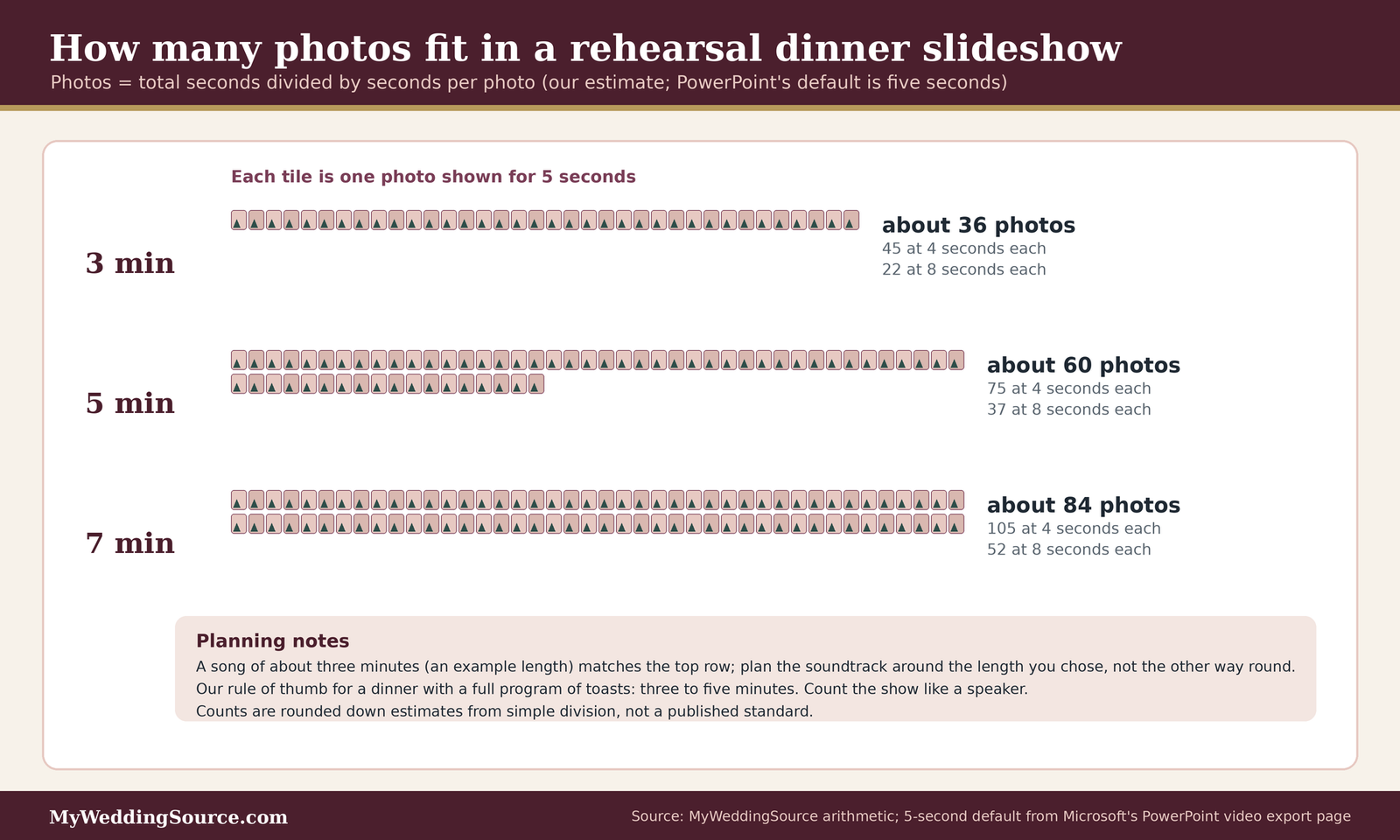
The math is simple: the number of photos equals total seconds divided by seconds per photo. Microsoft’s PowerPoint export defaults to five seconds per slide when there is no recorded timing, which gives a useful starting point. At five seconds per photo, a three-minute show holds about thirty-six photos, a five-minute show holds sixty, and a seven-minute show holds about eighty-four. Those are our own estimates from that default, and you can change them if you prefer a slower or faster pace.
Match the length to the room
Our suggestion, not a published rule, is to aim for three to five minutes at a rehearsal dinner with a full program of toasts, and to allow longer only when the rehearsal dinner slideshow is the main event of the evening. If your speeches already fill most of the time, shorten the rehearsal dinner slideshow to the length of one song. A rehearsal dinner slideshow that ends while people still want more is usually better received than one that ends as attention fades.
Sequence, captions, and pacing
Order gives the photos a shape. Without it, even good pictures can feel like a pile.
Pick a simple structure
Three structures work for most couples. A chronological show moves from childhood to the present. A two-sided show alternates between the two of you, so each family sees their person and then the other, and ends with photos of you together. A theme-based show organizes photos around a subject such as travel, food, or pets. Choose the one that makes sense with the photos you have, and avoid mixing all three.
Use captions sparingly
A short caption such as a year or a place can help guests who do not know the story, but too many captions slow the pace and clutter the screen. Use captions where they add information and let the picture carry the rest. If your show is silent or the room is loud, captions matter more because guests cannot rely on narration. Make text large enough to read from the back of the room, which you can check during the test run described later.
Keep a few photos in reserve
Slideshows sometimes need a quick edit at the last minute, for example if someone asks that a photo be removed. Keep a short list of reserve photos at the same aspect ratio so you can swap one without redoing the timing. Our guide on sorting photos without getting overwhelmed describes a workflow for managing large photo folders that also works for this.
Music licensing for a rehearsal dinner slideshow
This is the part that surprises people. A song is easy to download and easy to drop under a rehearsal dinner slideshow, and it can feel like a private family moment. The legal picture is more complicated, and it is worth understanding in outline before you choose a soundtrack. We are not lawyers, and nothing here is legal advice. We have tried to describe what the primary sources say and to be clear about what they do not answer.
One song, two copyrights
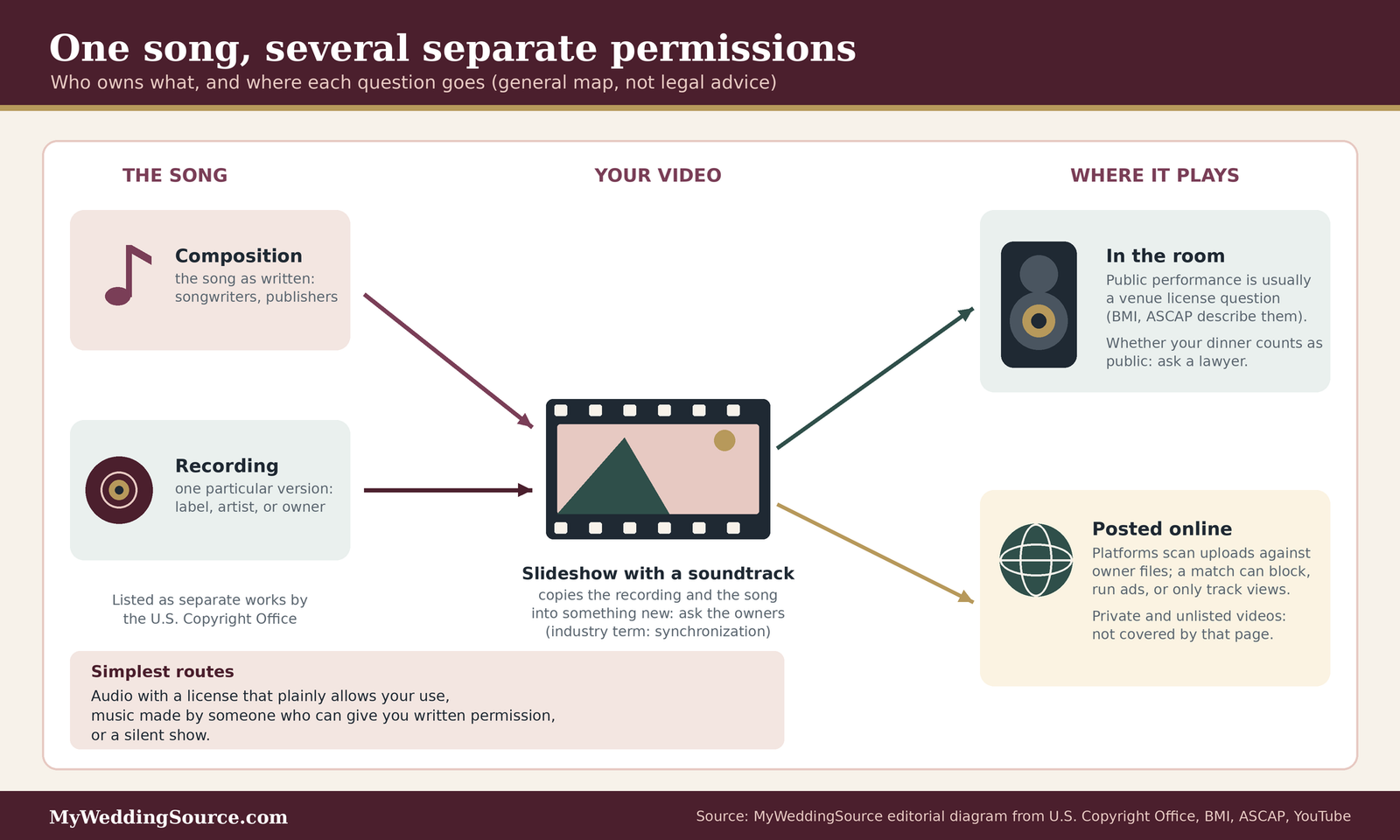
A recorded song usually contains two separate pieces of copyrighted work, and that is the first thing to understand.
The composition and the recording
The U.S. Copyright Office lists musical works, including any accompanying words, and sound recordings as separate categories of copyrightable works. In plain terms, the song as written belongs to its songwriters and publishers, and a particular recording of it belongs to whoever owns that recording, often a record label. A cover version by a different artist is a different recording of the same composition. Because the two are separate, permission for one does not automatically cover the other.
What the owner controls
According to the Copyright Office’s overview, the owner of a copyright can control making copies, preparing derivative works, distributing copies, and, for certain kinds of works, public performance. For sound recordings, the owner controls public performance by digital audio transmission. Copyright protection for works created on or after January 1, 1978 generally lasts for the author’s life plus seventy years, with different rules for works made for hire and for older works. In practice, that means most songs you would choose for a family slideshow are still protected.
Who grants which permission
Different permissions come from different places, and mixing them up is a common source of confusion.
Performance permission usually belongs to the venue
Performing music in front of a group is one thing, and copying it into a video is another. For public performance, performing rights organizations such as BMI and ASCAP sell licenses to businesses and venues. BMI says that when copyrighted music is performed in any establishment, permission must come from the copyright owner, and that a BMI license covers public performance of music in its catalog, including live music, DJs, and background music. ASCAP describes its license as a way for a business, venue, or event to use its members’ music properly. Those licenses are held by venues and event operators, so whether a restaurant or event space has one, and what it covers, is a question for the venue.
Matching music to pictures is a separate step
Putting a recording under a set of photos involves copying the recording and the song into a new video. The Copyright Office lists copying and creating derivative works among the owner’s rights. The music industry usually calls the permission for pairing music with moving images a synchronization license. We did not find a government page that defines the term, so we use it here as industry shorthand, and we cannot tell you that a venue’s performance license covers it. Both BMI and ASCAP pages we reviewed describe public performance, and neither page we read says it covers the work of making the video.
Why you cannot answer this from the song’s popularity
A famous song is not easier to clear than an obscure one, and nothing in the sources we read treats popularity as a form of permission. Treat popularity as a reason to check, not a reason to relax.
Is a private dinner “public”?
Many couples assume a family dinner is private, so the performance rules do not apply. The statute gives a more detailed answer, and it is worth reading in its own words.
What the statute says
Section 101 of the Copyright Act says to perform a work “publicly” means to perform it at a place open to the public, or at any place where a substantial number of people outside a normal circle of a family and its social acquaintances is gathered. It also covers transmitting a performance to such a place or to the public. A rehearsal dinner at a restaurant or event venue involves a place that may be open to the public at other times, and it involves a guest list that may be mostly family and close friends. How those two facts combine is a legal question that we cannot answer for you, and we have not found a source that settles it for dinners like this.
The exemption that exists, and its limits
Section 110(4) says that certain performances of nondramatic musical works are not infringement if they have no commercial purpose, no one is paid to perform or promote, and either no admission is charged or the proceeds go only to educational, religious, or charitable purposes. It also says the owner can file a written objection at least seven days before the performance. We mention it because couples sometimes hear about it, but we cannot tell you that it covers a recorded soundtrack in a video, and the same section is about the performance, not about the copying involved in making the video. If you rely on any exemption, ask a lawyer who handles copyright.
Fair use is not a shortcut
Fair use is the doctrine people most often reach for, and the Copyright Office’s own description is more cautious than the version that circulates online.
What the Copyright Office says
The Office describes fair use as the unlicensed use of protected works in certain circumstances, and it lists four factors courts consider: the purpose and character of the use, including whether it is commercial or nonprofit and whether it is transformative; the nature of the work, where creative works such as songs are less likely to support fair use than factual ones; the amount and substantiality of what is used, which can weigh against fair use even for a small portion if it is the heart of the work; and the effect on the market for the original. It says there is no formula guaranteeing that a particular percentage or amount can be used without permission, and that noncommercial uses are more likely to be found fair but not automatically so.
What that means for a thirty-second clip
Because the Office says there is no safe percentage, the common idea that a short clip is always fine is not supported by the source we read. A wedding slideshow is personal and noncommercial, which helps, but it uses an entire creative work as a backdrop, which weighs the other way. We are not predicting an outcome. The Office also says it cannot give individuals specific legal advice about fair use, so for a particular use the answer comes from a lawyer or from permission.
Safer music routes for a rehearsal dinner slideshow
Having laid out the risks, here are the routes that avoid most of them. None is perfect, and each has trade-offs.
Audio you have explicit permission to use
The cleanest path is music whose license plainly allows your use, with the terms in writing.
Libraries and licensed tracks
YouTube’s Audio Library offers royalty-free production music and sound effects, described by YouTube as copyright-safe, that you can search by genre, mood, and duration and download as MP3 files. Its help page says YouTube cannot give legal guidance and does not make claims about use outside its own platform, so read the license on each track and keep a copy. Other libraries and subscription services exist, and each has its own terms, which is why we recommend reading the license text before you download anything, and especially before you pay.
Creative Commons tracks
Some artists publish music under Creative Commons licenses. Creative Commons describes four building blocks: attribution (credit the creator), share-alike (adaptations carry the same terms), noncommercial (not primarily for commercial advantage or money), and no-derivatives (no adapted versions). For a rehearsal dinner slideshow, attribution means you may need credits on screen or in the file notes, and no-derivatives can matter if you plan to trim or edit the track. The license deed for the specific track is the authority, so read it and save a copy.
Music made for you, or by you
Another route is a track nobody else owns a claim to, which sometimes takes a little effort and a friend with a guitar.
A friend or family member performs
If a relative or friend records a song or instrumental, you can ask them for written permission. The catch is that if they perform a song written by someone else, the composition is still owned by its songwriter, so the safest version is an original piece or a piece the performer owns. An email that says who recorded it, what the track is, and that you may use it in the rehearsal dinner slideshow is a simple record to keep.
Public domain: check the recording too
The Copyright Office FAQ says works in the public domain can be used without permission, and a work is in the public domain if its copyright has expired or it never met the requirements for protection. Because a composition and a recording are separate works, an old song can be public domain while a recent recording of it is protected. If you use a public domain composition, use a recording you have permission to use, such as one you or a friend make yourself.
If the video will go online
Some families upload the rehearsal dinner slideshow so relatives who could not attend can watch. That adds a separate set of rules.
How platform matching works
YouTube explains that every upload is scanned against a database of files submitted by copyright owners, and a match produces a Content ID claim. Depending on the owner’s settings, the claim can block the video, run ads on it, or only track viewership, and the action can differ by country. The page we read does not say how private or unlisted videos are treated, so we cannot tell you they are exempt.
A cautious habit
If you plan to share the video, use music you have clearly cleared, or share a version without the soundtrack. Keep the version you play in the room and the version you post as separate files so that you can change one without affecting the other.
Questions to take to a lawyer or the venue
You may decide that the stakes are low and use your judgment, or you may want a firm answer. In either case, these are the questions worth asking.
For a copyright lawyer
Ask whether a private dinner in a particular venue counts as a public performance, whether a recorded slideshow soundtrack needs a separate license, and whether sharing the video online changes the analysis. Bring the song list and the venue’s name, and ask what the lawyer would do in your position.
For the venue or event operator
Ask whether the venue holds public performance licenses, which organizations they cover, and whether the venue has a policy on guest-supplied recorded music. The answer helps you understand the venue’s side, though it does not replace permission to copy a recording into a video.
Technical setup for a rehearsal dinner slideshow
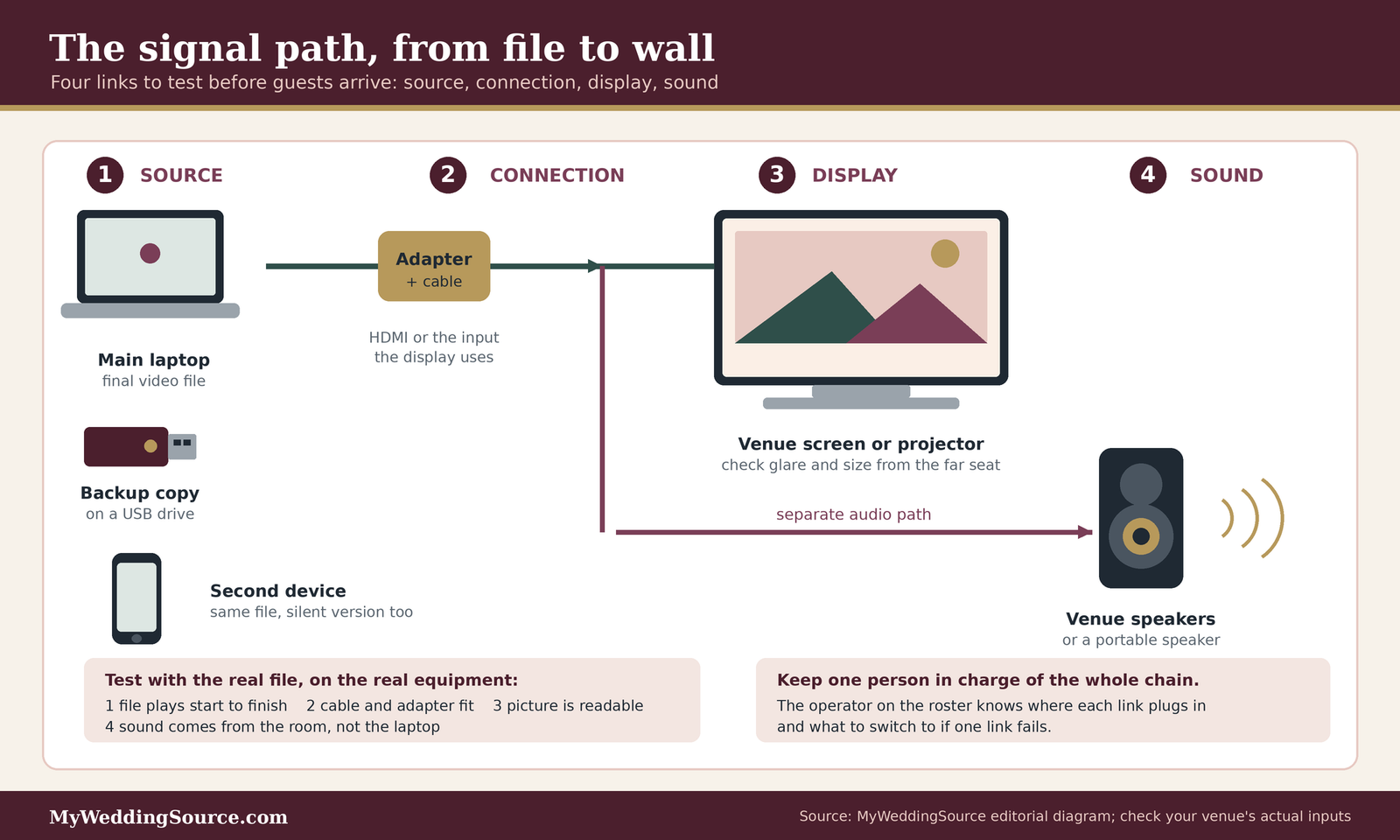
Most slideshow problems at dinners are not creative problems. They are a missing adapter, a file that will not open, audio that comes out of a laptop speaker instead of the room, or a screen that is too dim to see with the lights on. Think of the setup as a chain with four links: the source, the connection, the display, and the sound. The advice in this section is practical planning, based on the manufacturer help pages we cite where they apply and on our own checklist-style suggestions where they do not.
Source and file format
The most reliable slideshow is a single video file that plays the same way on any device. A presentation file that depends on fonts, linked media, or a particular app is more likely to change when you move it.
Export to one video file
Microsoft’s PowerPoint can export a presentation as a video. Its help page lists four quality levels: 4K at 3840 by 2160, Full HD at 1920 by 1080, HD at 1280 by 720, and a small standard option at 852 by 480, and says the video can be saved as an MP4 or WMV file. Microsoft also notes that the export can take a long time for long or complex presentations, that viewers do not need PowerPoint installed to play the result, and that some content, such as media linked from older versions, is not included. For a dinner, Full HD is a sensible default in our view, since it matches most televisions and projectors without making a very large file.
Apple Photos and other tools
Apple’s Photos app on a Mac can export a rehearsal dinner slideshow as a video, with a choice of standard definition at 480p or high definition at 720p or 1080p, and Apple recommends the high-definition options for a high-definition TV or display. Other editing apps work the same way in principle. Whatever tool you use, export once at the resolution you have chosen, watch the entire file start to finish, and give it a clear name such as the date and the word “final.”
Presenting live from slides
Sometimes a live deck is the right choice, for example when someone wants to advance slides by hand or add a last-minute photo. It is fine, as long as you know what can go wrong.
Google Slides and offline access
Google’s help pages explain that to use Slides without a connection, you need to turn on offline access ahead of time, using Chrome or Microsoft Edge, with the Google Docs Offline extension, and not in a private browsing window. You need an internet connection to switch it on, you can mark specific files as available offline, and only one account per browser profile can have offline access enabled. Do this at home, then test by turning off Wi-Fi and opening the file. If that works, a venue with a weak connection is much less of a threat.
Presenter keys that matter
Google’s keyboard shortcut page lists the keys that help during a live show: Ctrl+F5 on Windows or Command+Enter on Mac to start presenting, the arrow keys to move between slides, B or the period key for a black screen, W or the comma key for a white screen, and Esc to stop. A black screen is useful if you need to pause the show for a toast or an announcement without leaving a photo frozen on the wall. Write the two or three keys you need on a card and tape it to the laptop.
Display and sound at the venue
The venue’s equipment decides what you can do, so find out early what it has. Rooms vary widely, from a restaurant private room with a wall-mounted television to a rented hall with nothing but walls.
Screens, projectors, and light
A television is usually easier than a projector in a room that cannot be darkened, because it is brighter, and a projector is better for a large room with controllable lighting. If the venue has neither, our guide on wedding projection screens covers sightlines, light, and screen size in more detail. Whatever you use, look at the screen from the farthest seat and from the seat nearest the side wall, and check whether glare from windows or lamps washes out the picture.
Sound is a separate system
Laptop speakers are made for one person at a desk. If the room is more than a few tables wide, use the venue’s speakers, a separate portable speaker, or the DJ’s system if one is booked. Ask who controls the volume and where the audio cable plugs in. Our wedding audio and lighting checklist covers the vocabulary for talking to a venue about sound, and our DJ questions guide lists what to ask if a DJ is involved.
Adapters and cables
Laptops and phones have different ports than the television. Ask the venue what input the display uses, then bring the matching cable and adapter, and a spare. A small bag with an HDMI cable, a power strip, a spare charger, and the adapters you need is cheap insurance, and we suggest keeping it with the laptop and not in a car.
Backups and the file you bring
Assume something will fail, and plan so that failure costs you thirty seconds and not the rehearsal dinner slideshow.
Two devices, two formats
Bring the video file on a laptop and on a second device, such as a USB drive or a phone, and if you can, in two forms: the exported video and a version without music. If the audio route fails, you can play the silent version with a short spoken introduction. If the whole display fails, a few printed photos on a table still carry the idea.
Keep a source folder
Store the final photos, the project file, the music license or permission note, and the exported video in one folder, and copy that folder to a second place. The Library of Congress notes that digital materials can be harder to preserve than physical ones, which is a reason to keep more than one copy of the work you put hours into.
The rehearsal role roster and run sheet
A rehearsal dinner slideshow looks effortless when several people each know one job. It looks stressful when the couple is doing all of it. A roster is a short list of roles with a name beside each one, and it prevents the common situation in which everyone assumes someone else is handling the laptop.
The roster
Our roster has six roles. In a small family gathering one person may hold two of them, but each role should have a name next to it before the dinner.
| Role | What this person does | Needs to know |
|---|---|---|
| Collector | Gathers photos and permissions from both families and keeps the folder | Deadline, file sizes, whose photos are used |
| Editor | Builds the sequence, sets the timing, exports the final file | Target length, aspect ratio, music choice |
| Operator | Starts and stops the file at the dinner and controls volume | Where the cable plugs in, what to do if it fails |
| Host or emcee | Introduces the slideshow in one or two sentences | The run sheet and the speaker order |
| Venue contact | Confirms screen, sound, power, and lighting with the venue | Setup time, who has the keys, rules on lights and volume |
| Backup holder | Carries the second copy and the cable bag | Which file is the backup, where to meet if the first copy fails |
Choose people who will be seated nearby
The operator should sit close to the equipment and not be someone who is also giving a toast. A cousin or friend who enjoys technology is usually a good fit. The host can be any comfortable speaker, but should not be the person who is also running the laptop.
Write the roster on one page
Put the names, phone numbers, and the venue’s contact on one page and give copies to the operator, the host, and your planner or day-of coordinator. The point is not formality, it is that the person standing by the projector at the key moment knows who to call.
The run sheet
A run sheet tells everyone what happens in what order. The rehearsal dinner slideshow fits into it as one line among several. The times below are an illustration, not a recommendation.
| Time | What happens | Who | Notes |
|---|---|---|---|
| Two hours before | Operator arrives, connects, tests picture and sound | Operator, venue contact | Check volume and focus from the back of the room |
| One hour before | Backup copy tested on a second device | Backup holder | Leave the cable bag at the operator’s table |
| Guests arrive | Silent loop or music playlist, if the venue permits | Operator | Optional; no soundtrack avoids the music question |
| After dessert | Host introduces the slideshow | Host | One or two sentences, not a speech |
| Right after | Operator dims lights if needed and starts the file | Operator | Wait for the host’s cue |
| End of show | Operator pauses on a black frame, lights up | Operator | Move straight to the next toast |
Place it where the room is ready
The best placement is when guests have finished eating, so no one is trying to cut a steak in the dark. Many couples put the rehearsal dinner slideshow after dessert or between toast groups. Our guide on rehearsal dinner toasts discusses where published schedules place speeches, and we suggest using that order as the frame and then adding the rehearsal dinner slideshow as one more item.
Plan the handoff
The host’s introduction should be short, and it should end with a clear cue so the operator knows when to start. Agree on a visual signal, such as a nod, as well as a spoken one, because in a noisy room the operator may not hear a quiet announcement.
How the roster fits the wider weekend
The rehearsal dinner slideshow is one item in a longer weekend, and its roster may overlap with other roles.
Share people across events
The same cousin who runs the laptop at the rehearsal dinner may be asked to run the welcome gathering or the reception. If so, tell them the whole plan at once and agree who covers each event. Our wedding weekend event planning guide helps lay out the events and the people who attend them.
Reuse the work
If you plan to show a related video at the reception, build the rehearsal dinner version as a shorter, more private cut, and keep the master file so you can adjust it. Be aware that music cleared for one use may not be cleared for another, so keep the permission note alongside each version.
The test run and the day-of checklist
The single most useful thing you can do is play the final file on the real equipment before the dinner. Most failures show up in the first thirty seconds of a test.
The test run
Schedule a test with the venue at least a day ahead if possible, or arrive early on the day.
What to check in the room
Play the whole file, not just the first few seconds. Look for sync problems, black bars at the edges, text that is too small, and sound that cuts out. Check that the room lights can be dimmed and brought back, and that nobody has to stand in front of the screen to start the file. Walk to the farthest table and listen.
What to check on the device
Confirm the laptop is plugged in, that sleep and notifications are turned off, and that the screen resolution matches the display. A notification popup on a wall-sized screen during a photo of a grandparent is a memorable mistake. Turn off alerts, close other programs, and put the laptop in do-not-disturb mode before the guests arrive.
The day-of checklist
Keep the list short enough to use in a hurry.
Before guests arrive
Operator tests picture and sound, backup holder checks the second copy, host confirms the introduction, and the venue contact confirms the lights. Place the cable bag where the operator can reach it. Tell the servers when the rehearsal dinner slideshow will happen so service can pause.
During the show
The operator watches the screen and the host. If the file stops, the operator says nothing and starts the backup, and the host fills the gap with a sentence. If the audio fails, play the silent version and let the host read a caption or two. Treat a failed file as an ordinary hiccup and keep the evening moving.
What to do when something breaks
A few common failures have simple fixes.
The picture works but the sound does not
Check the volume on the laptop and the speaker, check that the correct audio output is selected, and check the cable. If it still fails, play the silent version, and ask the venue contact to look at the sound system after the dinner.
Nothing displays
Try a different input on the display, reseat the cable, and then try the backup device with the same cable. If the display itself is the problem, move to the printed photos and the host’s spoken thanks. Keep the mood light, since guests rarely mind a short delay if the people at the front are calm.
What a rehearsal dinner slideshow costs
Slideshows are usually inexpensive compared with other wedding items, but a few costs are easy to overlook.
What this actually costs
We did not find reliable published price figures for rehearsal dinner slideshows, so we are not giving a dollar amount. Here is where money can appear: licensed music or a music subscription, scanning services for old prints, a rental fee or technician charge if the venue provides audiovisual equipment, a portable speaker or adapters if you buy them, and any overtime if the evening runs past the contracted end time. Free options exist, including YouTube’s royalty-free Audio Library, but free does not mean free of terms, so read each license. Ask the venue to put any equipment or technician charge in writing before you agree. If you want a broader view of how small costs fit into your plan, our wedding budget calculator helps you track them.
Where costs hide
Small line items can add up, so it helps to list them early.
Venue and equipment charges
Some venues include a television or a sound system, some charge for them, and some do not have them at all. Ask what is included, what is extra, and whether a technician must be present. Our wedding vendor contract guide explains how to read the clauses that cover equipment and overtime.
Time costs
Building a good slideshow takes hours of collecting, scanning, sorting, and testing. If the work falls on one relative, say thank you and keep the scope small. A short, well-made show is a better gift to the room than a long one that exhausted its maker.
Buying versus borrowing
Equipment you only need once is often better borrowed or rented.
Borrow first
A friend may have a portable speaker, a projector, or an adapter you can borrow for the weekend. Ask early, label what you borrow, and return it promptly.
Rent when the room needs it
If the venue has no display, a rental may be more practical than buying. Ask the rental company about delivery, setup, and pickup times so the equipment does not arrive after guests do. Our wedding rental planning checklist lists the questions that apply to rentals in general.
Questions to ask before the dinner
- Does the room have a screen or television, and what input does it use?
- Who controls the room lights and the sound, and can the lights be dimmed?
- Can we test the file on the real equipment before the dinner, and at what time?
- Does the venue hold public performance music licenses, and does it have a policy on guest-supplied recordings?
- Is there a technician fee or equipment charge, and is it in the contract?
- What is the end time, and what happens if the program runs long?
- Who is allowed to touch the equipment, and who do we call if it fails?
- Where should the cable bag and backup laptop sit during dinner?
Questions for the venue, the planner, and the people helping
Asking the right person saves time. The venue knows the room, the planner knows the schedule, and the helpers know their own limits.
Questions for the venue or restaurant
Start with what the room already has, and then ask about rules.
Equipment and access
Ask about the display, the inputs, the speakers, the power outlets, and when you can get in to test. Ask whether you may bring your own equipment, and whether there are fees for doing so. A restaurant may have a television but not allow outside audio.
Rules and timing
Ask about noise limits, dimming the lights, when service pauses, and whether the room has another booking right after yours. A tight turnover can make a long slideshow a problem.
Questions for a planner, DJ, or day-of coordinator
If you have one, a planner or DJ can usually answer most technical questions and may bring equipment.
What they can handle
Ask whether they will run the file, whether they bring screens or speakers, and whether they charge extra for a rehearsal dinner. Some DJs and planners are booked only for the reception and may need to be booked separately for the night before.
How to hand over the file
Give the file in advance, and ask them to play it during a test. Confirm which format they prefer, and give them both versions, with and without music, so they can choose.
Questions for the family members
Photos and music are personal, so ask in a way that makes it easy to say no.
Photo permission
Ask people before you include their photos, especially photos of children or of people who are not coming. A simple message such as “I would like to include this photo, is that all right?” is enough. Offer to swap it if they hesitate.
Sensitive photos
Some photos may remind people of divorce, loss, or conflict. Ask a parent or a trusted relative to look over the sequence, and cut anything that might cause pain. The point of the evening is to bring families together, and no photo is worth a difficult moment.
Edge cases and quiet fixes
Real families and real venues rarely follow the template. These situations come up often enough to plan for.
Family situations
Photos tell stories, and some stories are complicated.
Divorced or blended families
If parents are divorced or remarried, make sure photos are balanced and that no one is placed beside an unwelcome face. A show that is organized around you, and not around the parents, avoids most of the difficulty. Our guide on organizing family photo combinations when parents are divorced discusses the same tact in a different setting.
Remembering people who have died
Many couples include a photo or two of relatives who have died. A single, quiet frame, placed with care, often works better than a long tribute. Tell the host and the close family beforehand so no one is surprised.
Accessibility and comfort
A rehearsal dinner slideshow should be something everyone in the room can enjoy.
Vision and hearing
Use large text, strong contrast, and enough time on each photo for guests to take it in. If some guests are deaf or hard of hearing, captions on spoken or sung content help, and a printed summary of the order of events is a welcome addition. Google’s Slides help notes that its caption feature is limited to English, so check any tool you plan to depend on. Our guide on accessible wedding guest experience covers other ways to include everyone.
Light and motion
Fast transitions, flashing effects, and sudden bright frames can be uncomfortable for some guests. Use simple fades or cuts, and avoid rapid flashing. We offer this as a courtesy suggestion and not a medical rule.
Practical hiccups
Plans change, and so do rooms.
The room is changed at the last minute
If the venue moves your dinner to another room, check the screen and sound again. Keep the cable bag and the backup ready, and let your venue contact handle the conversation.
The program runs late
If speeches run long, shorten the rehearsal dinner slideshow or move it to another moment, such as cocktail hour at the reception, and tell the operator. A show that starts after the guests are tired is less likely to land, so trim it before you play it. Our guide on wedding vendor timeline can help you see where there is slack.
FAQ: rehearsal dinner slideshow
Planning and length
How long should a rehearsal dinner slideshow be?
Our suggestion is three to five minutes when toasts also fill the evening. This is a planning rule of thumb, not a published standard. At five seconds per photo, which is the PowerPoint default, that is about thirty-six to sixty photos. Shorten it further if speeches are long or the room ends early.
Do we need a rehearsal dinner slideshow at all?
No. It is optional, and some couples prefer a silent photo display or no photos at all. A rehearsal dinner slideshow works best when you have meaningful photos, a working screen, and someone happy to assemble it. If any of those is missing, a simple alternative is usually the better choice.
Music and licensing
Can we use any song for our rehearsal dinner slideshow?
Not automatically. A song usually involves two copyrights, the composition and the recording, and the Copyright Office says there is no formula guaranteeing a fixed amount can be used without permission. Safer routes include tracks with a clear license, original music, or no soundtrack. For a firm answer, ask a copyright lawyer.
Does the venue’s music license cover our slideshow?
We cannot say. Performing rights organizations such as BMI and ASCAP describe licenses for public performance by venues and events. The pages we read do not say those licenses cover copying a recording into a video. Ask the venue what its license covers, and ask a lawyer about the video itself.
Technical setup
What file format and resolution should we use?
An exported video file is the most dependable choice. PowerPoint can export MP4 at Full HD, which is 1920 by 1080, and Apple Photos can export at 720p or 1080p. In our view, Full HD suits most screens. Watch the whole file on the venue’s equipment before the dinner.
What if the venue has no screen?
Ask early. You can borrow or rent a projector or television, or skip the screen and use printed photos on a table. Our guide on wedding projection screens covers sightlines and light. Confirm power outlets and any rental delivery times before the day, so equipment does not arrive after guests.
Sharing and sensitivity
Can we post our rehearsal dinner slideshow online?
You can, but music adds risk. YouTube says every upload is scanned against owner-submitted files, and a match can block the video, run ads, or only track views. The page does not say how private videos are treated. Share a silent version or use cleared music.
What if a guest does not want a photo included?
Remove it without fuss. Ask permission before including photos of children or people who are not attending, and offer to swap any photo that causes concern. Keep a few reserve photos at the same aspect ratio so a replacement takes a minute and does not disturb the timing.
Your next steps
Decide the plan
Set the length and the placement
Choose a length that fits your toasts, and place the rehearsal dinner slideshow after dessert or between toast groups. Add it to your run sheet next to the other speakers, and tell the venue and your helpers the plan. Our wedding planning checklist helps you keep the larger plan in view.
Choose a music route
Pick one of three paths: audio with a clear license, original music, or no soundtrack. Write down which path you chose and keep any license or permission note with the project folder. If you are unsure about a song, ask a lawyer before you build the show around it.
Build and test
Assign the roster
Put a name beside each of the six roles, and share the one-page roster with the operator, host, and planner. If you also need a celebration for the rest of the weekend, our guides on a rehearsal dinner at a brewery and a rehearsal dinner for a destination wedding cover how those settings change what is possible.
Test on the real equipment
Play the final file at the venue, from the back of the room, with the real lights and sound. Fix what you find, then copy the final file to the backup device and put the cable bag with the operator.
Sources & methodology
How we built this guide
What we relied on
This guide draws on the U.S. Copyright Office’s pages on fair use, copyright basics, and frequently asked questions, the text of the Copyright Act, public pages from the performing rights organizations BMI and ASCAP, YouTube and Creative Commons help pages, Microsoft, Apple, and Google support pages for exporting and presenting slideshows, and Library of Congress guidance on photographs. Where a statement comes from a company’s help page, we say so, because that page describes the company’s own product. The photo counts and time budgets are our own arithmetic, built on the PowerPoint default of five seconds per slide, and they are estimates. The roster, the run sheet, and the diagrams are our own planning templates and not published standards. We reviewed these pages on November 12, 2026, and rules, products, and help pages change, so check the current versions before you rely on them.
What we did not do
We did not test any software, and we did not review any music license in full. We are not lawyers, and this guide is not legal advice. Whether a particular rehearsal dinner counts as a public performance, whether a venue’s license covers a recorded soundtrack, and whether a particular use is fair use are legal questions that depend on facts we do not have. We did not find reliable published price figures for rehearsal dinner slideshows, so we do not give any.
Source list
Government and legal sources
- U.S. Copyright Office, More Information on Fair Use: https://www.copyright.gov/fair-use/
- U.S. Copyright Office, Copyright Basics (Circular 1): https://www.copyright.gov/circs/circ01.pdf
- U.S. Copyright Office, Frequently Asked Questions about copyright: https://www.copyright.gov/help/faq/faq-definitions.html
- U.S. Copyright Act, Title 17, Chapter 1 (sections 101, 106, 110): https://www.copyright.gov/title17/92chap1.html
- Library of Congress, Caring for Your Photographs: https://www.loc.gov/preservation/care/photo.html
- Library of Congress, Personal Digital Archiving: https://www.digitalpreservation.gov/personalarchiving/
Music licensing, platform, and software sources
- BMI, Licensing: https://www.bmi.com/licensing
- ASCAP, Music Users: https://www.ascap.com/music-users
- YouTube Help, Using Content ID: https://support.google.com/youtube/answer/2797370
- YouTube Help, Audio Library: https://support.google.com/youtube/answer/3376882
- Creative Commons, About the licenses: https://creativecommons.org/share-your-work/cclicenses/
- Microsoft Support, Turn your presentation into a video: https://support.microsoft.com/en-us/office/turn-your-presentation-into-a-video-c140551f-cb37-4818-b5d4-3e30815c3e83
- Apple Support, Export photos, videos, slideshows, and memories in Photos on Mac: https://support.apple.com/guide/photos/export-photos-videos-slideshows-and-memories-pht6e157c5f/mac
- Google Docs Editors Help, Use Google Docs, Sheets, and Slides offline: https://support.google.com/docs/answer/6388102
- Google Docs Editors Help, Keyboard shortcuts: https://support.google.com/docs/answer/1696717